
Business Card Scanner
Scan business cards & screenshots into contacts
instantly
Snap a business card — or screenshot any web page — and AI reads it for you. A LinkedIn profile, a company team page, an online directory, an email signature, a conference attendee list: if it shows contact details, capture the image and ContactsPlus turns it into a complete, saved contact. That’s real power to pull data from anywhere online — no typing, no lost cards, no copy-and-paste, no shoebox full of paper. Every detail captured, enriched, and synced everywhere.
At a glance
The ContactsPlus business card scanner uses AI to turn any business card, badge, screenshot or photo into a structured, saved contact in seconds — with no manual typing.
- Snap, upload or drag-and-drop any card or image
- Screenshots work too — a LinkedIn profile, a team page, an email signature or any web page showing contact details
- AI extracts name, company, title, phone, email and more
- Saved contacts sync to Google, iCloud and Outlook
- Available in the iOS, Android and web apps
Scan & save new contacts
From card to contact in three taps
1 · Capture the details
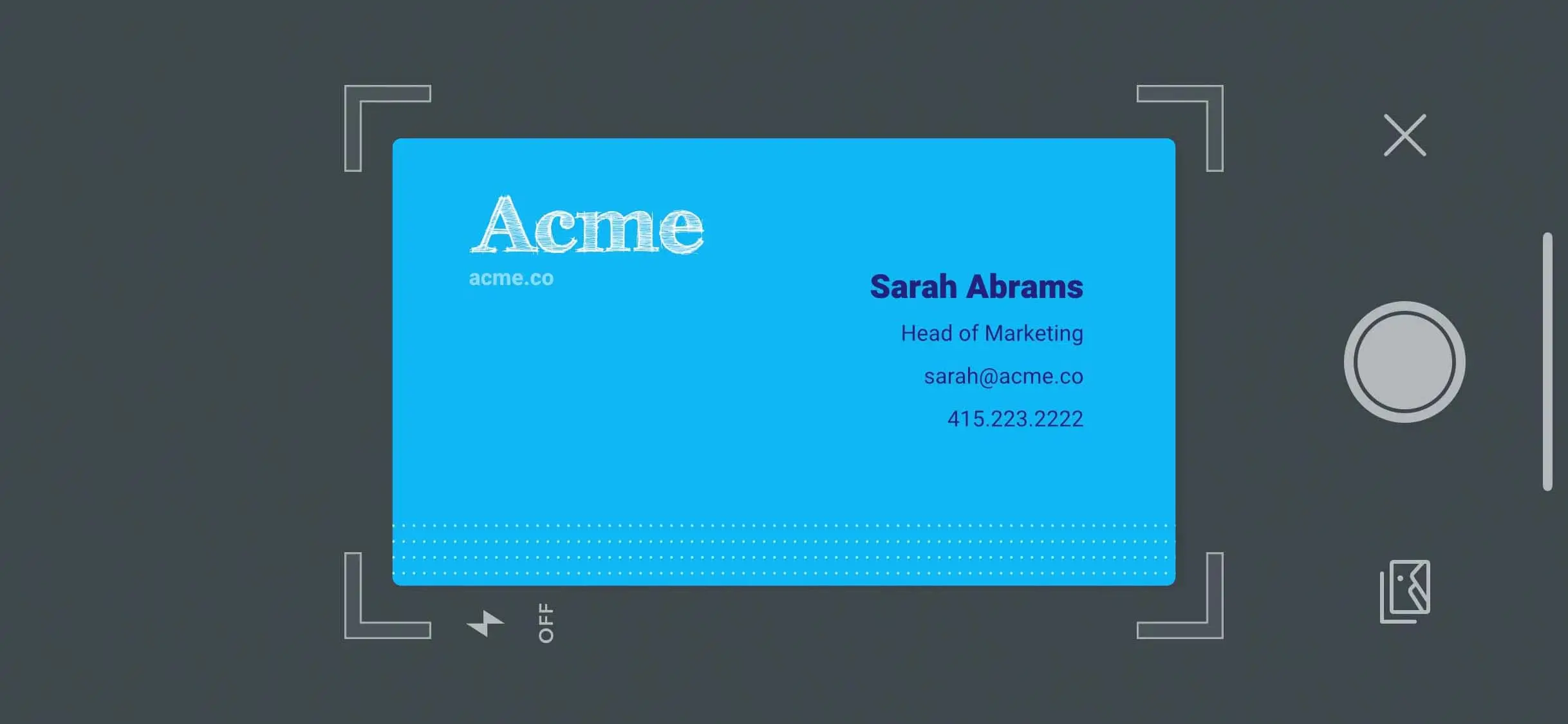
Take a photo on your phone, upload a screenshot from your computer, or pick any image with the contact details on it.
2 · AI reads every field
Name, company, title, phone, email, address — detected and mapped to the right field automatically.
3 · Save & enrich
Review, save, and ContactsPlus enriches the contact and syncs it to every connected account.
What makes our scanner different
Not just a photo — a finished contact
Most scanners stop at a picture. ContactsPlus turns the scan into a complete, enriched, synced record.
Instant
Transcription happens in seconds — capture a stack of cards at an event without slowing down.
Works on any image
A business card, a conference badge, an email signature — or a screenshot of a LinkedIn profile, a team page or an online directory. If it shows contact details, the scanner can read it.
Enriched
The new contact is filled out with social profiles and a photo, then synced to every account you use.
Already working in ChatGPT, Claude or Grok? Connect it to ContactsPlus, hand it a photo of the card there, and it sends the details over for you to approve.
Not just cards
Screenshot anything with contact details — it works the same way
This is the part most scanners can’t do. The scanner isn’t matching a business-card template — it reads contact details out of any image. So the fastest way to save someone is often to screenshot the page you found them on and let AI do the rest. No retyping, no copy-and-paste between tabs, no half-finished contact you meant to come back to.
A LinkedIn or social profile
Screenshot the profile and the name, title and company come across together — the way you actually meet people now.
A company team or About page
Capture the section of the page showing the person you need. Useful when there’s no card and no contact form worth filling in.
An email signature
Signatures carry the direct dial and the exact job title that never make it onto a printed card. Screenshot it and keep the lot.
A conference badge or attendee list
Photograph the badge instead of hunting for a card, or screenshot the attendee list and work through it afterwards.
An online directory listing
Association directories, member lists, speaker line-ups, exhibitor lists — anywhere contact details are published as text on a page.
A message, DM or forwarded intro
When someone sends details over WhatsApp, Slack or email, screenshot the message rather than retyping it into a new contact.
If the details are legible in the image, the scanner can read them — and whatever it reads becomes a real, enriched, synced contact, exactly like a scanned card.
Every field, not just a name
What the scanner reads off a card
A photo of a card is only useful if the details end up in the right places. The scanner separates each piece of information and maps it to its own field, so the contact is searchable and usable the moment you save it.
Name & job title
First and last name kept separate, plus the job title and any credentials printed alongside it — so sorting and searching by name actually works later.
Company
The organisation name, captured as its own field rather than buried in a note, so you can find everyone you met from the same company in one search.
Every phone number
Cards routinely carry three or four numbers. Each one is captured and labelled — mobile, office, direct line — instead of collapsing into a single field.
Email addresses
Personal and shared addresses are both picked up, so you keep the direct route to a person as well as the general inbox.
Postal address
Street, city, region and postcode, split into the standard address fields your other apps expect when the contact syncs across.
Websites & social handles
URLs and handles printed on the card are captured too — and enrichment fills in the public profiles that were never printed on it.
Scanned once, everywhere after
From a card into the tools you already use
A scan that only lives inside the scanning app is a dead end. Every contact you scan into ContactsPlus flows straight out to the accounts and tools you actually work in.
Google, iCloud & Outlook
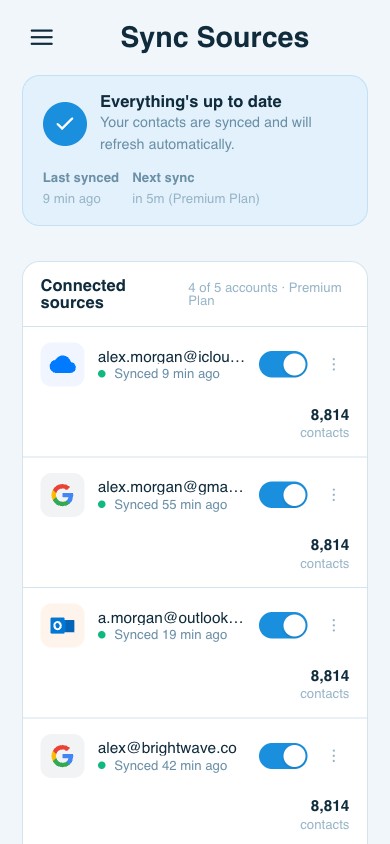
Scanned contacts sync to every account you’ve connected, so the card you scanned on your phone is on your laptop and in your webmail without a second thought. See how contact sync works.
Thousands of apps via Zapier
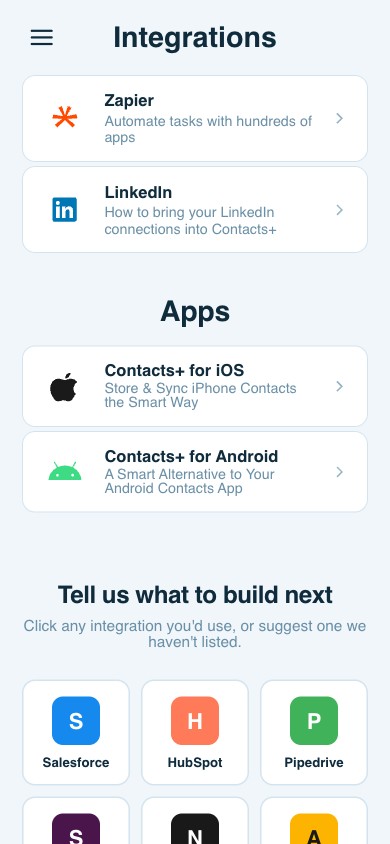
A new scanned contact can trigger a Zap — pushing it into Pipedrive, Slack, Google Sheets or any of the thousands of apps Zapier supports, with no code. See the Zapier integration.
Export to a spreadsheet
Need the cards as a list? Export your contacts as CSV or vCard at any time and open them in Excel, Google Sheets or Numbers — a clean way to hand an event’s worth of scans to someone else.
Scan thousands of cards
Clear the shoebox for good
Whether it’s one card after a coffee or a stack from a conference, every scan lands in the same clean, searchable, always-synced address book.
Included in your plan
Start scanning free
Free includes a few scans to try it out. Premium includes 100 cards/month and Teams includes 100 cards/user/month — see the full pricing.
Choosing a scanner
What to look for in a business card scanner app
Most business card scanner apps do the easy part well enough. The differences that matter show up a week later, when you go looking for the person you scanned.
Does it save into a real address book?
Some scanners keep cards in their own private list. That’s a second address book to maintain, and it will drift out of date. Look for a scanner that writes into the contacts you already use.
Does it sync to more than one account?
If it only pushes to one Google account, every card you scan is stranded there. Scanning into an address book that syncs Google, iCloud and Outlook together means one scan lands everywhere.
What happens when the card is a duplicate?
Scan a stack of cards from an event and some of those people are already in your contacts. Without duplicate detection you quietly build a mess. ContactsPlus can find and merge duplicates across accounts.
Does it fill in what the card left out?
A card carries what fitted on the card. Contact enrichment adds publicly available details like social profiles and a photo, so the record is more useful than the paper was.
Can you get your data back out?
Check before you commit. ContactsPlus lets you export your contacts as CSV or vCard at any time — scans included — so nothing you capture is locked in.
Is there something to try before paying?
You should be able to scan a real card and see the result before spending anything. The free plan includes a few scans for exactly that.
Questions
Frequently asked questions
Does it only work on business cards?
No. The scanner reads any image that has contact details — a business card, a conference badge, an email signature, or a screenshot of a web page like a LinkedIn profile, a company team page, or an online directory. If the information is legible, AI can transcribe it into a contact, so you can capture data from almost anywhere online.
How accurate is the transcription?
AI maps each detail to the right field — name, company, title, phone, email, and address — and shows you the result before you save, so you can confirm or tweak anything in a tap.
Where can I scan from?
Wherever you are. On your phone, take a photo with your camera; on your computer, upload a screenshot or any saved image. Either way, the contact lands in the same synced address book.
How many cards can I scan?
Free includes a few scans to try it out. Premium includes 100 cards per month, and Teams includes 100 cards per user per month. See the pricing page for details.
What happens to a scanned contact?
It’s saved to your address book, enriched with publicly available details like social profiles and a photo, and synced to every account you’ve connected — so it’s complete and everywhere instantly.
Is there a free business card scanner app?
Yes — the ContactsPlus free plan includes a few scans so you can try the scanner on a real card before paying for anything. Premium adds 100 cards per month. See the pricing page.
Can I scan business cards into a spreadsheet?
Yes, in two ways. Export your contacts as CSV or vCard at any time and open the file in Excel, Google Sheets or Numbers. Or use the Zapier integration to send each newly scanned contact straight into a Google Sheet automatically.
Can scanned cards go into my CRM?
Through Zapier, yes. A new contact in ContactsPlus can trigger a Zap that creates or updates a record in Pipedrive, Google Sheets, Slack or any of the thousands of apps Zapier connects to — without writing code.
What if I scan someone who is already in my contacts?
That happens constantly with event stacks. ContactsPlus can find and merge duplicates across all your connected accounts, so a re-scanned card updates the person you already have instead of creating a second copy. See removing duplicate contacts.
Do I need my phone, or can I scan on a computer?
Either. On your phone you photograph the card with the camera; on your computer you upload a saved image or screenshot. Both land in the same synced address book, and the apps are available for iOS, Android and the web.
Never lose a business card again.
Scan, save, and enrich every contact — free to start.
Try scanning free