
Contact Hygiene: How to Audit and Clean a Contact Database in 30 Minutes

Key Takeaways:
- A dirty contact database creates friction, embarrassing errors, and missed opportunities.
- Common signs of an unhealthy database include duplicates, stale job titles, missing fields, and orphaned contacts.
- Contacts+ automates the hardest parts: duplicate detection, merging, and AI-powered enrichment.
- A structured 30-minute audit, run quarterly, is all it takes to maintain a healthy database.
- Tagging and segmenting your contacts transforms a cleaned database into an actionable tool.
If your contact list were a desk, what would it look like right now?
For most professionals, the honest answer is “cluttered.” Three entries for the same person. An old colleague is still listed at a company they left two years ago. Contacts with no names, just phone numbers from a conference three years back. A former client whose email now bounces.
A dirty contact database isn’t just annoying, it’s actively working against you. Duplicates create confusion. Stale data leads to embarrassing outreach. Missing context means a missed opportunity. And as your network grows, the mess compounds.
The good news: you don’t need a weekend project to fix it. A focused 30-minute audit, done quarterly, will keep your contact database in shape, and tools like Contacts+ can automate the most tedious parts entirely.
Here’s the full playbook.
Signs Your Contact List Is Unhealthy
Before you start cleaning, it helps to know what you’re looking for. Here are the most common symptoms of a contact database that’s overdue for attention:
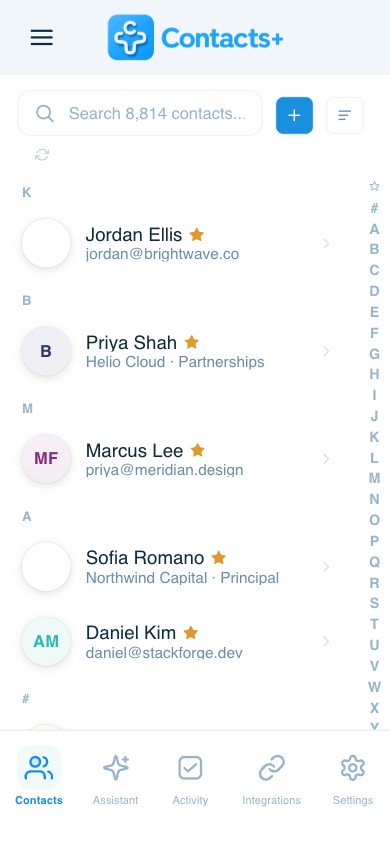
- Duplicates. The same person appears multiple times, often with slightly different information: one entry from your phone, one from Gmail, one from a LinkedIn sync. Duplicates make it impossible to know which record is current.
- Outdated job titles and companies. People change jobs constantly. If you’re relying on contact data that’s a year or two old, you may be reaching out to someone at the wrong company entirely, or missing the fact that they’ve landed somewhere that’s newly relevant to you.
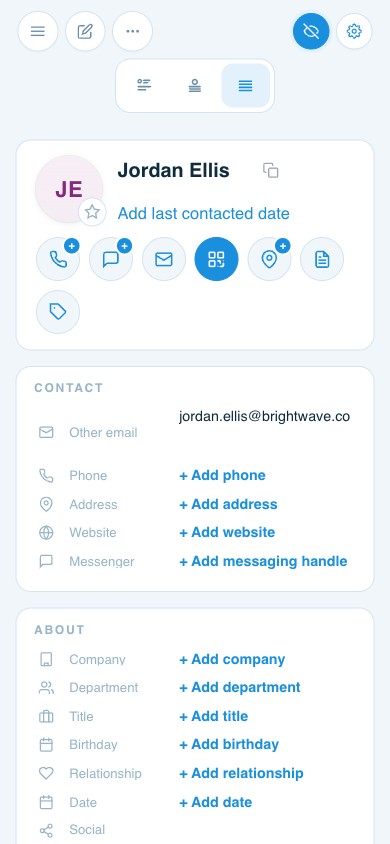
- Missing fields. Contacts with only a phone number, only an email, or no company listed are hard to act on. Incomplete records reduce the usefulness of your entire database.
- Orphaned contacts. People you have no memory of, no context for, and no reason to keep. These clog your search results and dilute the value of your database.
- No tags or organization. If all of your contacts are in one undifferentiated pile, you can’t segment, filter, or act on them effectively.
Sound familiar? Let’s fix it.
Step 1: Run a Duplicate Sweep (5 Minutes)
Duplicate contacts are the single most common source of contact database chaos, and they’re also the easiest to fix, especially with the right tool.
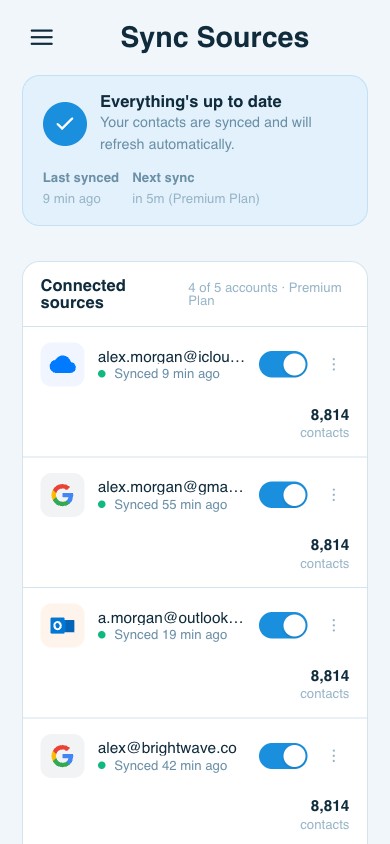
Contacts+ automatically detects duplicate contacts across all of your connected accounts (Gmail, iCloud, Exchange/Office 365, and more) and lets you merge them with a few taps. It identifies duplicates by name, phone number, email, and other signals, so you don’t have to manually compare entries.
If you’re doing this manually, sort your contacts alphabetically and scan for repeat names. When you find duplicates, decide which record is the “master,” usually the most recently updated one, and consolidate the information.
After deduplication, your list should be noticeably shorter and cleaner.
Step 2: Flag and Update Stale Records (10 Minutes)
Next, scan for contacts whose information may be out of date. Focus on people you care about, clients, partners, investors, collaborators, not every entry in your database.
Key signals of a stale record:
- Job title or company that you know has changed
- Email addresses that have bounced recently
- Phone numbers you’ve never successfully reached
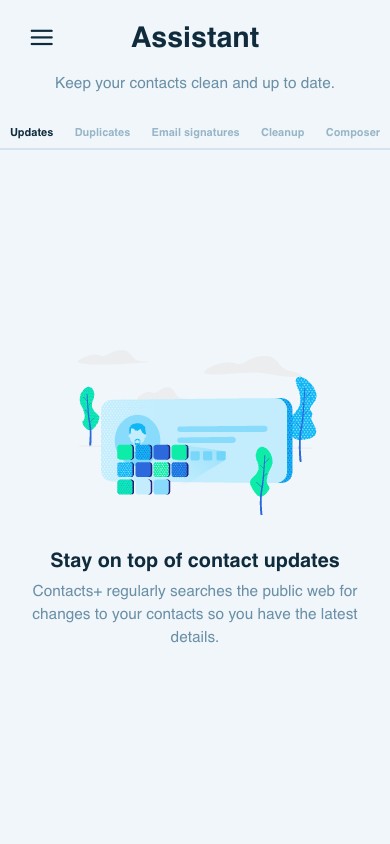
Contacts+ helps here too: its AI enrichment automatically searches for publicly available information to update job titles, companies, locations, and social profiles. Premium users get daily updates; basic users get monthly scans. This passive enrichment catches changes you’d otherwise miss.
For contacts that the AI can’t update automatically, make a quick note to verify during your next interaction. You don’t have to fix everything today, just flag it.
Step 3: Archive or Delete Orphaned Contacts (5 Minutes)
Every database has contacts you genuinely don’t need anymore: former vendors you’ll never work with again, event attendees you never followed up with, contacts saved by accident.
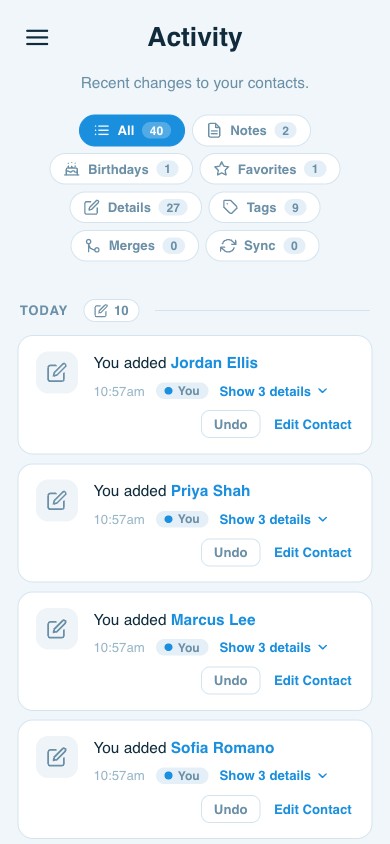
Go through your recent “added” contacts and ask for each one: Do I have a reason to stay in touch with this person? If the answer is no and there’s no context attached, it’s safe to remove them.
Be selective here. When in doubt, keep the contact and add a note about how you met. You can always archive rather than delete if you’re uncertain.
Step 4: Add Tags and Organize (7 Minutes)
Once your database is cleaned up, spend a few minutes tagging contacts in a way that makes them actionable.
Good tagging systems are simple and consistent. A few categories might be:
- Relationship type: client, partner, investor, advisor, vendor, personal
- Deal or project stage: active, warm, past, pipeline
- Source: met at [event], referral from [person], inbound
- Priority tier: VIP, active, dormant
In Contacts+, tags are searchable and filterable, so a tagged database becomes a powerful tool for segmentation and outreach. You can quickly pull up every “warm lead in commercial real estate” or every “VC contact introduced at a16z” with a simple search.
Don’t try to tag everything perfectly. Focus on your top 100 or 200 contacts and work outward from there.
Step 5: Set Up a Quarterly Audit Routine (3 Minutes)
The best contact audit is the one you actually repeat. Spend the last three minutes of your session setting a recurring calendar reminder: once per quarter, block 30 minutes for contact hygiene.
Add a checklist to the event:
- Run duplicate sweep in Contacts+
- Review AI-enriched updates for accuracy
- Archive stale contacts
- Tag any new contacts added since the last audit
- Review top 50 contacts for relationship gaps (who haven’t I talked to in 90+ days?)
Quarterly maintenance prevents the kind of database decay that requires a weekend to fix. Thirty minutes, four times a year, is all it takes.
The Business Case for Clean Contact Data
Clean contact data isn’t just aesthetically satisfying. It has real business implications.
For real estate investors, a clean database means your deal pipeline is accurate, and your outreach reaches the right people. For venture capitalists, it means you don’t accidentally pitch a founder at a company that pivoted two years ago. For administrators, it means the executive never walks into a meeting with the wrong information about who they’re meeting.
Contacts+ was built for professionals who understand that their network is an asset and, like any asset, requires maintenance to hold its value. The platform handles the hardest part automatically, so your 30-minute audit can focus on decisions only you can make.
Your contacts list is only as valuable as its accuracy. Clean it up, keep it current, and it will pay dividends for years.
Frequently Asked Questions
How often should I audit my contact database?
Quarterly is the sweet spot for most professionals. It’s frequent enough to catch significant changes (job moves, email changes) before they cause problems, but not so frequent that it becomes a burden.
What’s the fastest way to find duplicate contacts?
Contacts+ automatically detects and flags duplicates across all connected accounts. It’s the fastest approach, far more efficient than manually scrolling through an alphabetical list.
Should I delete old contacts or archive them?
When in doubt, archive rather than delete. Contact relationships can be dormant for years and then suddenly become relevant. Archiving keeps the data without cluttering your active list.
How do I know if a contact’s information is out of date?
Contacts+ AI enrichment scans publicly available data to automatically update job titles, companies, and social profiles. Look for changes that surface in your enrichment feed, and pay attention when emails bounce, or calls reach a different voicemail greeting.
Is it worth tagging all my contacts?
You don’t need to tag everyone. Start with your top 100-200 contacts and the people you’ve met in the last 90 days. A partially tagged database is far more useful than an untagged one.
Related articles
From ContactsPlusMerge duplicate contacts across every account at onceSee duplicate removal →


Put your contacts to work
Sync, enrich, and clean your entire address book with ContactsPlus — free to start.
Sign up free ← Back to all articles