
Switching
A ContactBook alternative that covers every account
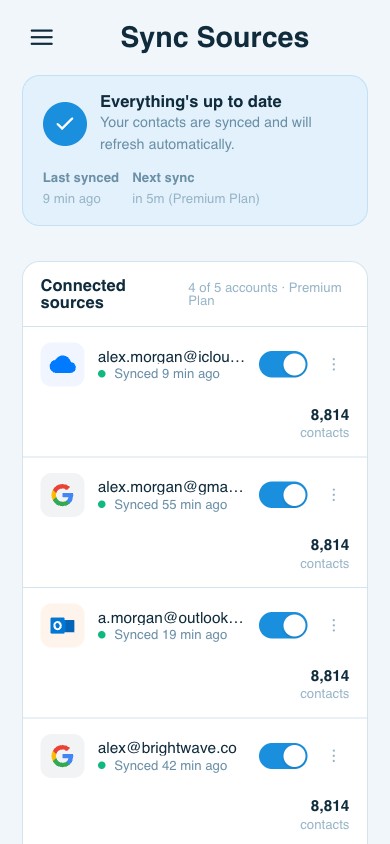
ContactBook syncs one thing: Google, on its top plan, every few hours. ContactsPlus keeps Apple iCloud, Google and Microsoft right at the same time, both ways, as changes happen.
At a glance
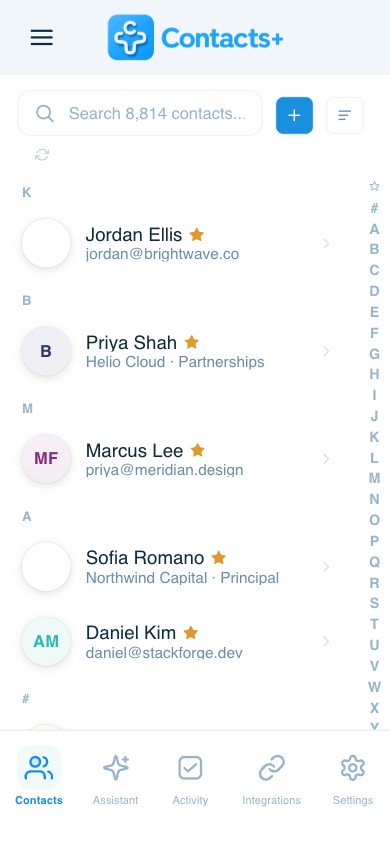
ContactBook alternative: ContactsPlus syncs Apple iCloud, Google and Microsoft both ways, merges the same person from different accounts into one, and adds tasks, documents and email-signature reading.
- Apple iCloud contacts actually sync, they don’t just arrive once
- Microsoft works both ways, it isn’t an import that then goes quiet
- Changes go through as they happen, not on a timer
- Free forever plan, so you can run both side by side before you cancel
Why people move
What usually prompts the move
Your iPhone contacts never arrive
ContactBook can import from iCloud on mobile, but no plan actually syncs it. So the copy starts going stale the second it lands.
Outlook is a one-way import
Connect a Microsoft account and the contacts copy over once. Nothing you change after that goes back, so the two lists slowly drift apart.
A few hours is too long
Someone fixes a client’s number at nine and a colleague is still ringing the old one at lunchtime. ContactsPlus sends the change straight through.
The cleanup never happens
Duplicates across accounts. Missing job titles. Nowhere to put the signed contract.
Moving over
How to switch, step by step
Your contacts already live in Google or Microsoft, so there’s not much to actually move.
1. Export first, while you still can
Take a CSV or vCard out of ContactBook and keep the file somewhere. It costs nothing, and it means you can always change your mind.
2. Connect the same accounts
Sign in to ContactsPlus and connect the same Google and Microsoft accounts. The contacts come straight in. You don’t have to touch a file.
3. Add the iPhone side
Connect the iCloud account your phone uses. It joins the same list instead of sitting next to it.
4. Merge and tidy
Once several accounts are in one place, the duplicates show up. Run detection, merge them, then let enrichment fill in the blanks.
Nothing gets taken out of Google, Microsoft or Apple. ContactsPlus syncs with them. Disconnect later and every account is exactly where you left it.
What you gain
Four things you get on the other side
A clean list is just the start. These four are what actually save you time afterwards.
Email signatures, read for you
ContactsPlus reads the signature at the bottom of emails you already get, and fills in the job title, company and direct line for you. Nothing to copy, nothing to type. The records just get better while you work. Premium and Teams.
Tasks that reach your calendar
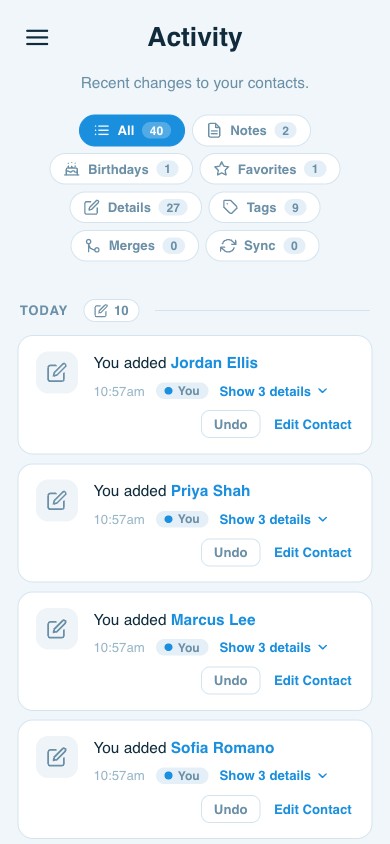
Give a follow-up a date and time and it turns up in your calendar, whether that’s Google, Outlook or Apple. Snooze it, cut a long list down to just today, and get a morning email of what’s due.
Team tasks, with real permissions
Put a task in a shared address book and the whole team can see it. Hand it to a colleague, decide who’s allowed to touch it, and see who finished it and when. Everyone works off one list instead of chasing each other. Teams.
One document, many contacts
Attach a contract, proposal or scan to the person it belongs to, and to everyone else involved. One file can sit on as many contacts as you want. It’s stored once and only counts once against your storage, no matter how many people it’s on. On every plan.
Your data
What comes across, and what to check
Comes across cleanly
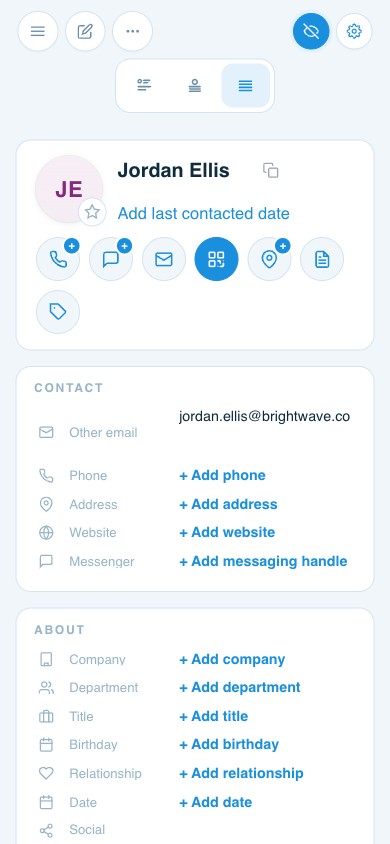
Names, every phone number and email address, postal addresses, company and job title, photos, birthdays, notes, websites and social profiles. Custom fields stay custom fields. They don’t get squashed into a note.
Worth a look afterwards
Groups. They come over as tags or shared address books, not as groups, so decide up front how you want things sorted. If something only exists in a shared group, export it before you disconnect.
Nothing is one-way
You can export the lot as CSV or vCard whenever you want, on any plan, free included. Moving in shouldn’t trap you.
Questions
Frequently asked questions
How do I move my contacts out of ContactBook?
Two ways. Export a CSV or vCard and import it, or just connect the same Google and Microsoft accounts and let ContactsPlus read them straight from there. No files involved.
Will I lose my shared groups?
Sharing moves to a shared address book on Teams, with roles and shared notes. Rebuild the groups as tags or books once, and everyone works from the same list afterwards.
What do I gain by switching?
Apple iCloud, two-way Microsoft sync, changes that go through as they happen instead of on a timer, duplicates merged across accounts, email signatures read for you, and documents you can attach to several people at once.
Can I try it before I cancel?
Yes. ContactsPlus is free forever on the basic plan, so run both for a week before you cancel anything. Export from ContactBook first either way. It costs nothing and means you can change your mind.
Does my team keep working while we switch?
Yes. Contacts stay in Google and Microsoft throughout, so nobody loses access at any point. Connect ContactsPlus alongside, get the shared address book set up, then retire the old tool once everyone is on it.
What happens to duplicates when everything merges?
The duplicates were always there. They were just hidden in separate accounts, and putting everything in one list is what makes them visible. ContactsPlus finds them, shows you each match, and merges only when you say so, keeping every phone number and email from both copies.
One address book. Every account.
Apple iCloud, Google and Microsoft in one list, with the duplicates gone. Free to start.
Try ContactsPlus free