
Attach files to contacts
Attach files to contacts
and keep them where they belong
Attach a contract, proposal or scan to any contact in ContactsPlus — then find it again from the contact, or from one Documents library that rolls up everything in your account. No more hunting through email for the version you signed.
The full feature on every plan — 5 MB of storage on Free, 10 GB on Premium. See plans
At a glance
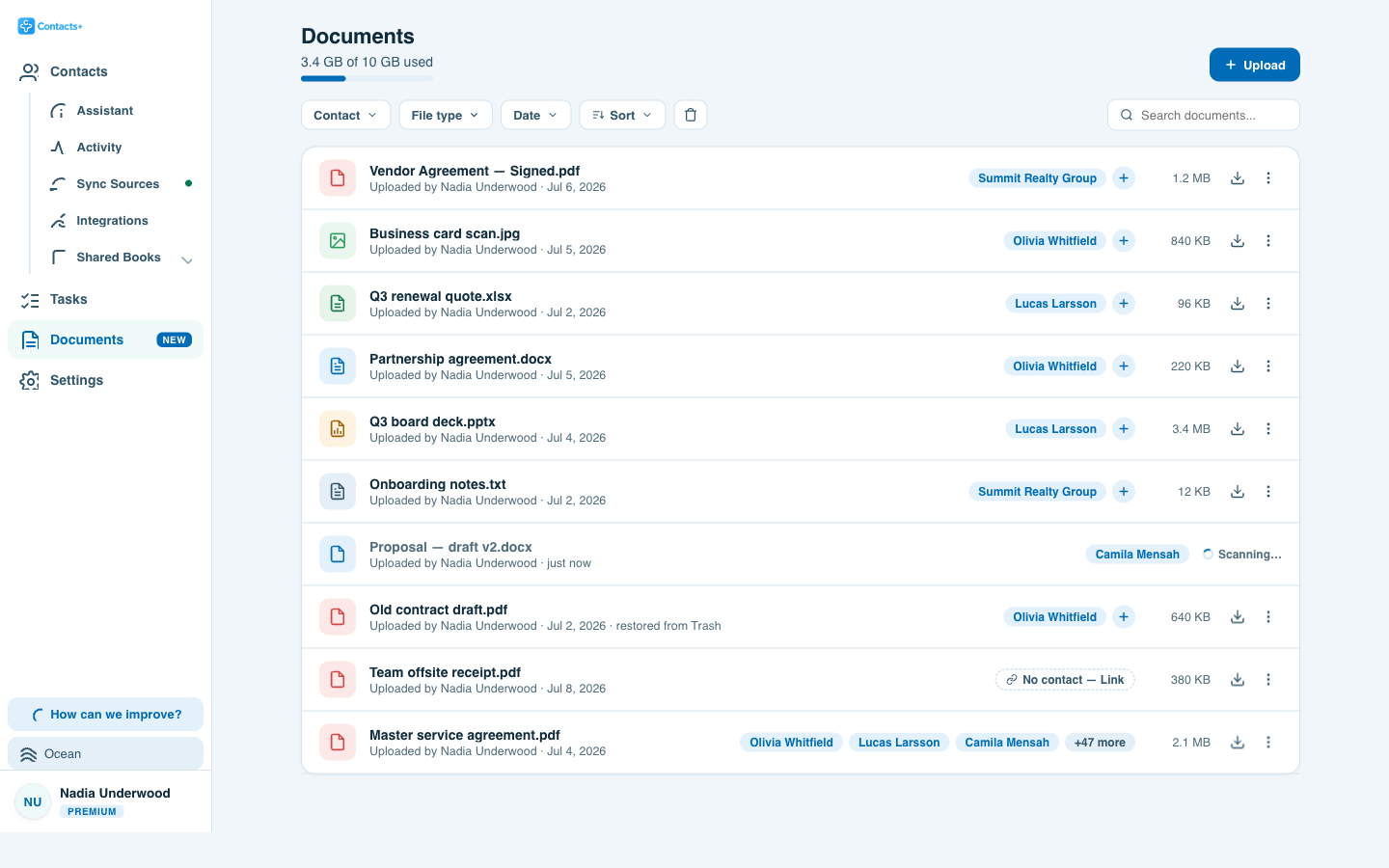
Contact documents in ContactsPlus let you attach files to any contact and browse them all in one account-wide Documents library. A single file can be linked to many contacts at once, filtered by contact, file type or date, previewed and downloaded in place, and recovered from a 30-day Trash. Every upload is virus-scanned before it becomes available.
- Attach files to a contact from the contact record, in any of the three layouts
- One file, many contacts — stored once, counted once, visible on each
- An account-wide library with filters by contact, file type and date, plus sort
- PDF, Word, Excel, PowerPoint, images and TXT/RTF/CSV, up to 25 MB per file
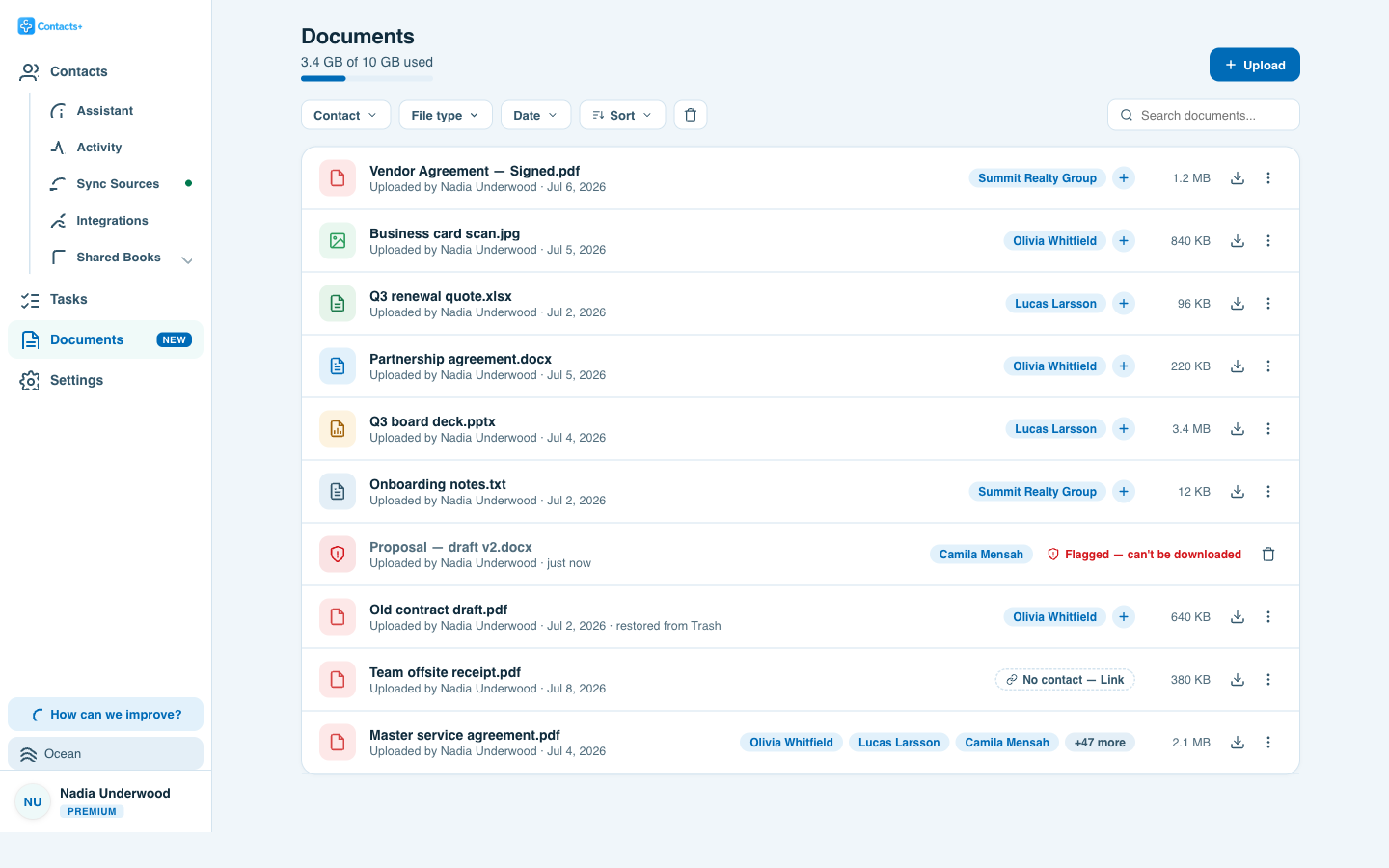
- Virus-scanned on upload, with anything flagged clearly quarantined
- 5 MB free, 10 GB on Premium, pooled across a team — and a 30-day Trash
Where the file belongs
Attach a file to any contact
A contact record is where you already look for someone’s phone number and last note. It should be where the signed agreement lives too.
Drag it in, and it’s on the record
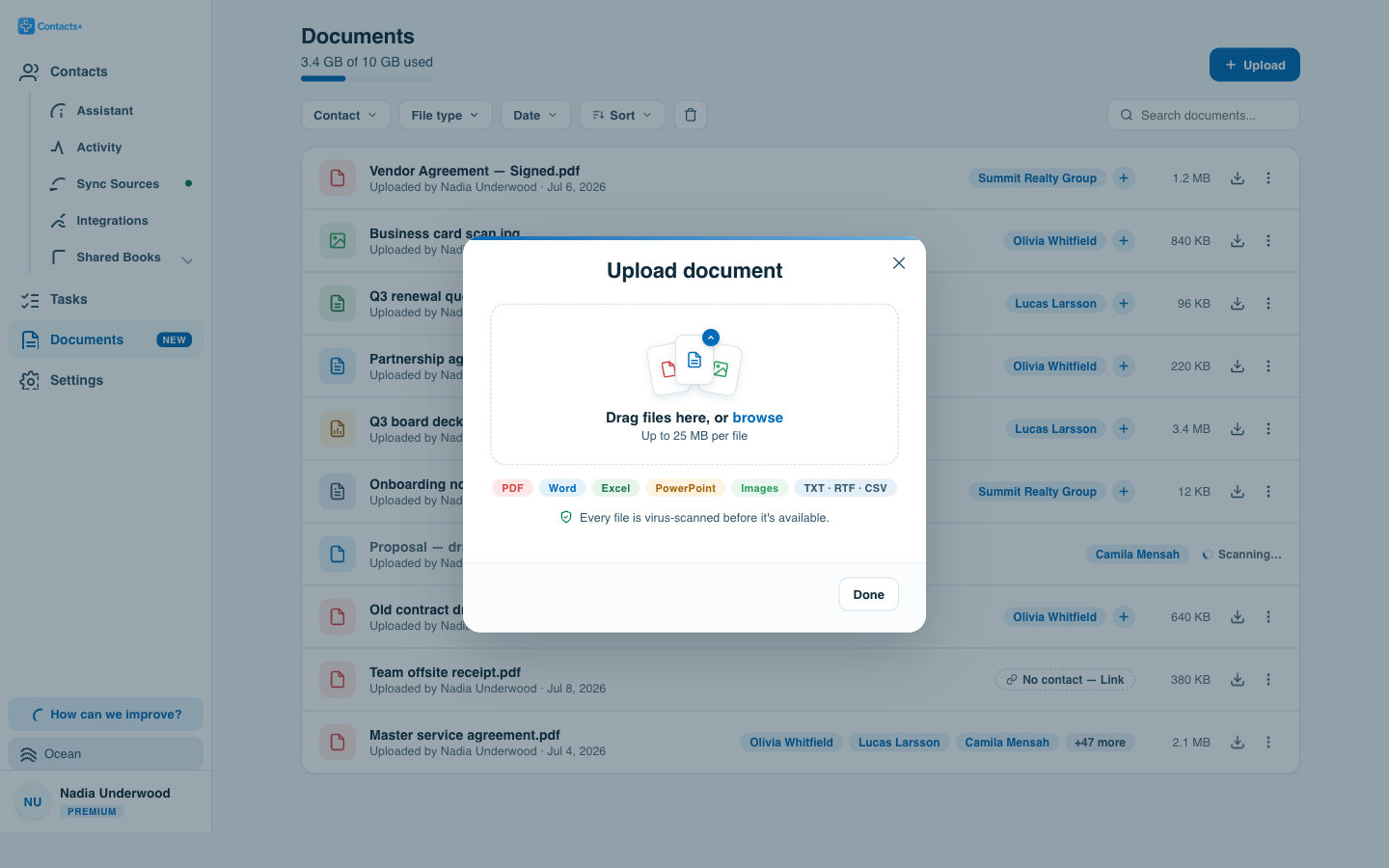
Open a contact, use the Documents action, and drop the file in. It shows up in a Documents section on that person’s record — and in your account-wide library at the same moment, so you never have to decide where to “file” it.
Preview and download without leaving the page. Rename, re-link or move a file to Trash from its row menu.
The part other address books miss
One file, many contacts
Most tools make you pick one owner for a document, then upload it again for everyone else. A signed agreement rarely belongs to one person.
Link it everywhere it’s relevant
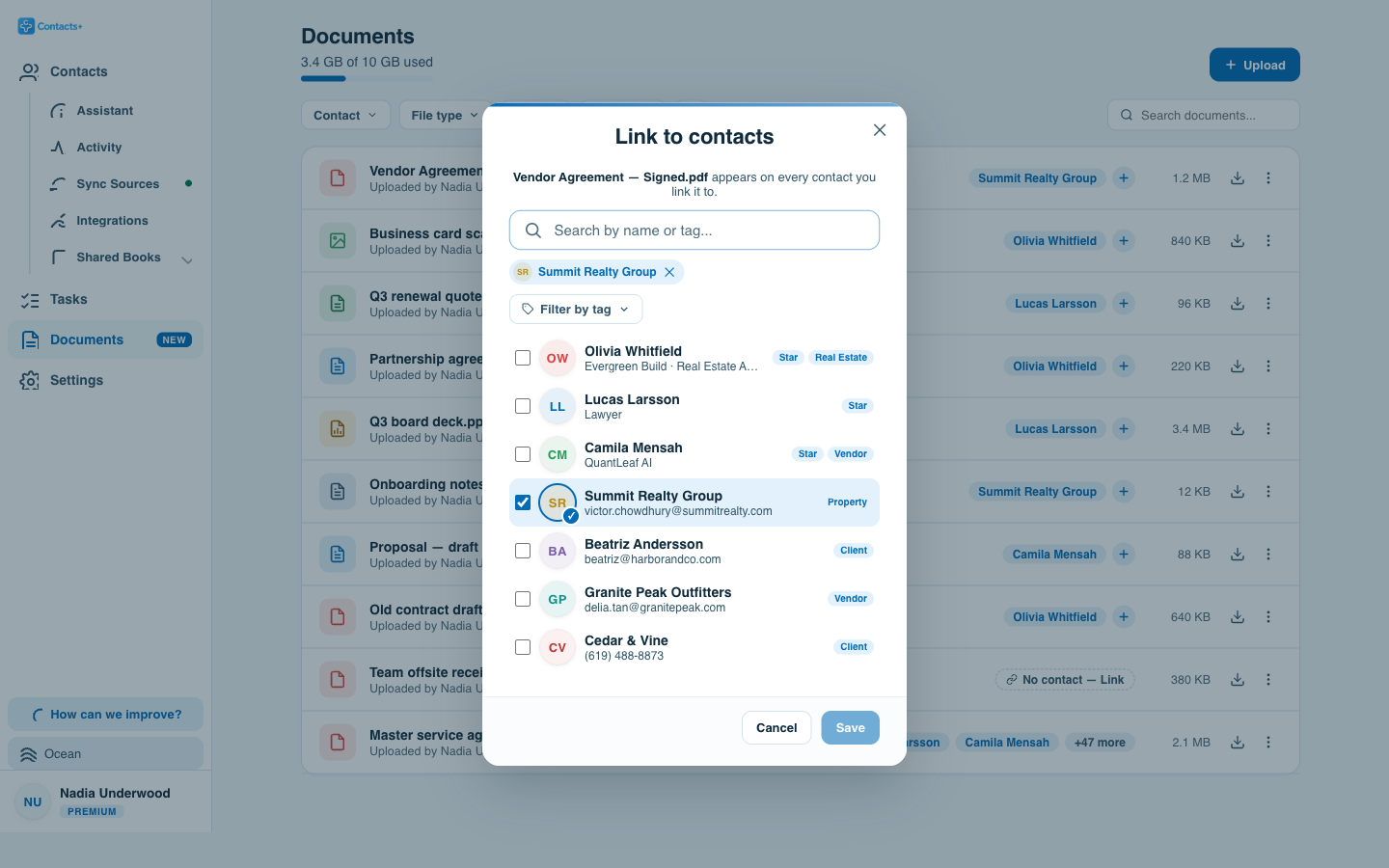
Link one file to as many contacts as you like — the client who signed it, the broker who brokered it, and the company record it sits under. Open any of them and the same document is there.
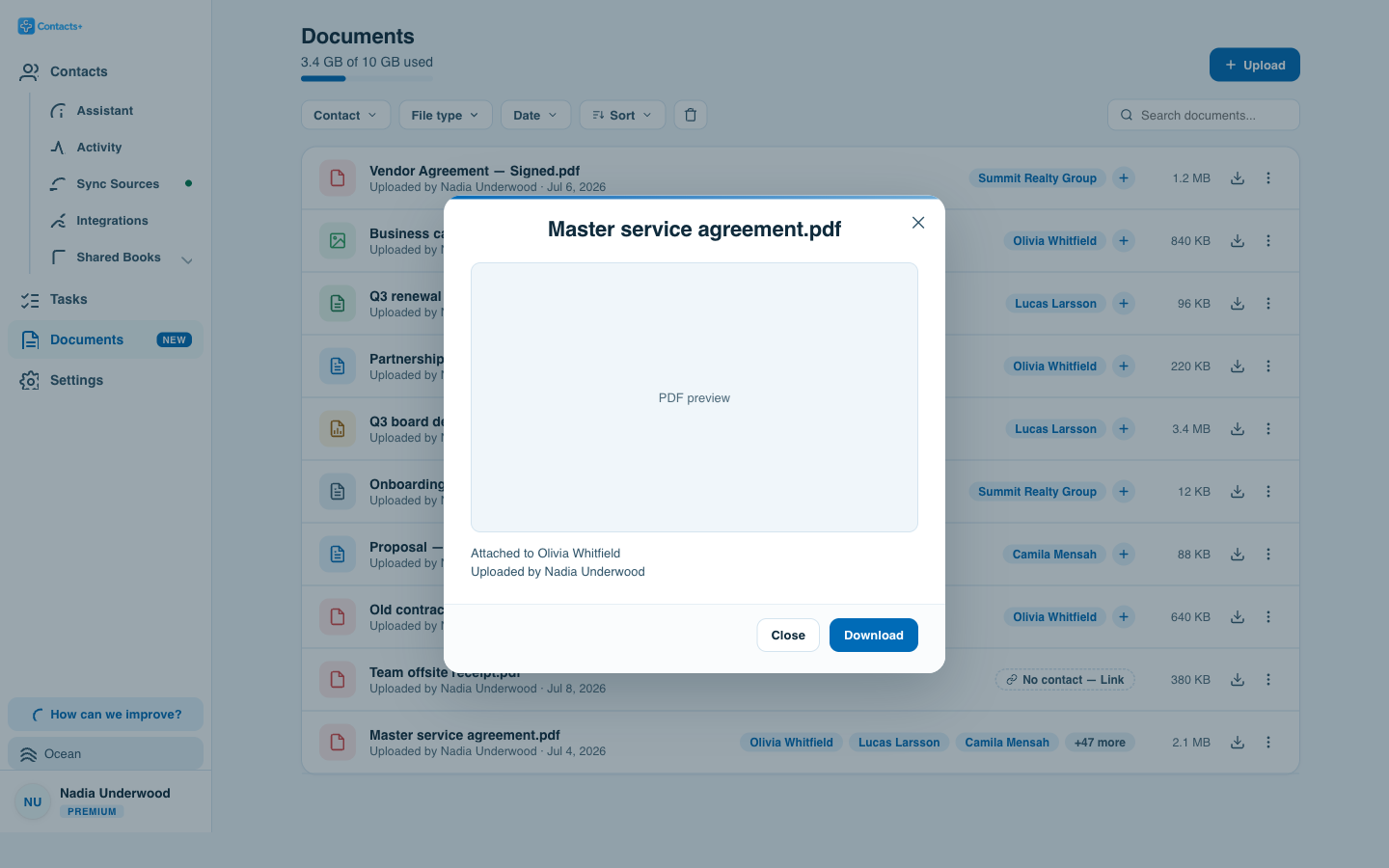
It is stored once and counts once against your storage, however many contacts it’s linked to. Unlink it from one person and it stays on the others; move it to Trash and it leaves them all together.
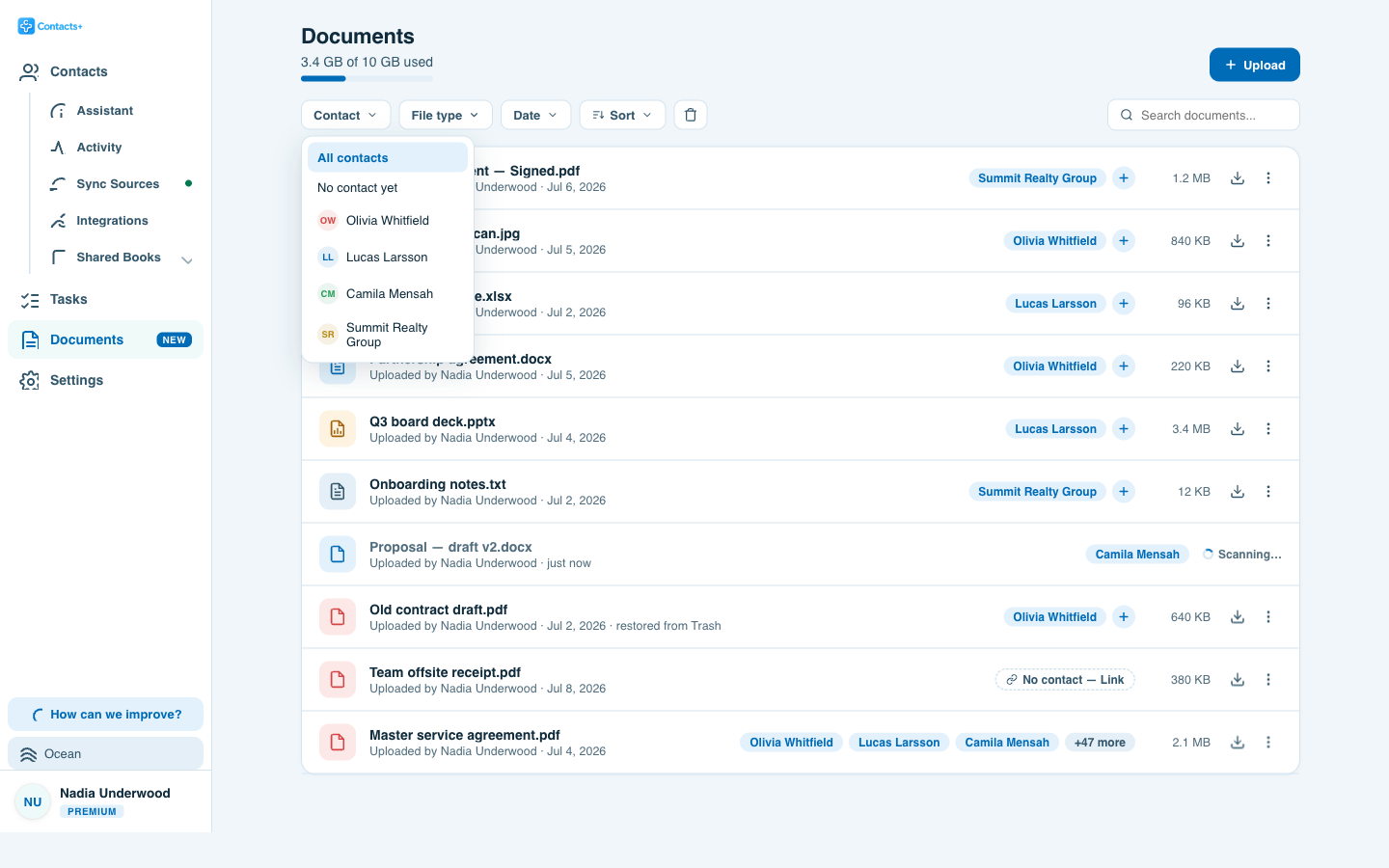
Files don’t have to belong to anyone at all. Upload straight to the library and it sits there as “No contact” until you link it.
Step by step
How to attach a file to a contact
Four steps, and the file is on the record and in your library at the same time.
-
Open the contact
Find the person in ContactsPlus and open their record. Any of the three layouts works — Classic, Story or Compact.
-
Choose Documents
Use the Documents quick action on the record, or the Upload button in the Documents library.
-
Drag the file in, or browse for it
Drop a PDF, Word, Excel, PowerPoint, image, TXT, RTF or CSV file — up to 25 MB each. It is virus-scanned before it becomes available.
-
Link it to anyone else who needs it
Use Link to contacts to put the same file on other people or company records. It is stored once and counts once against your storage.
One place for all of it
A library that rolls up every file
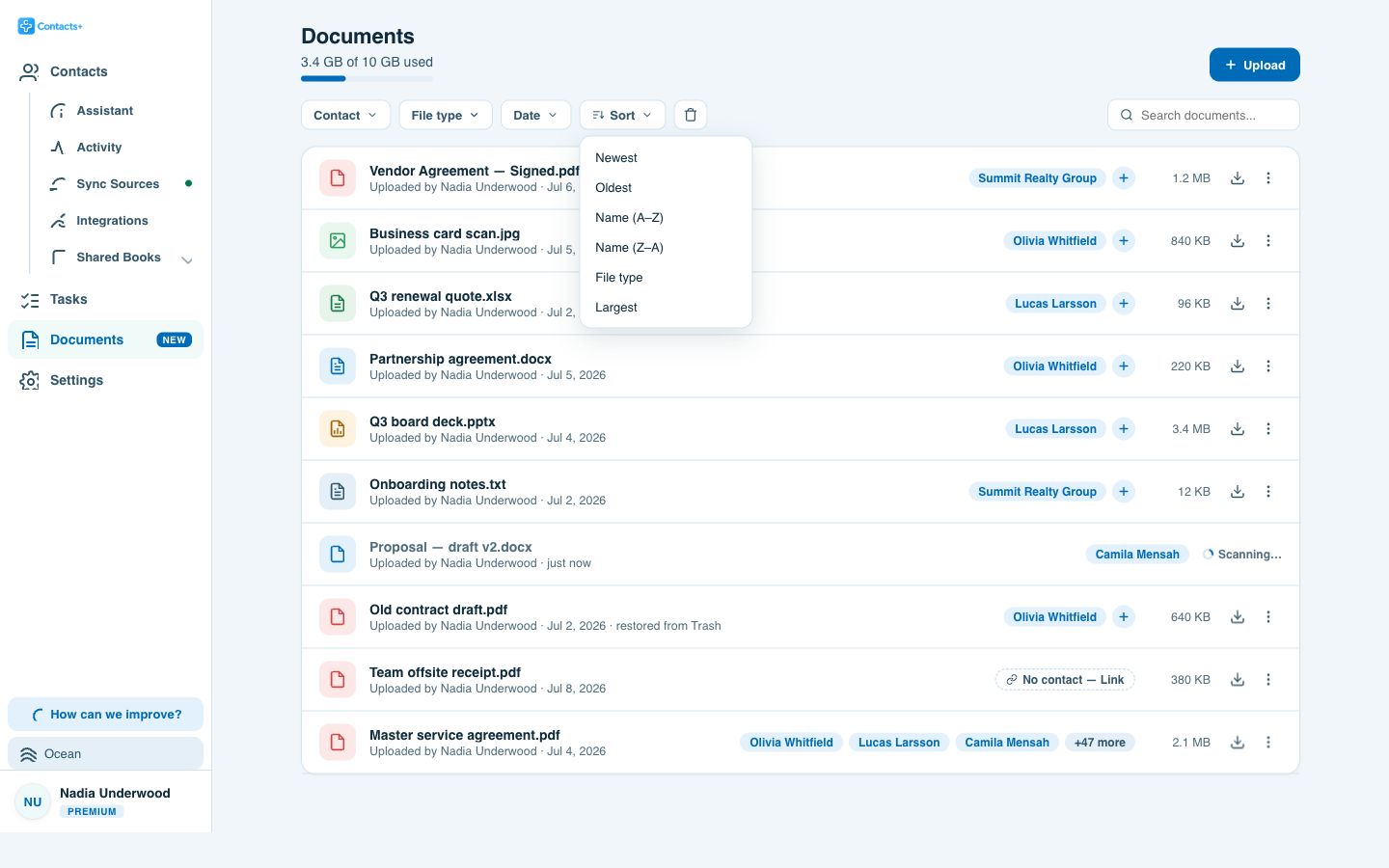
Attaching files per contact is only half of it. You also need the view that answers “where is that quote?” when you can’t remember whose record it’s on.
However you read a contact
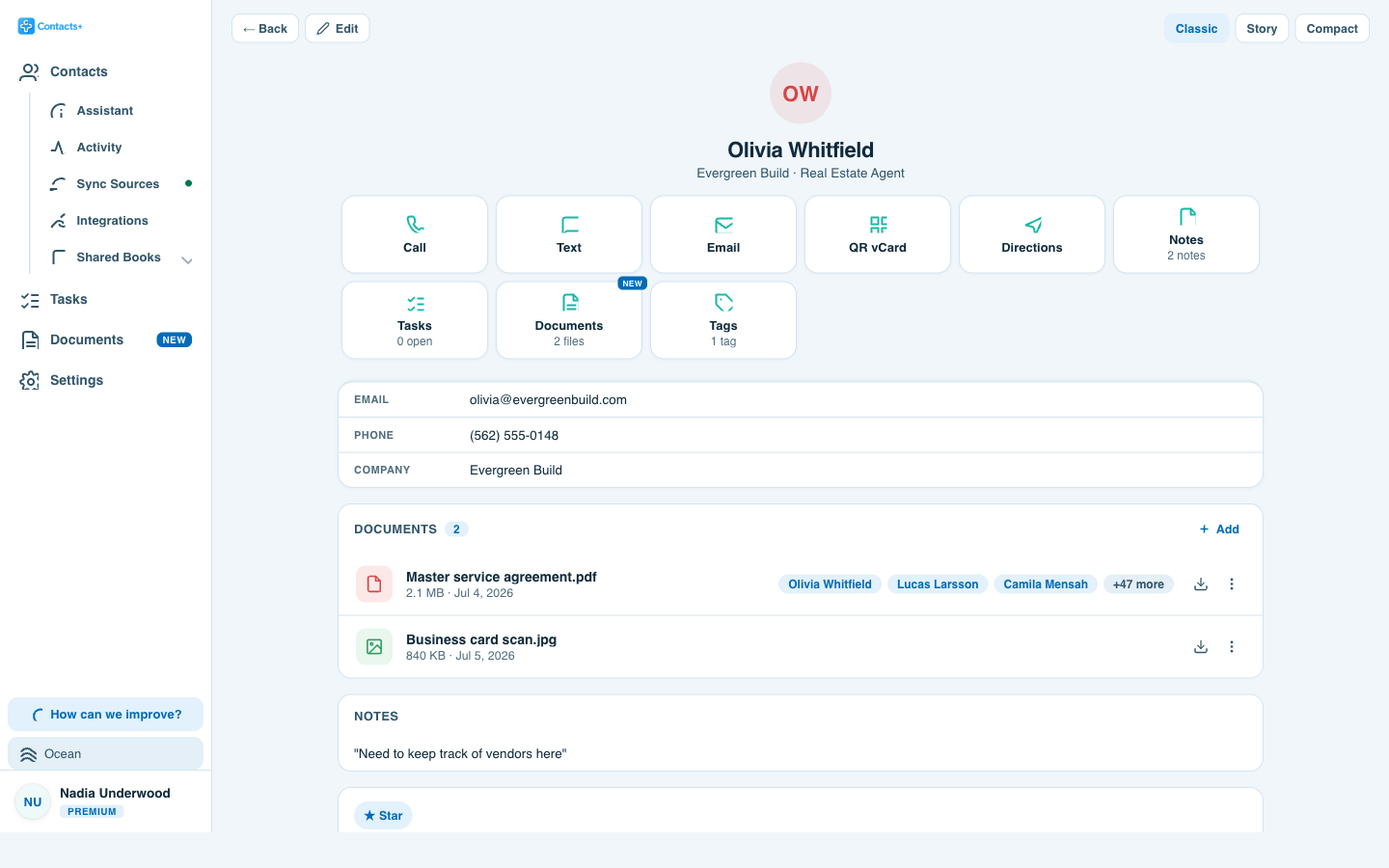
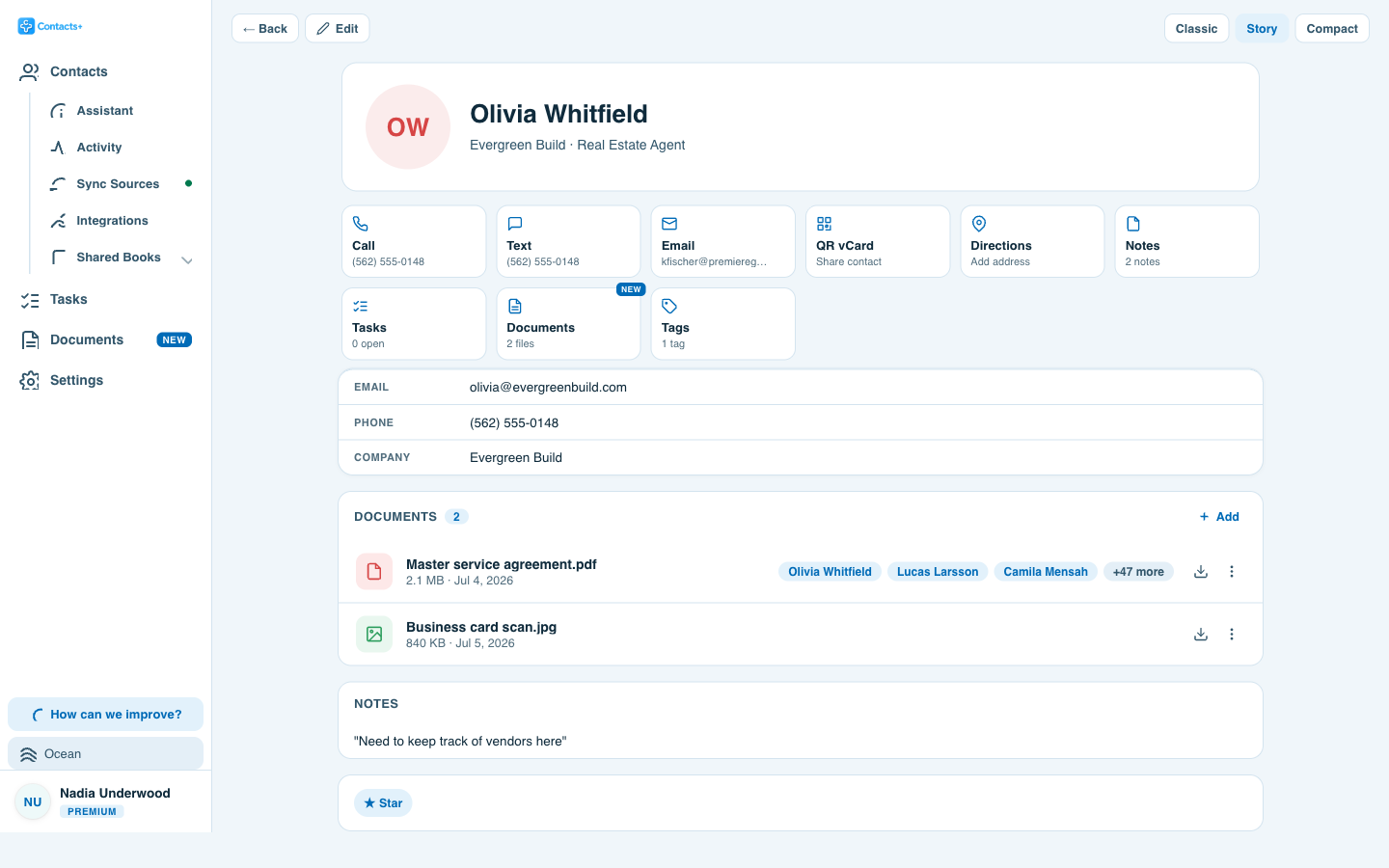
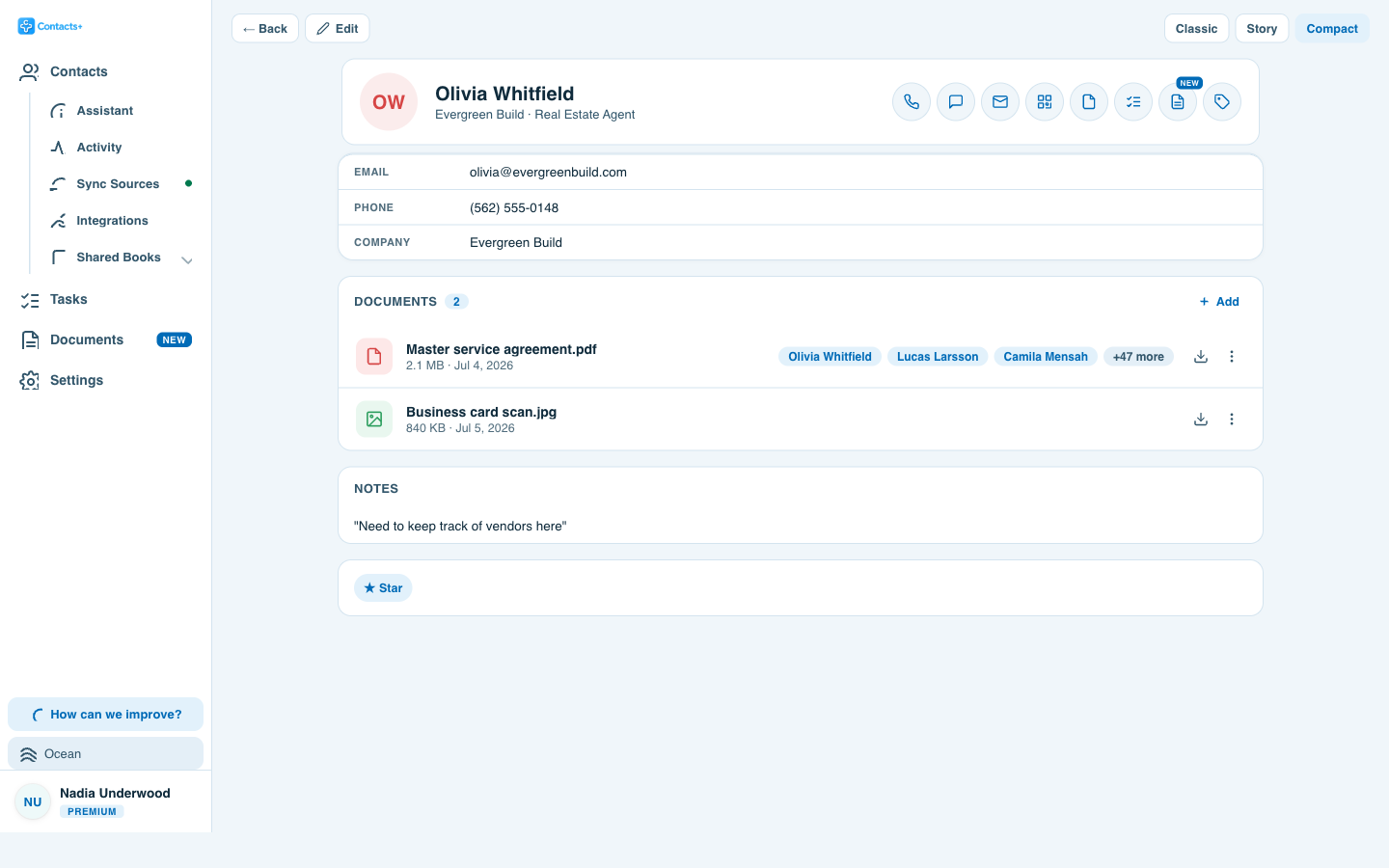
In all three contact layouts
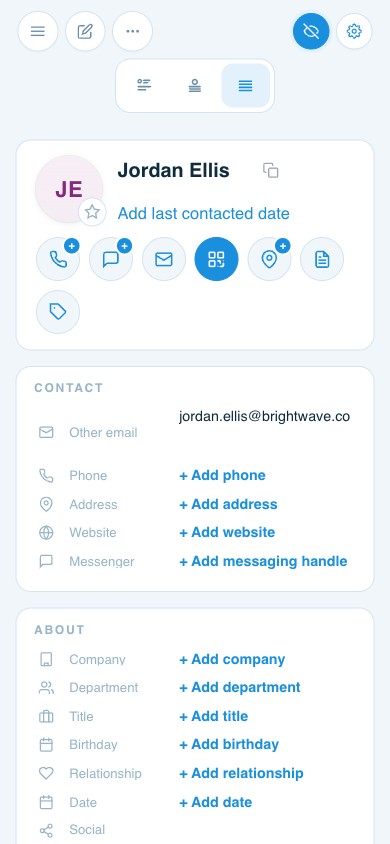
ContactsPlus lets you read a contact as Classic, Story or Compact. Documents shows up in each one, in the shape that layout already uses.
Scanned, then available
Nothing lands unchecked
Virus-scanned on the way in
Every upload is scanned before it becomes available. While that’s happening the row reads Scanning, so you always know a file’s real state.
Anything flagged is quarantined and marked in the list rather than quietly deleted — you can see what happened and deal with it, instead of wondering where your file went.
Deleted files go to Trash for 30 days. Restore them, delete one permanently, or empty the whole Trash to reclaim space. Read more about how we handle your data on our security page.
Storage
Free gets the whole feature
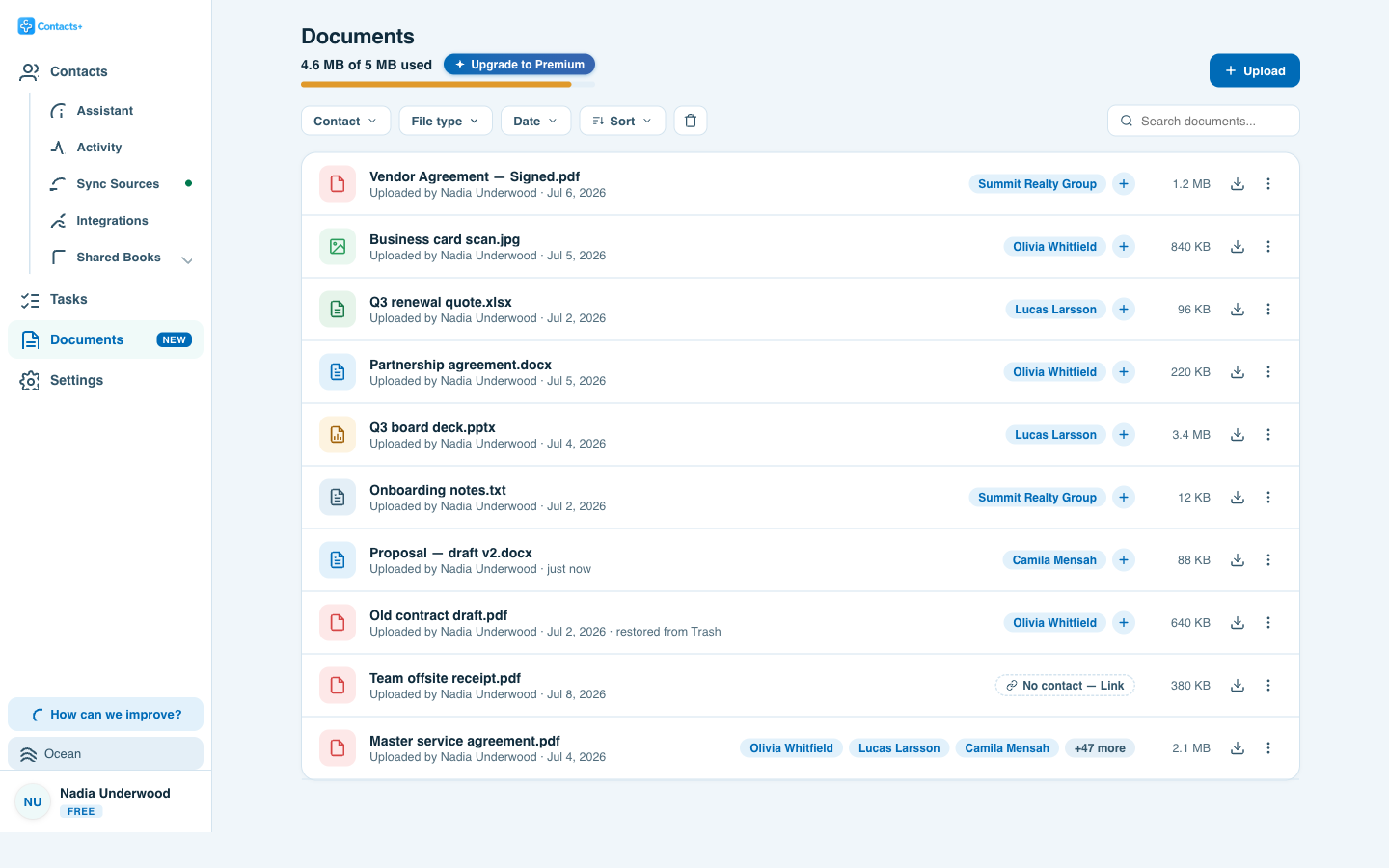
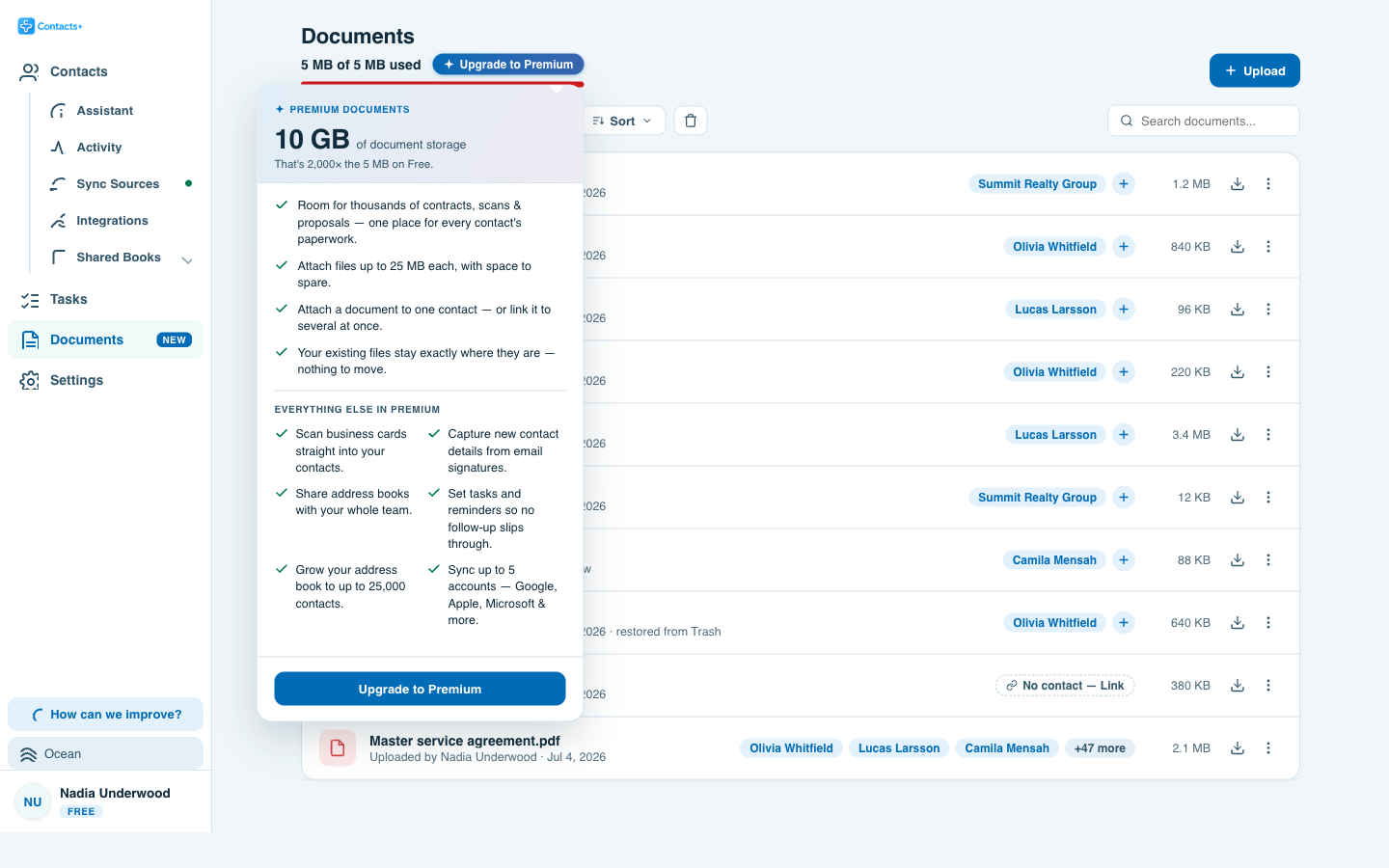
There’s no cut-down version. Free accounts get every part of Documents — attaching, linking, filtering, previewing, Trash — with 5 MB of storage. Premium raises the ceiling to 10 GB.
On your phone too
The same files, in your pocket
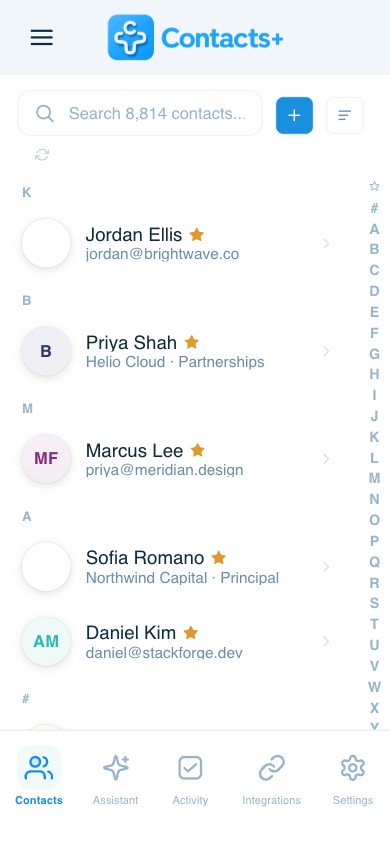
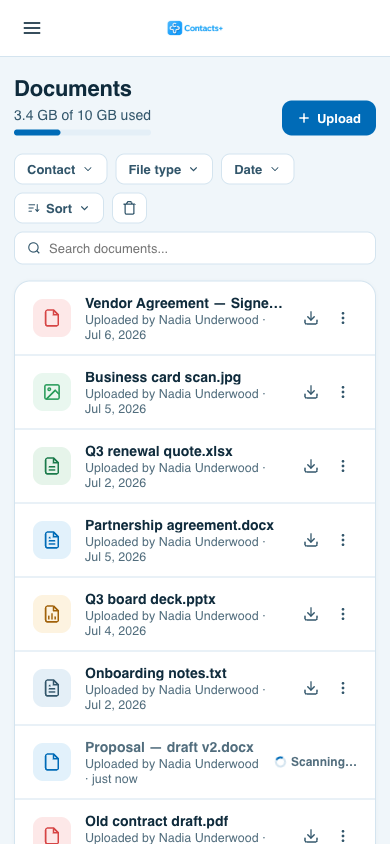
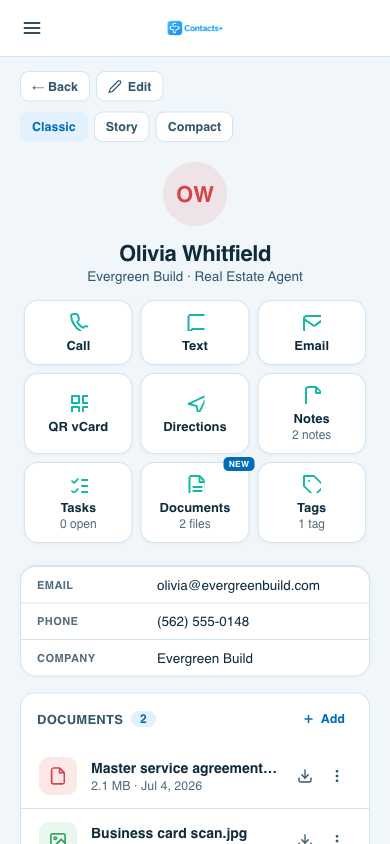
Documents works on a phone the same way it works on a laptop — the library, the filters and the files on each contact.
Questions, answered
Contact documents, explained
How do I attach a file to a contact?
Open the contact in ContactsPlus and use the Documents action, then drag a file in or browse for it. The file appears in a Documents section on that contact’s record and in your account-wide Documents library at the same time.
Can one file be attached to more than one contact?
Yes. A file can be linked to as many contacts as you like — a signed agreement can sit on the client, the broker and the company record at once. It is stored once and counts once against your storage. Unlinking it from one contact leaves it on the others.
What file types and sizes can I upload?
PDF, Word, Excel, PowerPoint, images, and TXT, RTF and CSV files, up to 25 MB per file.
Are uploaded files scanned for viruses?
Yes. Every upload is scanned before it becomes available. While a file is being scanned it shows as Scanning, and anything flagged is quarantined and clearly marked in the list rather than silently removed.
How much storage do I get?
Free accounts get the full feature with 5 MB of storage. Premium raises that to 10 GB. On a team, storage is pooled across the whole account rather than allocated per seat.
What happens if I delete a file by mistake?
Deleted files go to Trash for 30 days, where you can restore them. You can also permanently delete a single file or empty the whole Trash to reclaim space.