
Transfer contacts
How to transfer contacts
to a new phone
The transfer itself is rarely the hard part. What catches people out is discovering that their contacts were never in one place to begin with — some in a Google account, some in iCloud, some saved to the handset, a few on a SIM. Here is how to move all of them, and how to stop the next phone being a problem at all.
At a glance
Contacts stored in an account transfer by signing in. Contacts stored on the handset or a SIM don’t — those are the ones people lose.
- Check where each contact is stored before you switch
- Move handset-only contacts into an account first
- Sign in on the new phone and turn on contacts syncing
- Merge the duplicates a transfer leaves behind
The real problem
Why contacts go missing on the way to a new phone
If some contacts arrived and others didn’t, nothing broke. You have just discovered how your contacts were really stored.
They were never in one place
A typical phone holds contacts in several accounts at once. Each one transfers on its own terms, so moving “your contacts” actually means moving three or four separate lists.
Device-only contacts don’t travel
Anything saved to the handset rather than an account has nothing to sync from. If it was never in an account, signing in on the new phone won’t bring it back.
SIM contacts lose almost everything
SIM storage typically keeps a name and one number. Emails, photos, addresses and second numbers are dropped, so those contacts arrive stripped down even when they arrive.
Switching ecosystems changes the rules
Moving between iPhone and Android means the built-in path changes entirely, because each platform assumes its own account is the one that matters.
You end up with two of everyone
People who existed in more than one account get pulled in twice. The transfer worked — it just worked more than once for the same person.
Old, stale records come along too
A transfer copies everything, including the dead numbers and defunct addresses you have been ignoring for years. Nothing filters them out on the way.
Step by step
The reliable way to move them
This works regardless of which phones you are moving between, because it fixes the storage problem first instead of fighting it during the switch.
Find out where your contacts actually live
On the old phone, look at the contacts app’s account settings. You will usually find contacts split between a Google account, an iCloud account, the device itself, and possibly a SIM. This is the step almost everyone skips, and it is the one that determines whether the transfer works.
Get everything into an account
Move device-only and SIM contacts into a real account before you switch. Once a contact lives in an account, it is no longer tied to the handset — and that is what makes it survive.
Sign in on the new phone
Add the same account or accounts on the new phone and make sure contacts syncing is switched on for each. The contacts download rather than being copied across, so nothing depends on the old phone still working.
Merge the duplicates
Now deal with the copies. Merging once across every connected account is far quicker than deleting them one at a time on the new phone — and it fixes the cause rather than the symptom. See removing duplicate contacts.
By device
Moving between two specific phones
The account you sign into changes depending on which way you are going. Everything else is the same.
iPhone to iPhone
Check Contacts is switched on in iCloud on the old phone and let it finish uploading, then sign in to the same Apple Account on the new one. The contacts download from iCloud, so the old handset doesn’t need to be working. Anything in a Google or Outlook account has to be added separately — that is almost always what people mean when they say some contacts didn’t arrive.
Android to Android
Usually the simplest move: the contacts are already in your Google account, so signing in on the new phone brings them down. The quiet losses are contacts saved to the handset itself, contacts on a SIM, and anything in a second work account you didn’t add.
Switching between Android and iPhone
Changing platform is the one case where the built-in path changes entirely, in either direction. Covered separately, including the fields that get dropped on the way.
So it never happens again
The best transfer is the one you don’t have to do
Every one of these problems comes from the same root cause: contacts tied to a handset, or scattered across accounts that don’t talk to each other. Fix that once and a new phone stops being an event.
Every account, kept unified
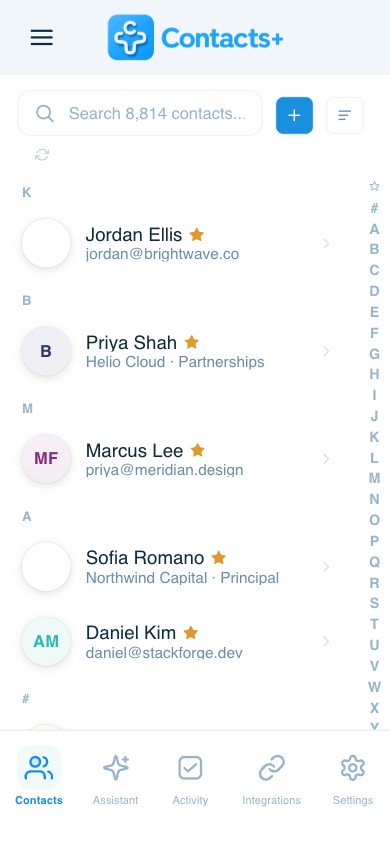
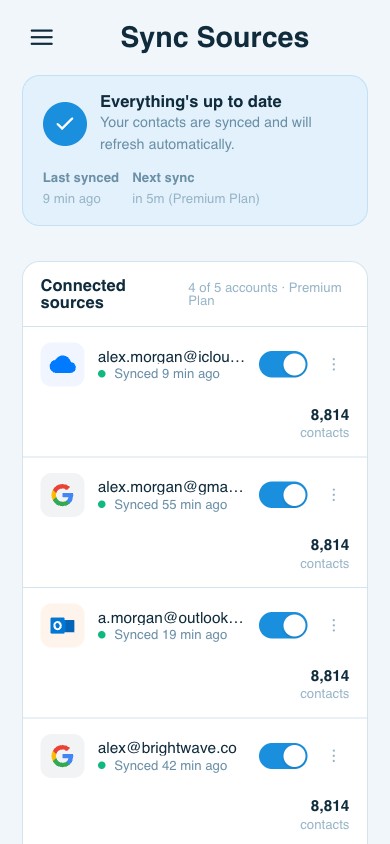
Connect Google, iCloud and Outlook accounts and ContactsPlus keeps them in step, so your contacts aren’t stranded in whichever ecosystem you happened to start in. See how contact sync works.
Duplicates merged, not multiplied
Find the people who exist twice across accounts and merge them field by field, so the transfer that created them doesn’t leave a permanent mess. See duplicate cleanup.
A copy you control
Export your contacts as CSV or vCard whenever you want, so you always have a copy that isn’t dependent on one phone or one provider.
FAQ
Frequently asked questions
Why did only some of my contacts transfer?
Almost always because they were stored in different places. Contacts saved to a Google or iCloud account move when you sign in, while contacts saved only to the handset or a SIM card don’t. A partial transfer is usually a sign that your contacts were split across several storage locations rather than one account.
Do I need a cable or a transfer app?
Usually not. If your contacts are in an account, signing in on the new phone brings them down. Cables and transfer apps mainly matter when contacts were only ever stored on the device itself.
Why do I now have two of everyone?
Because the same person existed in more than one account, and the new phone pulled in both. This is the most common side effect of a transfer. Merging duplicates once across every connected account fixes it properly, rather than deleting copies device by device.
What about contacts on my SIM card?
SIM storage is very limited and typically holds only a name and one number, losing emails, photos and any other detail. If some of your contacts are on a SIM, move them into an account before you switch so the rest of their details survive.
How do I make sure this never happens again?
Stop tying contacts to a handset. If your contacts live in accounts that stay unified, the next phone is just a sign-in, and there is nothing to transfer at all.
Can I move contacts between different providers?
Yes. ContactsPlus connects Google, iCloud and Outlook accounts together, so contacts aren’t stranded in whichever ecosystem you started in, and switching between platforms doesn’t mean starting over.
Make the next phone a non-event.
Keep every account unified, so there is nothing left to transfer.
Start free