
Backup contacts
How to back up
your contacts
Most people believe their contacts are backed up because they are syncing. Those are different things, and the difference only becomes obvious the day something goes wrong — a deleted account, a bad merge, a phone that never comes back on.
At a glance
Get every contact into an account, then export a file copy you keep yourself. Syncing protects you from losing a phone. Only a separate copy protects you from losing the contacts.
- Check which account each contact is actually stored in
- Turn contacts syncing on for iCloud and every Google account
- Export a vCard or CSV copy and keep it off the phone
- Verify the count, then repeat on a schedule
Step by step
Backing up contacts properly
Two layers: the account layer that gets contacts off the handset, and the file copy that survives the account.
Find out where your contacts are stored
Open the contacts app and look at which account each record belongs to. A typical phone has contacts spread across a Google account, an iCloud account, the device itself and occasionally a SIM. Anything sitting on the device has no backup at all yet, and that is where you start.
Turn contacts syncing on for every account
On an iPhone, open Settings, tap your name, then iCloud, and make sure Contacts is on. On Android, check contacts syncing is enabled for each Google account you use, including the work one. This doesn’t make a backup, but it does mean losing the phone no longer means losing the list.
Export a file copy you control
Google Contacts and iCloud both offer an export from their web interfaces. Download the whole list as a vCard or CSV and store it somewhere that isn’t the phone. vCard preserves more contact detail; CSV is easier to open in a spreadsheet and read at a glance.
Verify the backup actually contains everyone
Compare the number of contacts in the file against the number on the phone, and open a few of your richest records to confirm photos, notes and second numbers came through. A backup nobody has ever checked is a belief, not a backup.
Repeat it on a schedule, not just before a new phone
Most people export once, during a panic, and never again. Within a month that file is missing everyone you have met since. Set a recurring reminder, or use something that keeps the copy current for you.
The gap
Why syncing isn’t a backup
Sync is designed to make every copy identical. That is exactly what you don’t want when the change being copied is a mistake.
Deletions propagate instantly
Remove a contact on one device and sync dutifully removes it everywhere else. There is no version of your list that still has them, which is the whole problem.
A bad merge is a silent loss
Merging the wrong two people, or letting a cleanup tool over-match, overwrites fields rather than deleting records. Nothing looks broken afterwards, so nobody investigates.
Recovery windows are short
Google and Apple both offer some undo of recent changes, but only for a limited period. They cover a mistake you spot this week, not one you spot next year.
One provider, one point of failure
If an account is suspended, closed or simply locked out, everything inside it goes with it. A backup held in the same account isn’t really a separate copy.
Device-only contacts are never included
Contacts saved to the handset aren’t in any account, so no amount of syncing protects them. They are the ones that disappear with a broken phone.
You can’t verify what you can’t see
A cloud account gives you a list, not a restore point. Without a file you can open and count, there is no way to confirm what a backup would actually give you back.
A copy you control
Keep every account backed up in one place
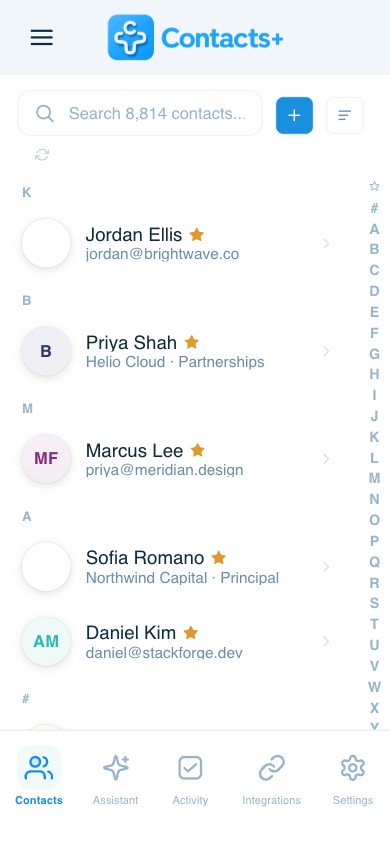
The awkward part of backing up contacts by hand is that there is no single list to back up. Exporting Google, then iCloud, then Outlook separately gives you three overlapping files with duplicates between them, and no way to tell which version of a person is current.
One list across all three providers
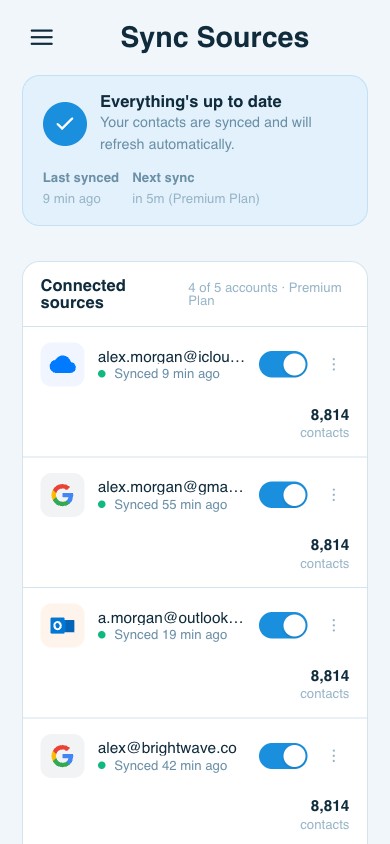
ContactsPlus connects Google, iCloud and Outlook accounts and keeps them unified, so there is one current list to back up rather than three partial ones. See how contact sync works.
Export as CSV or vCard on demand
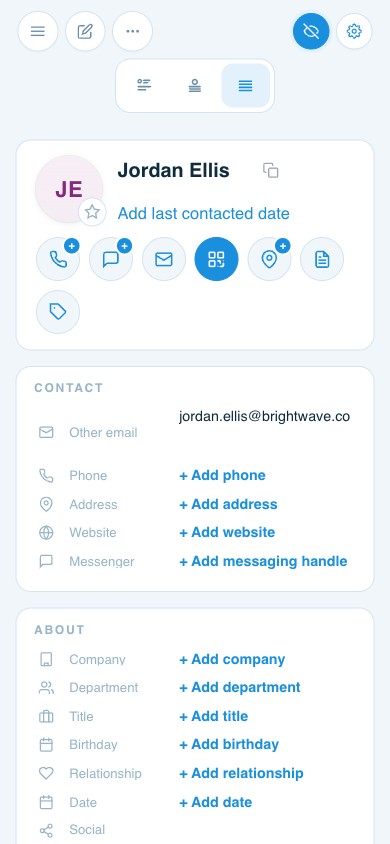
Take a full copy whenever you want, in a format any other contacts app can read, so your backup is never dependent on one provider being cooperative.
Back up a clean list, not a messy one
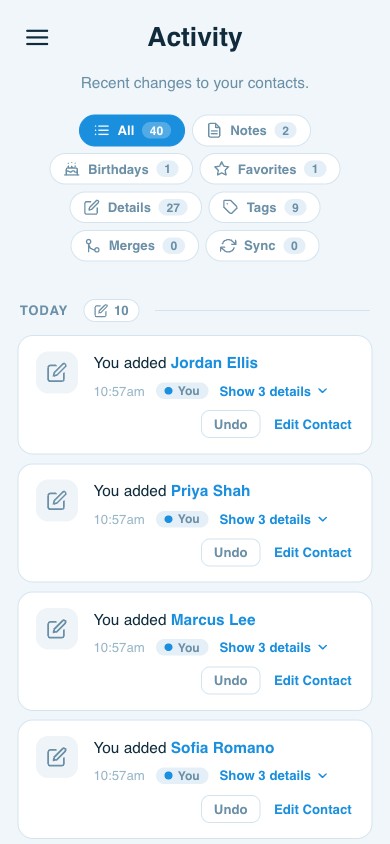
Duplicate detection and merging across connected accounts means the copy you keep is one record per person. See removing duplicate contacts.
FAQ
Frequently asked questions
Is syncing the same as a backup?
No, and this is the mistake that costs people their contacts. Sync copies changes in both directions, so a deletion or a bad merge is faithfully copied everywhere within seconds. A backup is a separate copy taken at a point in time that a mistake can’t reach.
How do I back up contacts on an iPhone?
Start by turning Contacts on in iCloud, which gets them off the handset. Then sign in to iCloud in a browser, open Contacts and export the list as a vCard file so you also hold a copy that doesn’t depend on the account staying accessible.
How do I back up contacts to Google?
Make sure contacts syncing is on for the Google account on your phone, so contacts are stored in the account rather than on the device. Then use the export option in Google Contacts on the web to download a vCard or CSV copy and keep it somewhere separate.
Can I get contacts back after deleting them?
Sometimes. Google Contacts keeps deleted contacts and recent changes recoverable for a limited period, and iCloud offers a restore of an earlier version of your contacts. Both are time-limited, so they help with a mistake you notice quickly, not one you notice next year.
What about contacts on a SIM card?
A SIM isn’t a backup. It typically holds only a name and one number per contact, dropping emails, addresses, photos and second numbers, and it fails with the card. Import SIM contacts into a real account so the full record is what gets backed up.
How often should I back up my contacts?
Often enough that losing everything since the last copy would not matter much. For most people that means monthly, plus one before any phone change, account migration or bulk cleanup. Anyone whose work depends on their contacts should be doing it more often.
Back up one list, not three partial ones.
Keep Google, iCloud and Outlook unified, and export a full copy whenever you want it.
Start free