
Export contacts
How to export contacts
from iPhone, Google or Outlook
Every account keeps its contacts in its own place, and every one of them exports differently. Here are the real steps, which file format to choose, and the one thing an exported file will never do for you.
At a glance
Exporting gives you a file — a CSV or a vCard — holding a copy of your contacts exactly as they are right now. That makes it an excellent backup and a poor way to move an address book.
- iPhone contacts come out of iCloud on the web, as a vCard
- Google and Outlook each hold a separate list and export separately
- CSV opens in Excel or Google Sheets; vCard keeps photos and richer fields
- Re-importing an old export is the most common way people create duplicates
Step by step
How to export contacts from an iPhone
The case people ask about most, and the one Apple made least obvious: there is no export button in the Contacts app on the phone.
Find out where your contacts actually live
Open Settings on the iPhone and look at which accounts are listed for Contacts. A phone routinely holds iCloud, Google and work Outlook contacts at once, and anything outside iCloud won’t appear in an iCloud export.
Export the iCloud contacts from a computer
Sign in to iCloud on the web, open Contacts, select the records you want and use the export option to download a vCard. It arrives as a single .vcf file, and it is the only route that hands you the whole iCloud list at once.
Or share a few contacts from the phone itself
In the Contacts app you can select one person or several and share them, which produces a vCard attachment. Fine for a handful of records, painful past about twenty.
Export the accounts iCloud can’t see
Google Contacts and Outlook keep their own lists, and each needs its own export. The Google export and the Outlook export are covered below.
Check the file before you trust it
Open it and count. A file that stopped halfway looks exactly like a complete one until you look inside, so if the number is short of the count on your phone, go back to step one.
Which file format
CSV or vCard, and when it matters
Most exports offer both. They aren’t interchangeable, and choosing the wrong one is how photos and second phone numbers quietly disappear.
CSV is a spreadsheet
One row per person, one column per field, opening straight in Excel or Google Sheets. The right choice when you want to read the data, sort it or hand it to someone.
vCard is the contact itself
A .vcf file is the format contacts are actually stored in, so it carries photos, several phone numbers and the richer fields a flat spreadsheet has nowhere to put.
What a CSV drops
Photos first. Anything repeating — three numbers, two addresses — gets squeezed into columns every app names differently, which is why a CSV from one provider imports messily into another.
What each provider offers
iCloud exports vCard only, so a spreadsheet of iPhone contacts means converting the file. Google offers both, including a CSV shaped for Outlook. Outlook is built around CSV.
Worth knowing before you rely on it
An export is a snapshot, not an address book
The file is accurate the second you create it and drifting shortly after. Fine for a backup. It is where migrations and shared lists go wrong.
It goes stale immediately
Every number that changes afterwards changes in the account, not in the file. A six-month-old export is a museum piece with your customers in it.
It doesn’t merge your accounts
Three exports give you three files with the same people in all of them. Stacking them together produces a longer list, not a cleaner one.
Re-importing it makes duplicates
An import has no memory. Bring the file back into an account that already holds those people and you get two of each — which is how address books end up with thousands. See removing duplicate contacts.
Sending it isn’t sharing
Mail a spreadsheet to a colleague and you have created a second version of the truth, diverging from yours the same afternoon. See shared contacts.
By account
Exporting from one account in particular?
The menus, the formats and the things that go missing differ by provider. These walk through each one.
Export Outlook contacts
The CSV route in classic Outlook, new Outlook and Outlook on the web, and what an export leaves behind.
Export Google contacts
Google CSV, Outlook CSV or vCard, exporting one label rather than everything, and opening the result in Excel.
The version that stays current
Make exporting a backup, not a migration
Keep the accounts unified and the file stops being the mechanism. It becomes a copy you take, not something you depend on.
Three accounts, one list
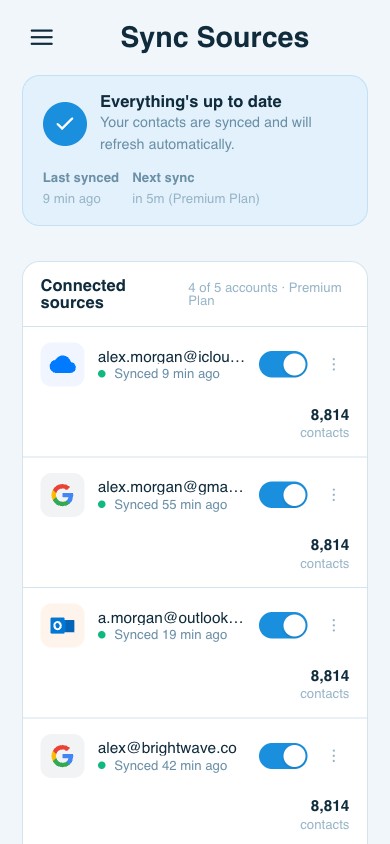
ContactsPlus connects Google, iCloud and Outlook and keeps them unified, so moving contacts between providers needs no file at all. See how contact sync works.
One export, everything in it
Export the unified list as CSV or vCard whenever you want, on any plan — one file covering every connected account.
Clean before you copy
Duplicate detection and merging run across every connected account at once, so what you export is one record per person. Premium connects up to five accounts and 25,000 contacts.
Import and export as CSV or vCard is on every plan — see pricing
FAQ
Frequently asked questions
What is the difference between a CSV and a vCard export?
A CSV is a spreadsheet: one row per person, one column per field, and it opens in Excel or Google Sheets. A vCard is the contact format itself, so it carries photos, multiple numbers and richer fields that a flat spreadsheet flattens or drops. Pick CSV when you want to read or edit the data, and vCard when you want the fullest possible copy.
How do I export contacts from an iPhone?
There is no single export button in the iPhone Contacts app. For the whole list, sign in to iCloud on the web from a computer, open Contacts, select the records and use the export option to download a vCard. For a handful of people, select them in the Contacts app on the phone and share them as a vCard attachment.
Can I export contacts straight to Excel?
Export as CSV and open the file in Excel or Google Sheets. Google Contacts offers CSV directly. Apple exports vCard only, so an iPhone list has to be converted or re-exported from somewhere that can produce CSV. ContactsPlus exports either format from the unified list.
Does exporting contacts move them to a new phone?
It can, but it is the fragile way to do it. Exporting from Android and importing into an iPhone works, and it also strips fields the format can’t carry and creates a second copy of anyone who was already there. Signing both devices into the same accounts moves contacts without producing a file at all.
Why does importing an export create duplicate contacts?
Because the import has no memory of where the records came from. Bring a file back into an account that already holds those people and you get two of each, with small differences such as a nickname or a missing photo stopping the account from recognising them as one person. Re-importing old exports is one of the most reliable ways to build thousands of duplicates.
Can I export my contacts out of ContactsPlus?
Yes, as CSV or vCard, at any time, on every plan. Your contacts are yours, and the export covers the unified list across every connected account rather than one account at a time.
Keep the copy. Stop needing it.
Unify Google, iCloud and Outlook in one list, and export it whenever you like.
Start free