
Switching
A Google Contacts alternative that doesn’t make you leave Google
Most alternatives want you to export everything and start over. ContactsPlus just connects to the Google account you already have and keeps it in sync. Then it adds the other accounts, the cleanup and the follow-ups that Google Contacts was never built to do.
At a glance
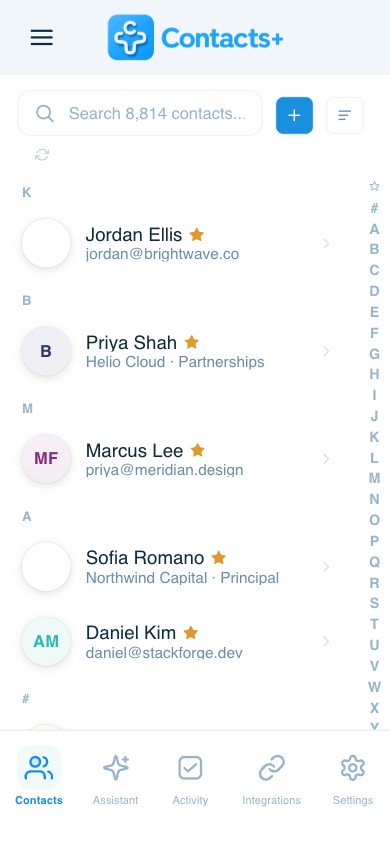
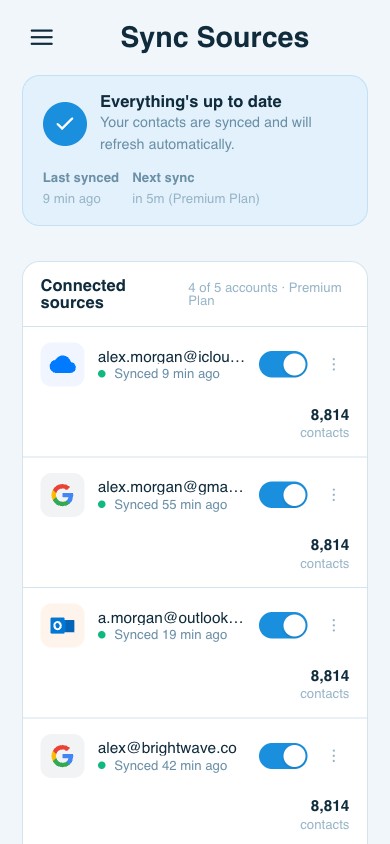
Google Contacts alternative: ContactsPlus sits on top of Google, it doesn’t replace it. Apple iCloud and Microsoft join the same address book, duplicates get merged across all three, and the missing details get filled in.
- You don’t export anything by hand, and nothing gets deleted from Google
- iCloud and Outlook join the same list, with the duplicates merged
- Reads email signatures, scans cards and screenshots, keeps records up to date
- Free forever plan, so you can try it on your own contacts first
Why people move
What Google Contacts stops being enough for
Your contacts are not all in Google
Work email in Microsoft, personal numbers on an iPhone, the rest in Gmail. Google Contacts only ever sees the Google bit, so everything else quietly goes stale.
The same person exists three times
Put several accounts together and the duplicates show up. Google’s own merge tool only looks inside one Google account, so it can’t see the copies sitting anywhere else.
Half the records are incomplete
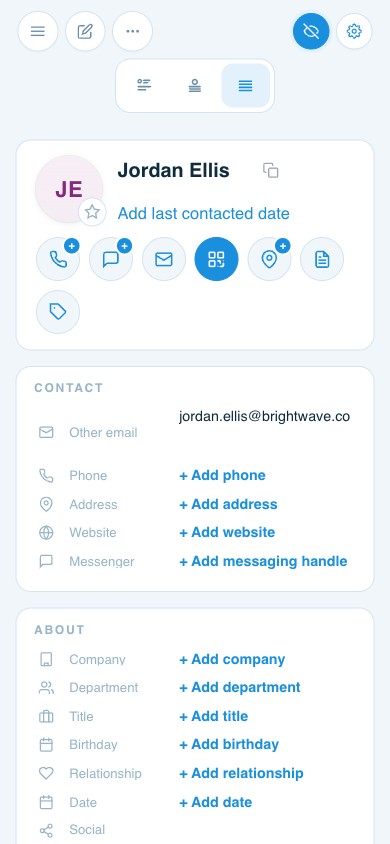
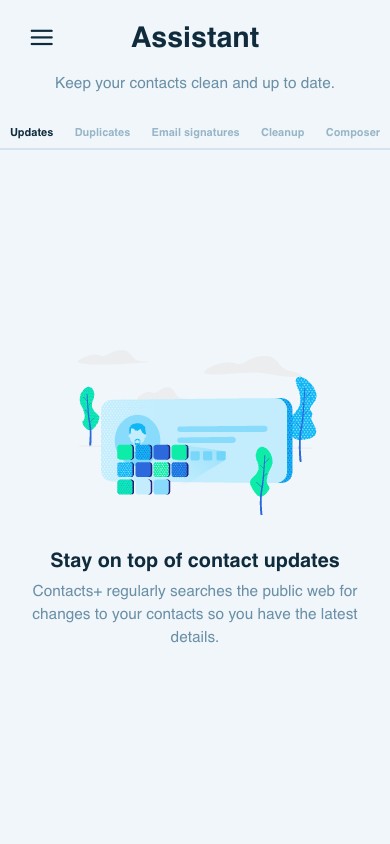
No job title, an old company, no photo. Google Contacts has no way to fill any of that in. ContactsPlus does it automatically and tells you which records have gone stale.
There is nowhere to put the work
Follow-ups, a signed contract, a note with a date on it. Google Contacts gives you one box to type in, and no tasks or documents at all.
Moving over
How to switch, step by step
There’s no migration here, which is what makes this different from most alternatives. You’re adding a layer on top, not moving house.
1. Connect your Google account
Sign in and approve access. The contacts come in straight away: names, numbers, addresses and photos. Nothing leaves Google.
2. Choose the direction
“Pull contacts in” is the default. It only reads, so Google never changes. Switch to two-way later if you want the tidy-up to go back the other way.
3. Add iCloud and Outlook
Connect the iCloud account your iPhone uses, plus any Microsoft account. They join the same list instead of sitting next to it.
4. Clean up what arrives
Run duplicate detection, merge what it turns up, then let enrichment fill in the blanks.
Gmail autocomplete carries on working. Your Android phone still shows your contacts. And if you ever disconnect, Google Contacts is exactly where you left it.
What you gain
Four things you get on the other side
A clean list is just the start. These four are what actually save you time afterwards.
Email signatures, read for you
ContactsPlus reads the signature at the bottom of emails you already get, and fills in the job title, company and direct line for you. Nothing to copy, nothing to type. The records just get better while you work. Premium and Teams.
Tasks that reach your calendar
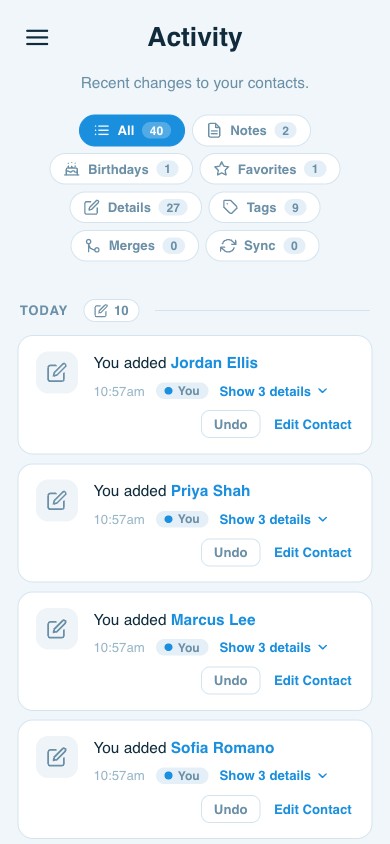
Give a follow-up a date and time and it turns up in your calendar, whether that’s Google, Outlook or Apple. Snooze it, cut a long list down to just today, and get a morning email of what’s due.
Team tasks, with real permissions
Put a task in a shared address book and the whole team can see it. Hand it to a colleague, decide who’s allowed to touch it, and see who finished it and when. Everyone works off one list instead of chasing each other. Teams.
One document, many contacts
Attach a contract, proposal or scan to the person it belongs to, and to everyone else involved. One file can sit on as many contacts as you want. It’s stored once and only counts once against your storage, no matter how many people it’s on. On every plan.
Your data
What comes across, and what to check
Comes across cleanly
Names, every phone number and email address, postal addresses, company and job title, photos, birthdays, notes, websites and social profiles. Custom fields stay custom fields. They don’t get squashed into a note.
Worth a look afterwards
Google quietly keeps contacts you never added, saved off the back of emails you replied to once. Those come across too. Weed them out before you connect a second account, or you’ll end up with twice as many.
Nothing is one-way
You can export the lot as CSV or vCard whenever you want, on any plan, free included. Moving in shouldn’t trap you.
Questions
Frequently asked questions
Do I have to leave Google Contacts?
No, and that’s rather the point. ContactsPlus connects to your Google account and keeps it in sync, so Gmail autocomplete and your Android phone carry on exactly as before. You don’t export anything and nothing gets deleted.
What happens to my existing Google contacts?
They stay exactly where they are. ContactsPlus reads them in, puts them next to your iCloud and Outlook contacts, and merges anyone who shows up twice. Disconnect later and your Google Contacts are untouched.
Can I still use Google Contacts afterwards?
Yes. Most people keep it open for quick edits and use ContactsPlus for the things Google can’t do: duplicates across accounts, enrichment, follow-up tasks, documents and scanning.
Is there a free version?
Yes, free forever: one synced account, 1,000 contacts, and the full contact record including notes, tasks, custom fields and file attachments. See pricing.
Will my Android phone still show my contacts?
Yes. Android reads contacts from your Google account, and that account keeps working exactly as it does now. ContactsPlus sits alongside it, not in front of it.
Can ContactsPlus fix duplicates Google cannot see?
Yes, and it’s usually the first thing people notice. Google’s own merge tool only looks inside one Google account. ContactsPlus compares Apple iCloud, Google and Microsoft together, so someone sitting in three places ends up as one record.
Keep Google. Add everything else.
Apple iCloud, Google and Microsoft in one clean address book. Free to start, no card needed.
Try ContactsPlus free