
How to Merge Duplicate Contacts on iPhone (The Easy Way)

Key Takeaways
- Duplicate contacts on iPhone most often come from syncing across multiple sources (iCloud, Gmail, Exchange) or from restoring a phone from a backup.
- Apple’s built-in Merge Duplicates feature (iOS 16+) works for simple cases, but misses cross-account duplicates and contacts with slightly different names.
- Contacts+ intelligently detects duplicates across all your synced sources and lets you merge them in the iOS Assistant, either individually or all at once.
- Contacts+ for Web includes an Auto-Merge setting that automatically merges high-confidence duplicates, no manual work required.
- All data is preserved when you merge in Contacts+, and any accidental merge can be undone from the Activity History.
- Keeping one sync source active on your iPhone and enabling auto-merge in Contacts+ is the best long-term strategy for a clean address book.
Your iPhone’s contact list is cluttered. You tap “Call Sarah,” and two Sarahs appear, one from iCloud, one from Gmail. You search for your dentist and find him listed four times. You scroll through hundreds of contacts looking for one name, only to discover you’ve saved it in three different formats.
Duplicate contacts are one of the most universal and quietly maddening iPhone annoyances. And while Apple does offer a basic tool to address the problem, it only goes so far. If you’ve ever found yourself asking “why does my iPhone keep creating duplicate contacts?” or “how do I merge all my duplicates at once?”, this guide is for you.
We’ll walk through exactly why duplicates happen, what Apple’s built-in merge feature can and can’t do, and how Contacts+ offers a smarter, more thorough solution, including an auto-merge feature that handles duplicates automatically before they pile up again.
Why Duplicate Contacts Happen on iPhone
Before you can fix the problem, it helps to understand why it keeps happening. Duplicate contacts on iPhone aren’t a glitch; they’re the predictable result of the way modern contact syncing works.
Here are the most common causes:
- Multiple sync sources: Your iPhone may be pulling contacts from iCloud, Gmail, and a work Exchange or Office 365 account simultaneously. When the same person exists in two of those sources, your phone displays them twice.
- Switching phones or restoring from a backup: When you set up a new iPhone from a backup, contacts sometimes get reimported on top of existing entries.
- Adding the same contact twice: A quick save from a text message or email signature adds a contact to your phone, even if you already have that person saved.
- CRM or app syncing: Third-party apps that access your contact list can create new entries, especially if they don’t check for existing matches first.
- iCloud sync inconsistencies: Toggling iCloud Contacts on and off or switching iCloud accounts can trigger a flood of re-imported duplicates.
Over time, these duplicates quietly multiply. One or two are easy to ignore. But once you’ve got 50, 100, or even thousands of them, your address book stops being useful, and cleaning them up manually becomes an afternoon-wasting chore.
Apple’s Built-In Merge Feature: Helpful, But Limited
Starting with iOS 16, Apple added a “Merge Duplicates” feature to the native Contacts app. It’s a step in the right direction, but it has significant limitations that leave many users frustrated.
How to Use Apple’s Merge Feature
- Open the Contacts app on your iPhone.
- Tap Lists in the top-left corner, then tap All Contacts.
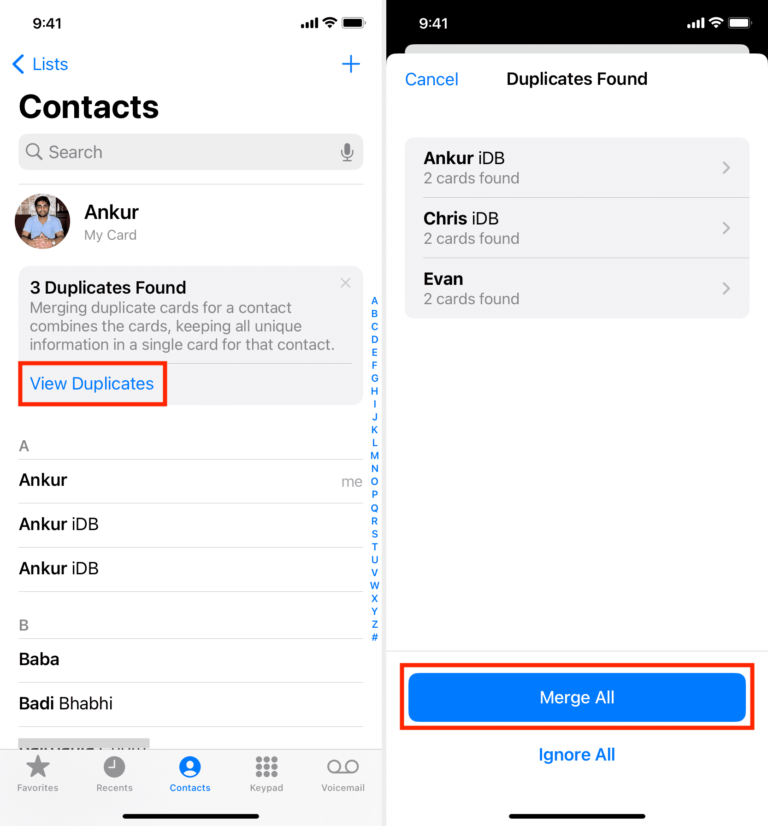
- If duplicates are detected, you’ll see a “Duplicates Found” banner below My Card at the top.
- Tap View Duplicates to see the list of detected duplicates.
- Tap individual contacts to review them one by one, or tap Merge All to merge everything at once.
For simple cases where two entries share the same name, this works fine. But Apple’s detection logic is limited:
- It only matches contacts with identical first and last names. “John Smith” and “John A. Smith” won’t be caught.
- It won’t catch duplicates stored across different accounts (e.g., one in iCloud and one in Gmail).
- It doesn’t run automatically; you have to check manually and remember to do it.
- It won’t prevent new duplicates from forming.
In short, Apple’s merge tool is useful for a quick one-time cleanup, but it’s not a long-term solution. If your duplicates come from multiple sources or have slightly different information, you’ll need something more powerful.
Note: Apple’s “Link Contacts” feature (Edit > Link Contacts) is different from merging. It displays two entries as one in your list, but both records still exist separately. True merging combines all information into a single, clean contact card.
The Better Way: Merging Duplicates with Contacts+
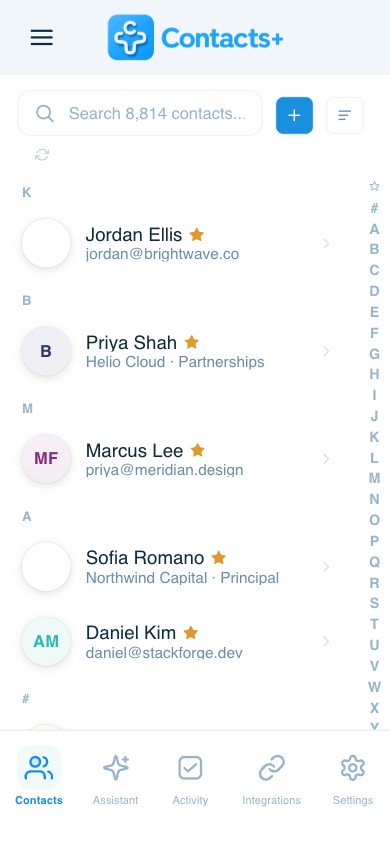
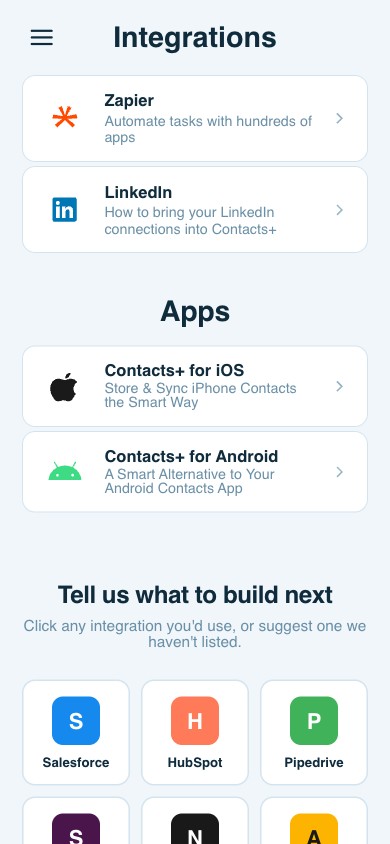
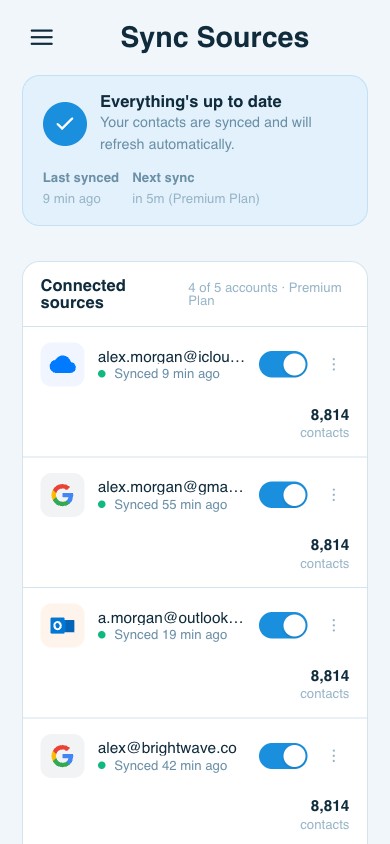
Contacts+ was built to solve the exact problem Apple’s native app leaves behind. As a centralized contact management platform, Contacts+ syncs all your address books, including iCloud, Google Contacts, and Exchange/Office 365, and uses smart deduplication to identify and merge duplicates across them.
There are two main ways to handle duplicates in Contacts+: the manual review process through the Assistant, and the automatic merge feature. Here’s how each one works.
Method 1: Review and Merge via the Contacts+ Assistant (iOS)
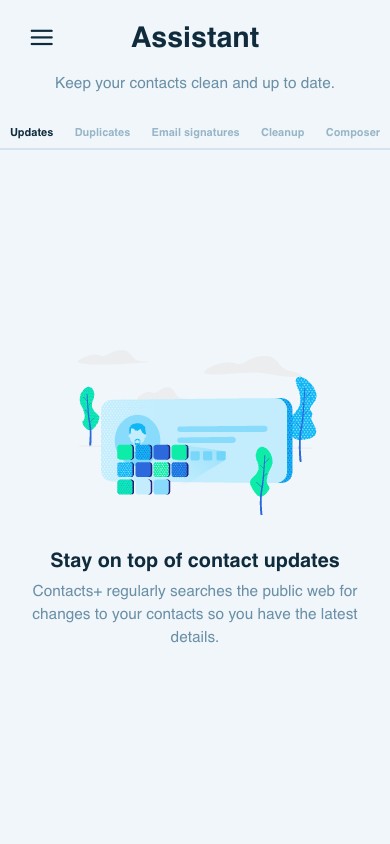
The Assistant is Contacts+’s built-in intelligence layer. It proactively surfaces duplicate contacts for you to review, and lets you merge them with a single tap.
Step 1: Download and Set Up Contacts+
If you haven’t already, download Contacts+ from the App Store or sign up for free. When you first launch the app, you’ll create an account and connect your contact sources: iCloud, Google, Exchange, or any combination of them.
Step 2: Open the Assistant Tab
Once your contacts have synced (allow 10–15 minutes for a large address book), tap the Assistant icon in the Contacts+ navigation. The Assistant will show you a list of suggested actions, including detected duplicates.
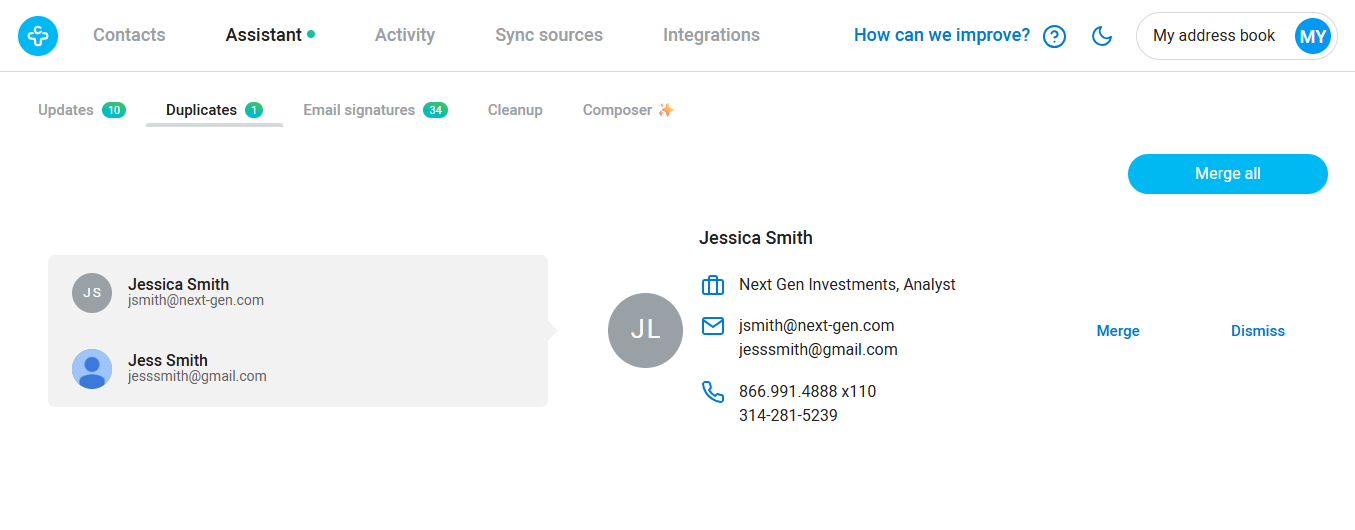
Step 3: Review Your Duplicate Suggestions
Tap into the duplicates section. Contacts+ will show you pairs (or groups) of contacts it believes are the same person. Unlike Apple’s tool, Contacts+ can match contacts across different sync sources and detect similarities even when names aren’t identical. For each suggested duplicate, you’ll see both contact cards side by side so you can verify the match before taking any action.

Step 4: Merge Individually or All at Once
If you want control over each decision, tap Merge on individual pairs. If you’re confident in Contacts+’s suggestions, tap Merge All in the upper-right corner to clean up all duplicates at once. All information from both records, phone numbers, emails, addresses, and notes, is preserved in the merged contact.
Method 2: Auto-Merging (Contacts+ for Web)
If you want Contacts+ to handle duplicates automatically, without you having to lift a finger, the Auto-Merge feature is the way to go. This is available in Contacts+ for Web.
Step 1: Log In to Contacts+ for Web
Visit ui.contactsplus.com and sign in with your Contacts+ account.
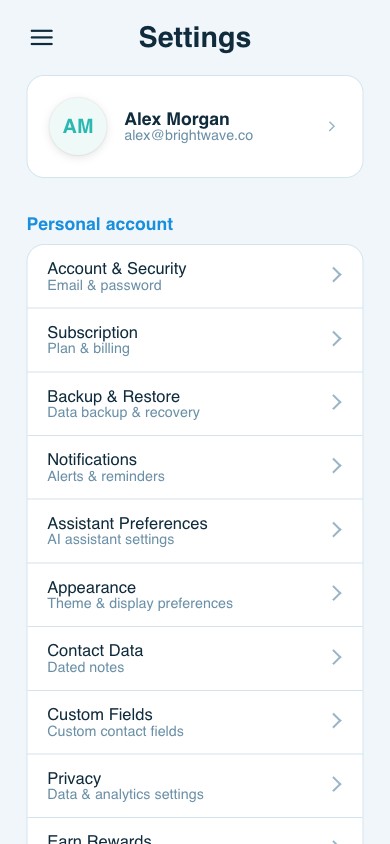
Step 2: Go to Settings > Assistant Preferences
Click on your profile icon in the top-right, then navigate to Settings. From there, find the Assistant Preferences section.
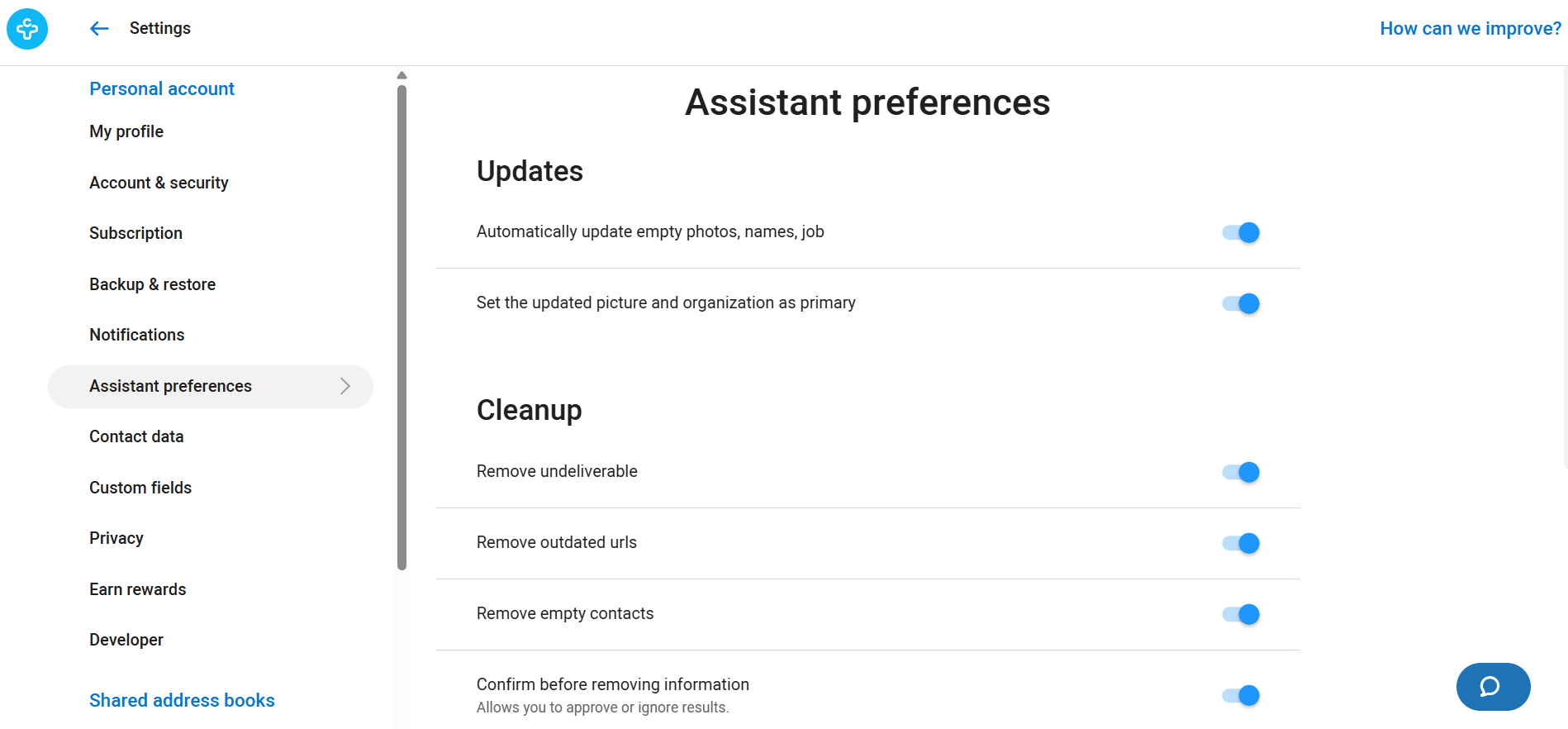
Step 3: Enable Auto-Merge for High-Confidence Duplicates
Locate the toggle labeled “Automatically merge high-confidence duplicates” and switch it on. From this point forward, Contacts+ will automatically merge duplicate contacts it’s highly confident about; no manual review required.

Contacts+ uses confidence scoring to determine which duplicates are safe to auto-merge. High-confidence matches, where the data clearly point to the same person, are handled automatically. Lower-confidence suggestions are still surfaced for you to review manually in the Assistant.
What Happens to Your Data When You Merge?
A common worry when merging contacts is: “Will I lose information?” The answer with Contacts+ is no.
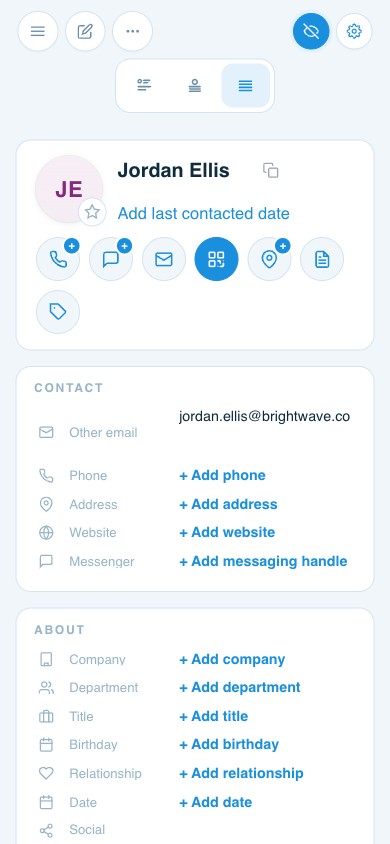
When two contact records are merged, all fields from both cards are combined into a single, comprehensive contact:
- Multiple phone numbers are all retained (with their labels preserved)
- Email addresses from both records are kept
- Addresses, birthdays, notes, and custom fields are all included
- Profile photos are preserved
- Tags and group memberships carry over
If the two records have conflicting information in the same field, for example, two different phone numbers labeled “mobile,” both are kept. You can then edit the merged contact to clean up the details if needed.
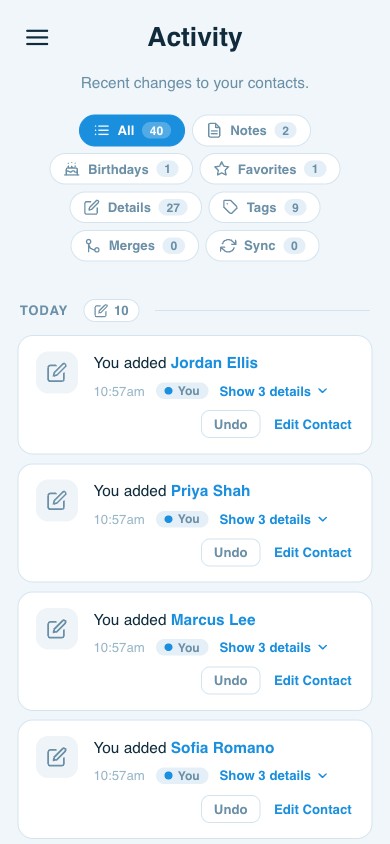
And if you ever merge something by accident, Contacts+ keeps a full Activity History. You can unmerge any contact from the Activity section in both the iOS and web apps, restoring the original records.
Pro tip: Before running a large merge, browse your Activity History in Contacts+ to see a log of all recent changes, merges, edits, additions, and deletions. It’s a useful safety net.
How to Keep Duplicates From Coming Back
Merging duplicates is satisfying, but it’s only half the battle. Here’s how to prevent them from piling up again:
- Use one primary contact source on your iPhone. In Settings > Contacts > Accounts, make sure only one account (iCloud, Google, or Exchange) has access to Contacts. This prevents the same contact from being synced from multiple sources at once.
- Let Contacts+ manage cross-account syncing. Rather than enabling multiple accounts directly on your iPhone, let Contacts+ act as the bridge. Connect your accounts inside Contacts+ and sync through a single source to your device.
- Keep Auto-Merge enabled. With the high-confidence auto-merge toggle on, Contacts+ will quietly handle new duplicates as they appear, so your address book stays clean without any ongoing effort on your part.
- Review the Assistant regularly. The Assistant surfaces not just duplicates but also outdated information and enrichment suggestions. A quick weekly check keeps everything current.
Frequently Asked Questions
Why do my iPhone contacts keep duplicating even after I merge them?
This usually means your iPhone is syncing contacts from more than one account simultaneously. Even after merging, new duplicates will appear if the same contact exists in both your iCloud and Google account, for example. The fix is to route all your contacts through a single sync source on your device, or use Contacts+ to manage syncing centrally.
Will I lose any contact information when I merge in Contacts+?
No. Contacts+ combines all fields from both records into the merged contact. Multiple phone numbers, email addresses, and other details are all preserved. If anything looks wrong after a merge, you can unmerge the contact from the Activity History.
Does Contacts+ work with both iCloud and Google contacts?
Yes. Contacts+ connects to iCloud, Google Contacts, Exchange/Office 365, and other sources. It syncs them all into a central address book and handles deduplication across all of them, not just within a single account.
What’s the difference between Apple’s “Link Contacts” and actually merging?
Linking contacts makes two entries appear as one in your list, but both records still exist separately behind the scenes. True merging, as Contacts+ does, combines both records into a single contact card. Merging is cleaner and reduces storage and confusion.
Is the auto-merge feature safe? What if it merges contacts that shouldn’t be merged?
The auto-merge feature in Contacts+ only applies to high-confidence duplicates, cases where the system is highly certain the two records represent the same person. Lower-confidence matches are still flagged for manual review. And if something gets merged incorrectly, you can always undo it from the Activity History.
Is Contacts+ free?
Contacts+ offers a free version with core contact management features. Premium features, including full access to duplicate merging, auto-merge, and enriched contact data, are available with a Contacts+ subscription.
Ready to clean up your contacts for good? Contacts+ makes it easy to automatically find and merge duplicate iPhone contacts. Download Contacts+ at www.contactsplus.com and connect your address books in minutes.
Related articles
9 Ways to Clean Up Your Google Contacts

Introduction to Google Contacts: What It Is and How to Use It

Put your contacts to work
Merging is a one-off fix; duplicates come back the next time two accounts sync. Contact management software keeps the list clean on an ongoing basis, and a proper contact backup means a bad merge is never permanent. Sync, enrich, and clean your entire address book with ContactsPlus — free to start.
Sign up free ← Back to all articles