
Can You Attach Files to Google Contacts? What to Do Instead
Key takeaways
- Google Contacts has no attachment field. A contact can hold links and notes, but not files.
- Most people work around it with a Google Drive link pasted into the contact.
- That’s fine for a few files. It gets fragile once links start moving, breaking or needing to go on several contacts.
- If documents are a regular part of your client work, keep them on the contact record itself.
You’ve just had a client sign an agreement, and you want it somewhere you’ll find it next time you open their contact. In Google Contacts you go looking for an attach button. There isn’t one.
Can you attach a file to a contact in Google Contacts?
No. Google’s developer documentation settles it. The People API reference lists every field a Google contact can have: names, emails, phone numbers, addresses, birthdays, organizations, notes, web links, photos and a few custom fields. Files aren’t on the list. Apart from the profile photo, anything that looks like an attachment in Google Contacts is a link to a file stored somewhere else.
The workarounds people use
A Drive link in the contact
Upload the file to Google Drive, click Share, check who has access, and copy the link. Then open the contact, click Edit and paste the link into Notes or the Website field. Put a short label next to it, such as “Signed MSA, July 2026”, or in six months you’ll have a column of URLs and no idea which is which.
It takes a minute, and for a handful of files it’s perfectly good.
A Drive folder per client
If you collect a lot of files per person, make a Drive folder for each client and paste the folder link into their contact once. New files go into the folder and you never touch the contact again. The catch is that you’re now keeping two filing systems in step, your contacts and your folders, and they will drift apart.
Searching Gmail
Plenty of people don’t file anything and search their inbox when they need a document. That holds up until there are two versions of the contract, or the file came by text, or it’s a scan you made yourself and never emailed to anyone.
Where the links let you down
The first problem is that links break quietly. Move the file into a different folder, replace it with a newer version or tidy up an old directory, and the link in the contact leads nowhere. Nothing warns you. You find out when you click it in front of a client.
Then there’s sharing. A Drive link only opens for people with access, so the tempting fix is to switch it to “Anyone with the link.” For a client’s contract or a copy of their ID, that’s a real risk, because now anyone who gets hold of the link can read the file.
A lot of documents also belong to more than one person. A signed agreement might involve the client, their business partner and the company itself. With links, you paste the same URL onto three contacts and remember to fix all three when it changes. And it only works in one direction: from the contact you can reach the file, but from the file in Drive you can’t see which contacts it belongs to.
With two or three files per person, none of this will bother you. Once agreements, quotes and renewals are routine, you spend real time tending links.
Keeping files on the contact itself
The alternative is a contact manager that keeps the file on the person’s record, so it’s in front of you whenever you open them.
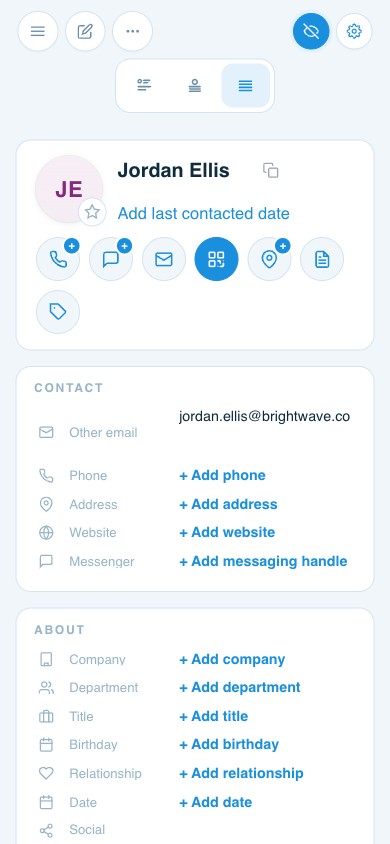
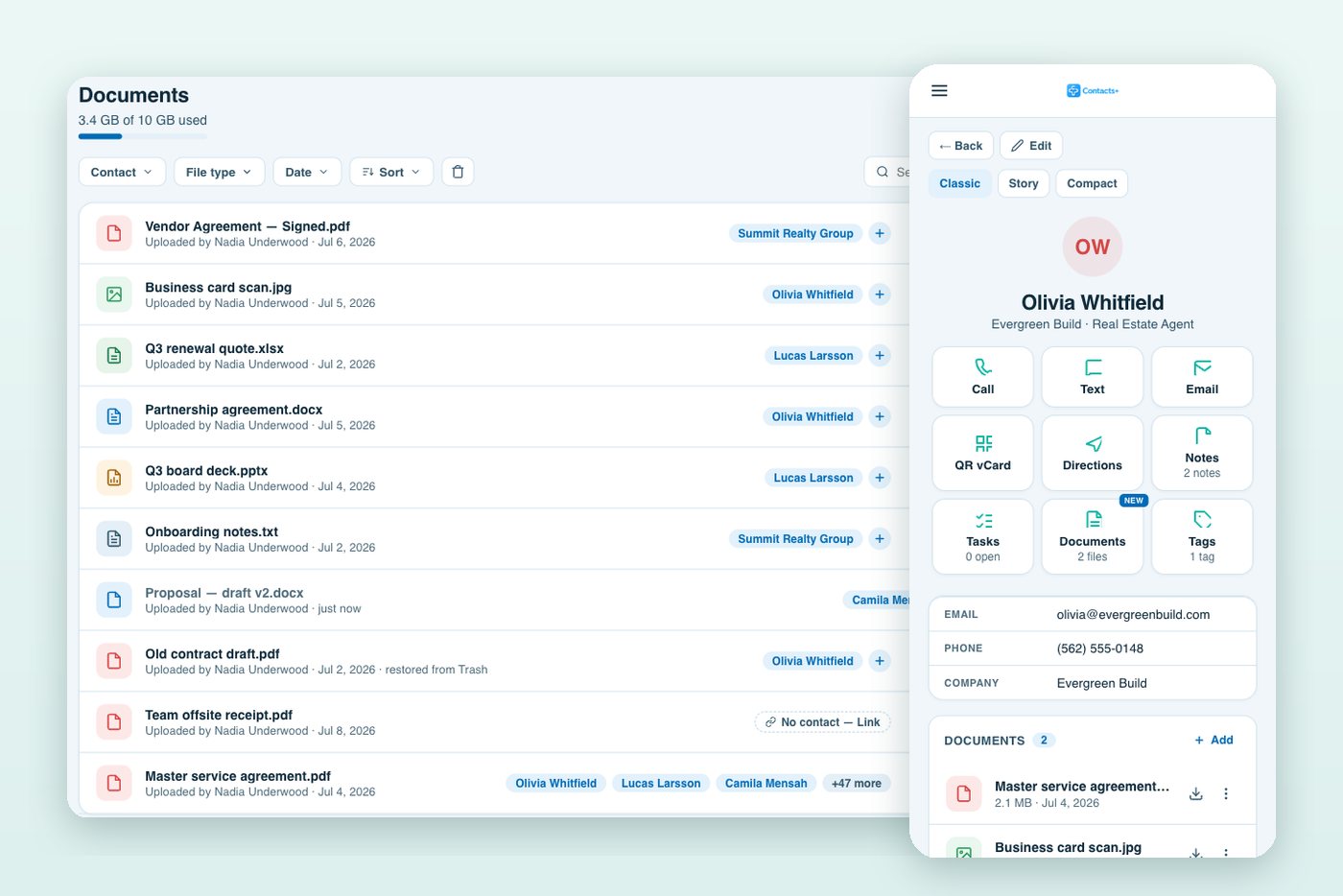
That’s what attaching files to contacts does in ContactsPlus. You drag a PDF, Word, Excel, PowerPoint, image or text file (up to 25 MB) onto a contact. If the same agreement belongs to three people, you link it to all three. It’s stored once, counts once against your storage, and shows up on each of their records.
Every file also lands in a Documents library for the whole account, where you can filter by contact, file type or date. Uploads are virus-scanned before anyone can open them, and deleted files sit in Trash for 30 days. The feature is on every plan: Free includes 5 MB of storage and Premium includes 10 GB.
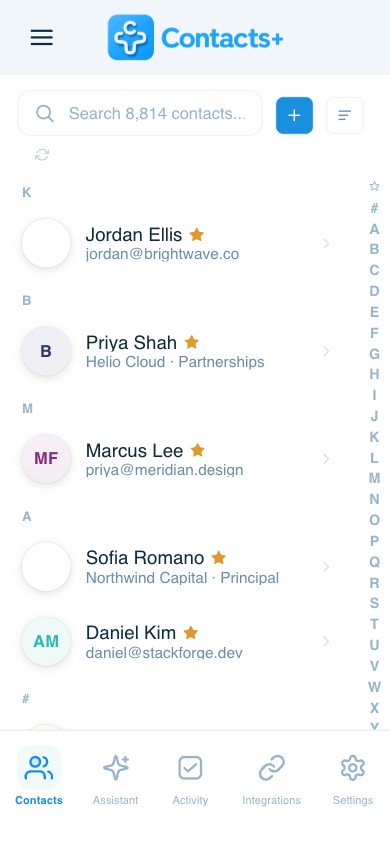
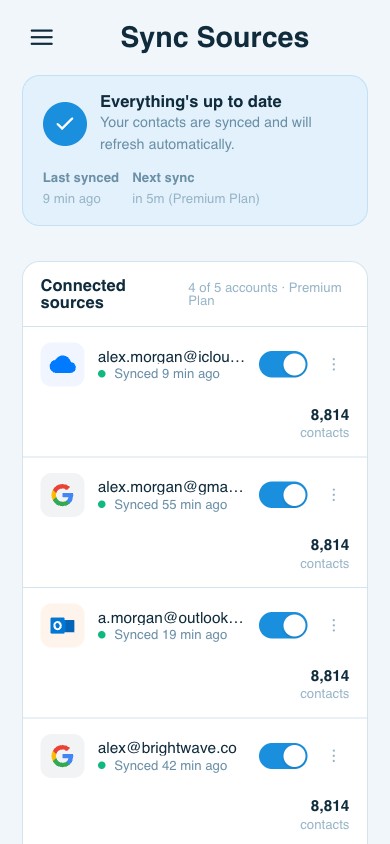
You can keep using Google Contacts alongside it. ContactsPlus syncs with Google Contacts, so names, numbers and emails stay matched in both places, and the files sit next to the same people in ContactsPlus. The four-step guide to attaching a file shows how it works.
A document doesn’t help if the client’s email has gone stale. If you’re not sure it’s current, ask them to check with a client information update form before you send it.
Frequently asked questions
Can I attach a PDF to a contact in Google Contacts?
Not directly, because Google Contacts has no attachment field. Upload the PDF to Google Drive and paste the link into the contact’s notes or website field, or use a contact manager that supports attachments.
Does Gmail let me attach a file to a contact?
No. Gmail attaches files to emails, not to people. The file stays in that thread, and you get it back by searching your inbox.
Is it safe to put Google Drive links in my contacts?
Yes, as long as the file is set to “Restricted” and shared only with named people. Avoid “Anyone with the link” for contracts, IDs or anything you wouldn’t want forwarded.
Can one document belong to several contacts?
In Google Contacts, only if you paste the same link onto each one. In ContactsPlus you link a single stored file to as many contacts as you need, and it only counts once against your storage.
Will my files sync back to Google Contacts?
No. Google Contacts has nowhere to put them. Your contact details carry on syncing as normal, and the files stay attached to those contacts in ContactsPlus.
Related articles
From ContactsPlusAttach contracts, proposals and scans to any contactSee contact documents →


Put your contacts to work
Keep every file next to the right person with ContactsPlus — free to start.
Sign up free ← Back to all articles