
AI assistants · MCP integration
Use your contacts
from ChatGPT, Claude and Grok
Connect your AI assistant to ContactsPlus and work with your address book right from the chat. Find people, read a briefing before a meeting, and let the assistant suggest updates, notes and new contacts — each one waiting in ContactsPlus for your approval before anything is saved.
- Claude
- ChatGPT
- Grok
Included with ContactsPlus Premium. New to ContactsPlus? Start free, then upgrade when you’re ready.
At a glance
The ContactsPlus MCP integration connects Claude, ChatGPT and Grok to your ContactsPlus address book. Your assistant can search your contacts and read a briefing on anyone, and it can propose changes, notes and new people that wait for your approval. It can never delete a contact or export your address book.
- Works with Claude, ChatGPT and Grok — one address to paste,
mcp.contactsplus.com/mcp - 3 searches: find a contact, read a briefing, list your tags
- 4 actions: suggest an update, append a note, add a contact, tag contacts
- Choose Read only or Full access when you connect
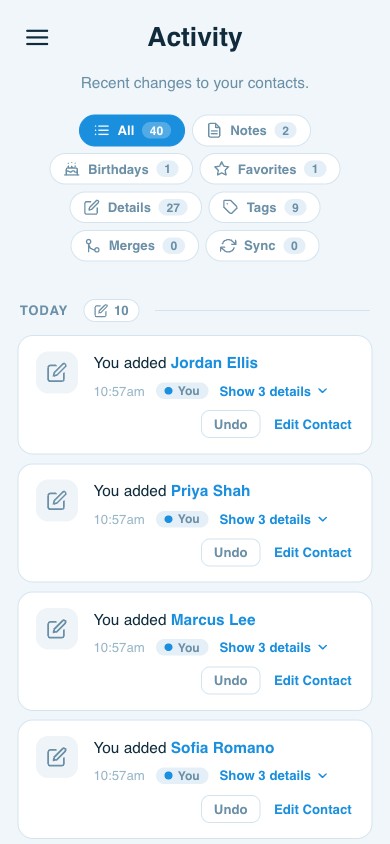
- Field changes and new people land in Suggestions for you to approve, value by value
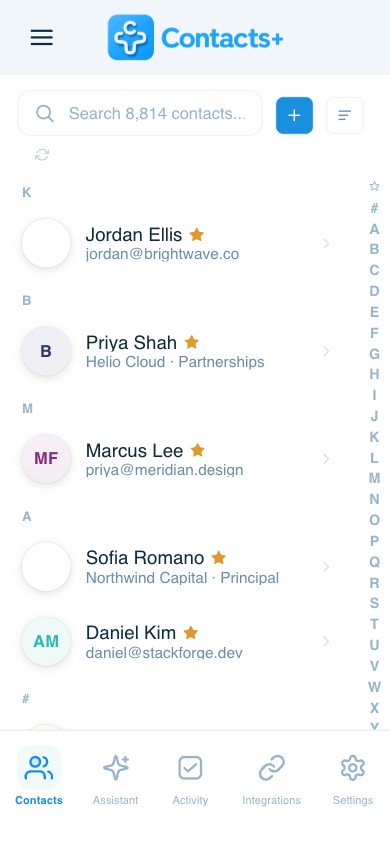
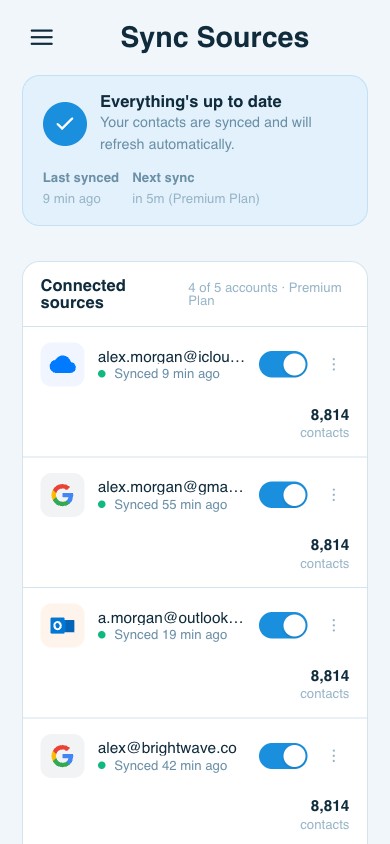
- Uses the contacts you already have — Google, iCloud (iPhone) and Outlook, synced into ContactsPlus
- Requires ContactsPlus Premium
Your contacts, wherever they live
Your Google, iPhone and Outlook contacts in ChatGPT, Claude or Grok
Your assistant works from your ContactsPlus address book — and ContactsPlus pulls in the contacts you already keep elsewhere.
1 · Bring your contacts together
Sync Google Contacts, iCloud (your iPhone and Mac) and Outlook into ContactsPlus, and merge the duplicates so there’s one record per person.
2 · Connect your assistant
Add ContactsPlus to Claude, ChatGPT or Grok as a connector, sign in, and choose Read only or Full access. See the steps.
3 · Ask, then approve
Your assistant searches all of it at once. Changes you approve are saved to your ContactsPlus book, and sync back out to Google, iCloud or Exchange if you have those connected.
What your assistant can do
Everything it can do — and nothing destructive
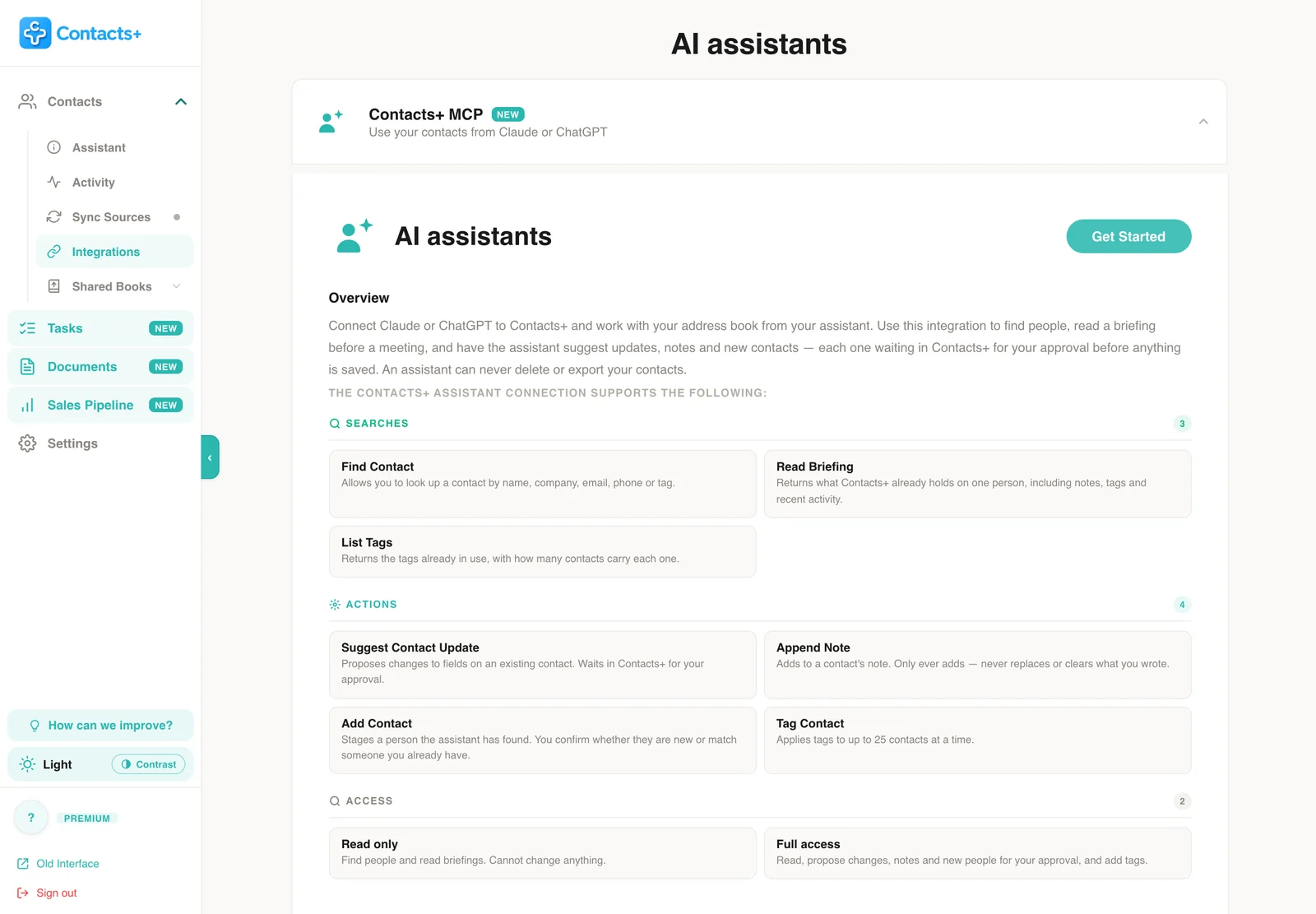
Three ways to look things up and four ways to act. Each one is labelled the way the product labels it: it reads, it proposes something for you to approve, or it applies straight away.
Find Contact
Looks up a contact by name, company, email, phone or tag.
Read Briefing
Returns what ContactsPlus already holds on one person, including notes, tags and recent activity.
List Tags
Returns the tags already in use, with how many contacts carry each one.
Suggest Contact Update
Proposes changes to fields on an existing contact. Waits in ContactsPlus for your approval.
Add Contact
Stages a person the assistant has found. You confirm whether they are new or match someone you already have.
Append Note
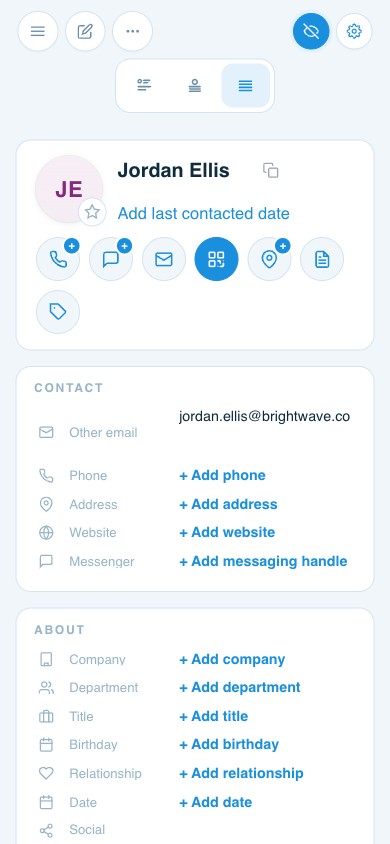
Adds to a contact’s note. Only ever adds — never replaces or clears what you wrote — and waits for your approval like any other change.
Tag Contact
Applies tags to up to 25 contacts at a time — the one action that doesn’t wait for approval.
You stay in control
Nothing is written without you
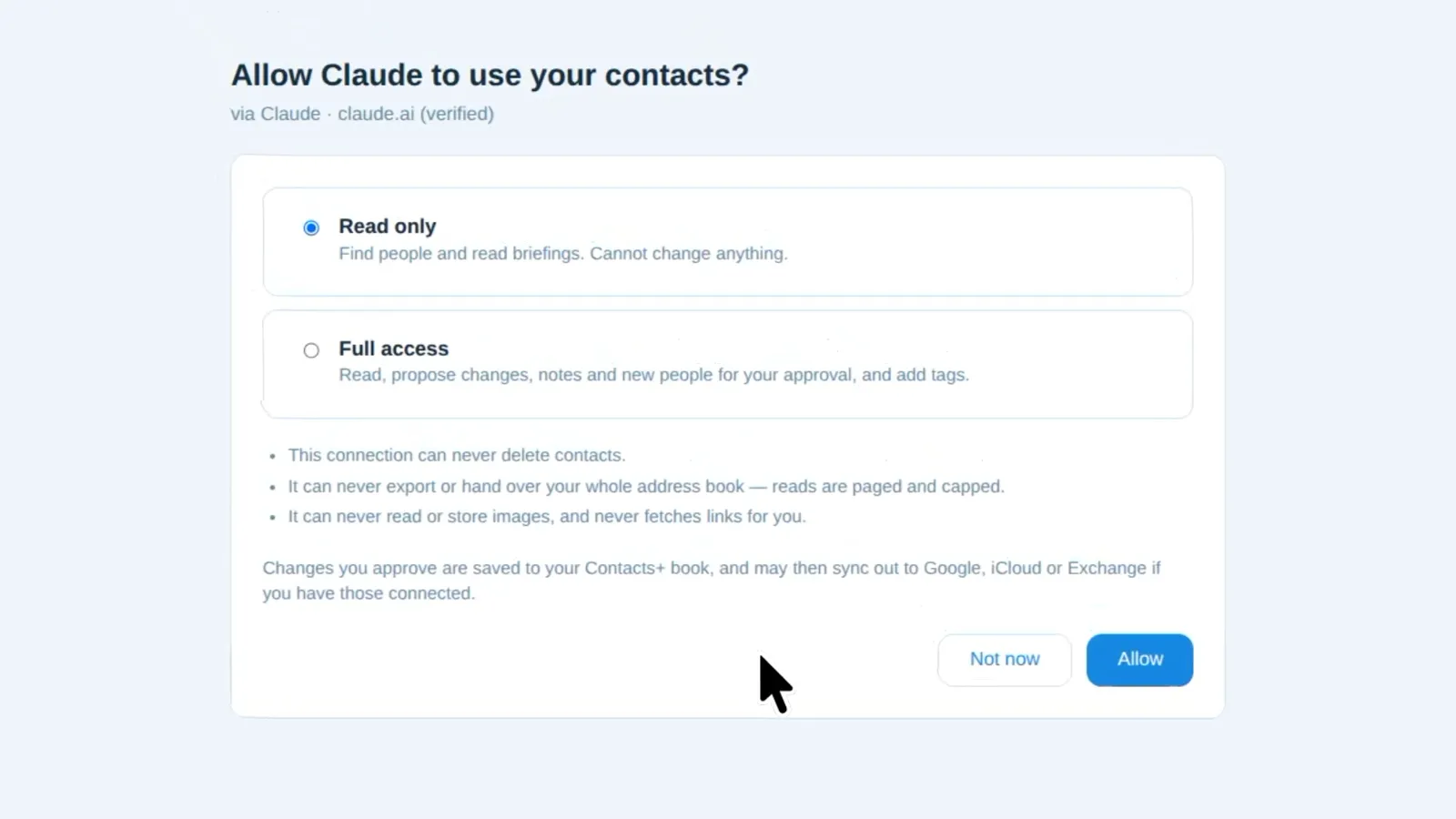
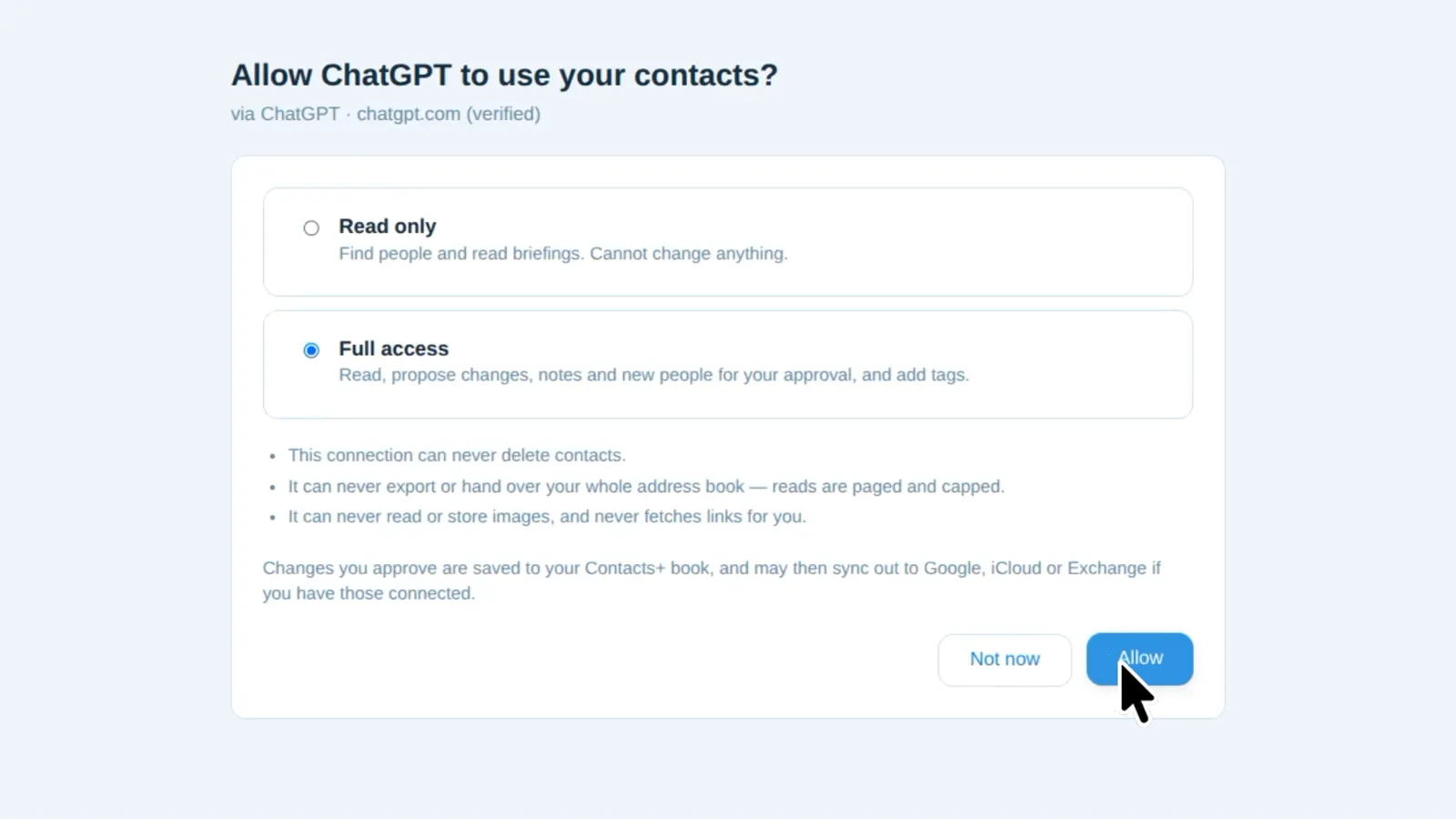
When you connect, ContactsPlus asks what access to allow. Whatever you pick, the assistant can’t quietly rewrite your address book.
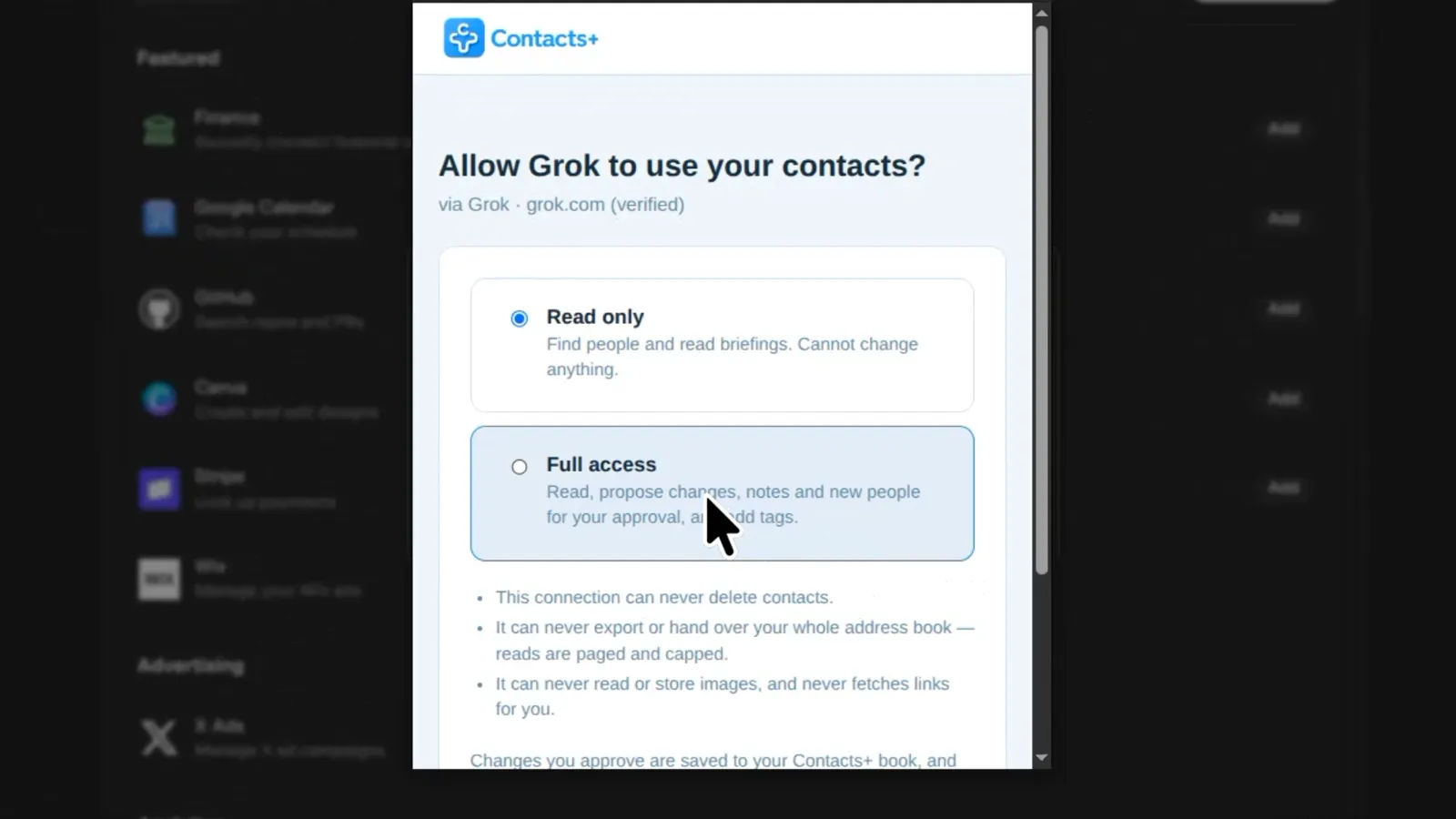
Pick Read only or Full access
Read only lets the assistant find people and read briefings. It cannot change anything.
Full access also lets it propose changes, notes and new people for your approval, and add tags.
- It can never delete a contact.
- It can never export or hand over your whole address book — reads are paged and capped.
- It never reads or stores images, and never fetches links for you. A business card photo is read by your assistant; ContactsPlus only receives the text it typed out.
- Suggested changes wait in Suggestions until you approve them, value by value.
Things to try
What to say to your assistant
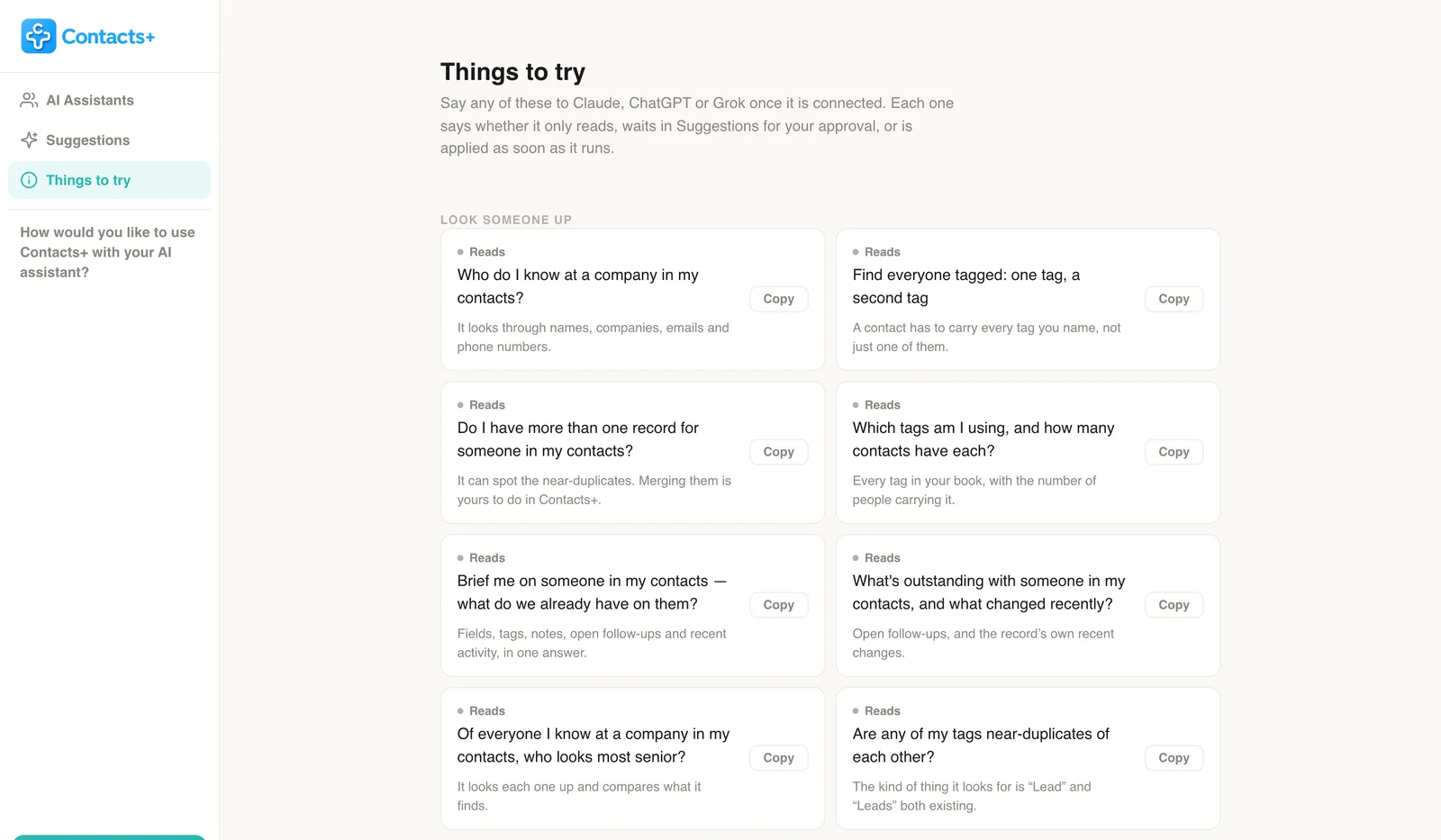
Once it’s connected, just ask. These come from the list inside ContactsPlus — copy one and paste it into Claude, ChatGPT or Grok.
Brief me on someone in my contacts — what do we already have on them?
Fields, tags, notes, open follow-ups and recent activity, in one answer.
Who do I know at a company in my contacts?
It looks through names, companies, emails and phone numbers.
Do I have more than one record for someone in my contacts?
It can spot the near-duplicates. Merging them is yours to do in ContactsPlus.
Here’s a photo of a business card — add them: [attach it]
Your assistant reads the photo. ContactsPlus only ever receives the text it typed out.
Here are my notes from today’s meetings — update the right people: [paste them]
It finds the person you mean and proposes changes to their record, rather than making a second one.
Search the web for what someone in my contacts is doing now and add anything new to their record
Your assistant does the searching. Everything it finds still waits for you.
Create a contact from this email signature: [paste it]
If you already have them, it proposes an update rather than a second record.
Tag everyone at a company in my contacts as “client”
Up to 25 at a time — and the only thing here that does not wait for your approval.
Getting started
Connect your assistant
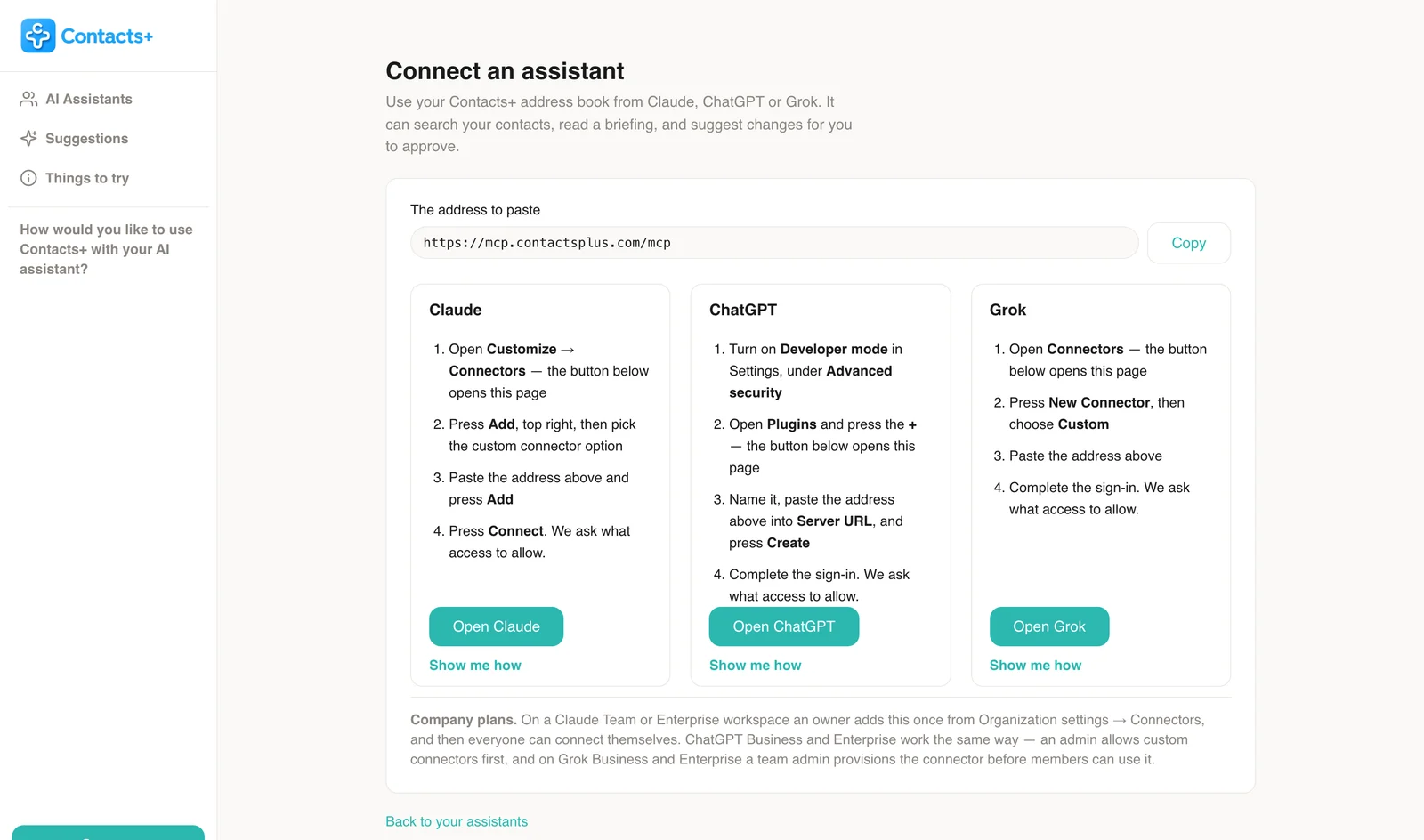
Every assistant uses the same address. Paste it in as a custom connector, sign in to ContactsPlus, and choose what access to allow.
The address to paste
https://mcp.contactsplus.com/mcp
Claude
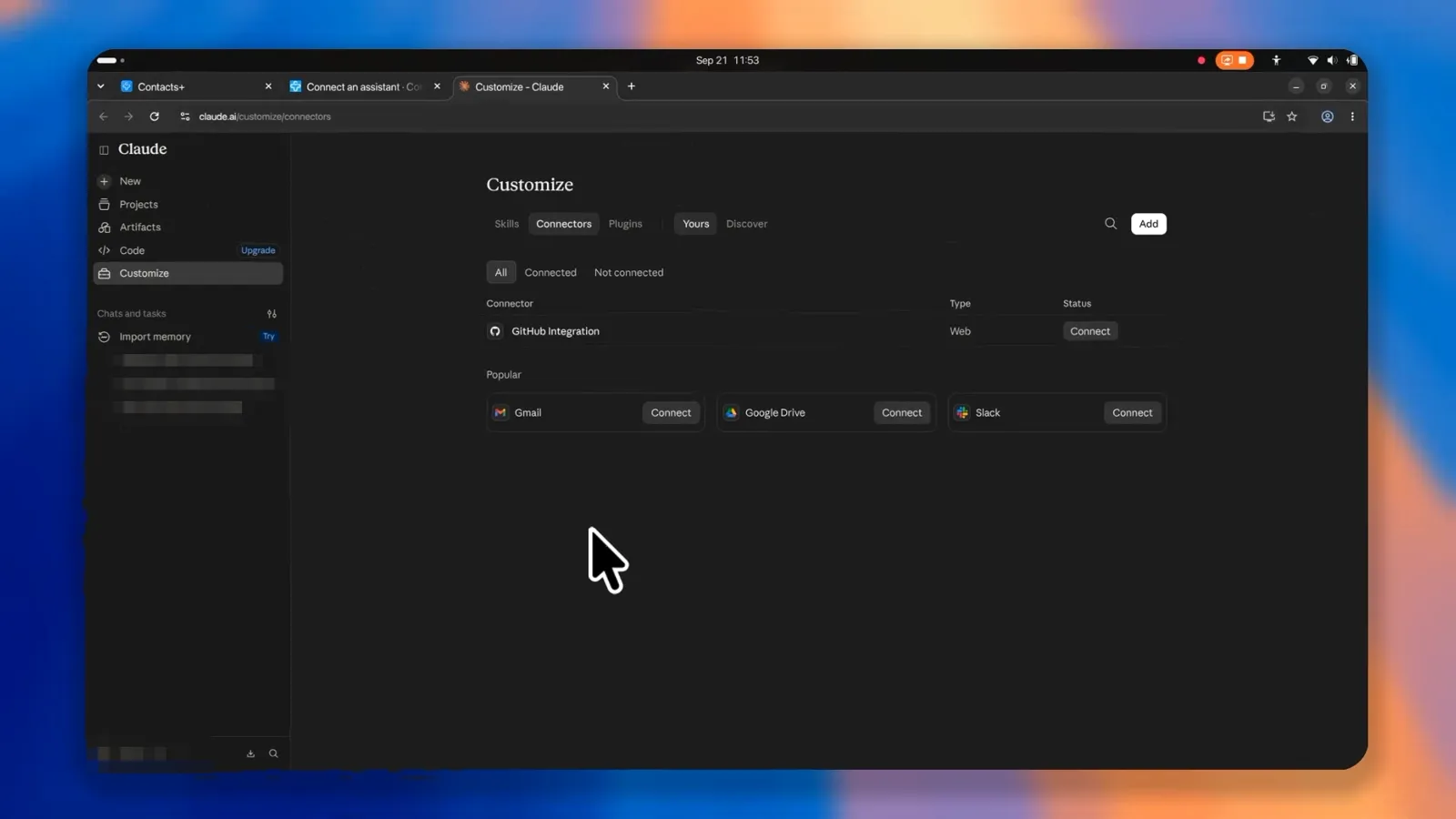
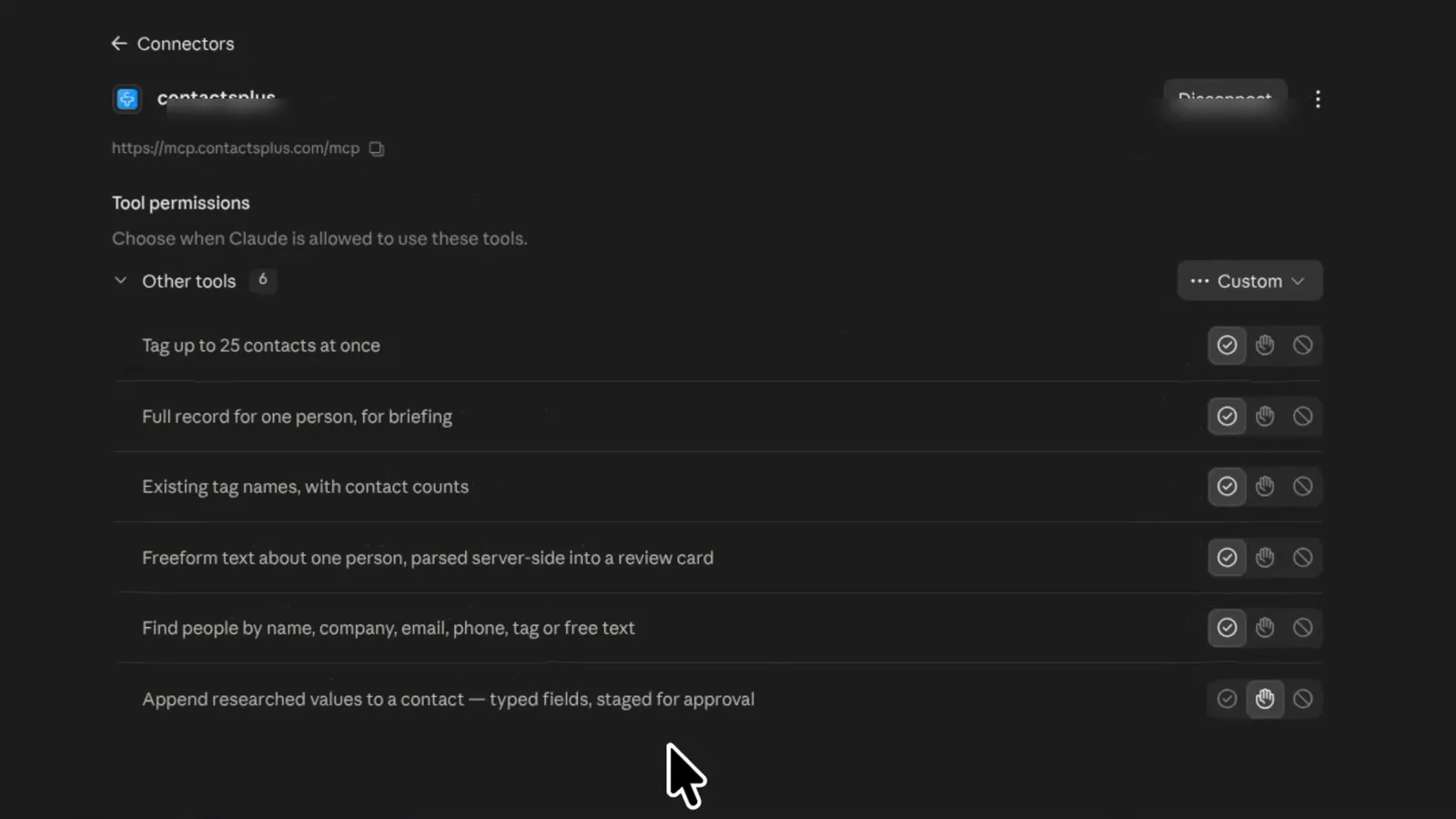
- Open Customize → Connectors — the button below opens this page.
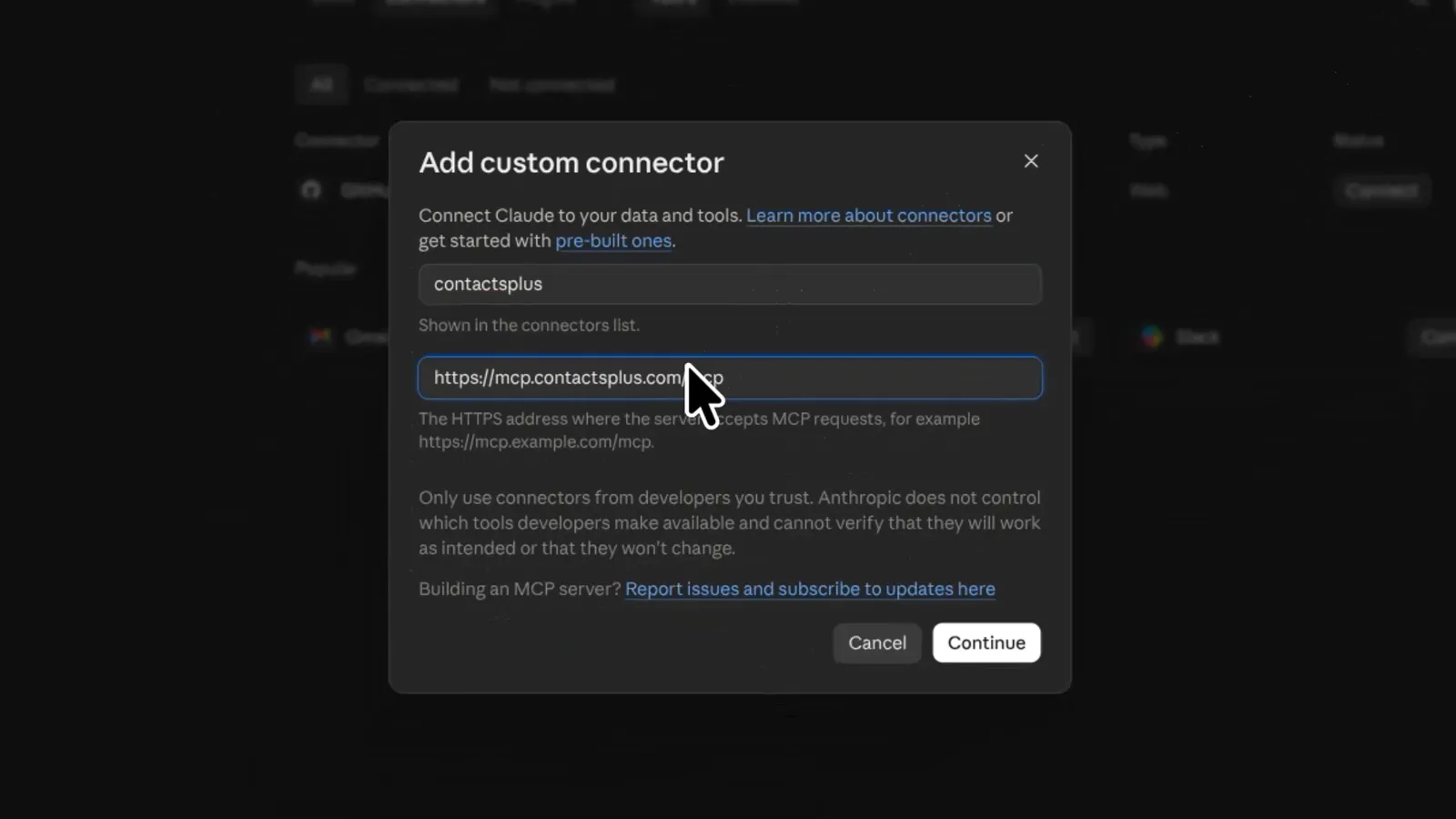
- Press Add, top right, then pick the custom connector option.
- Paste the address above and press Add.
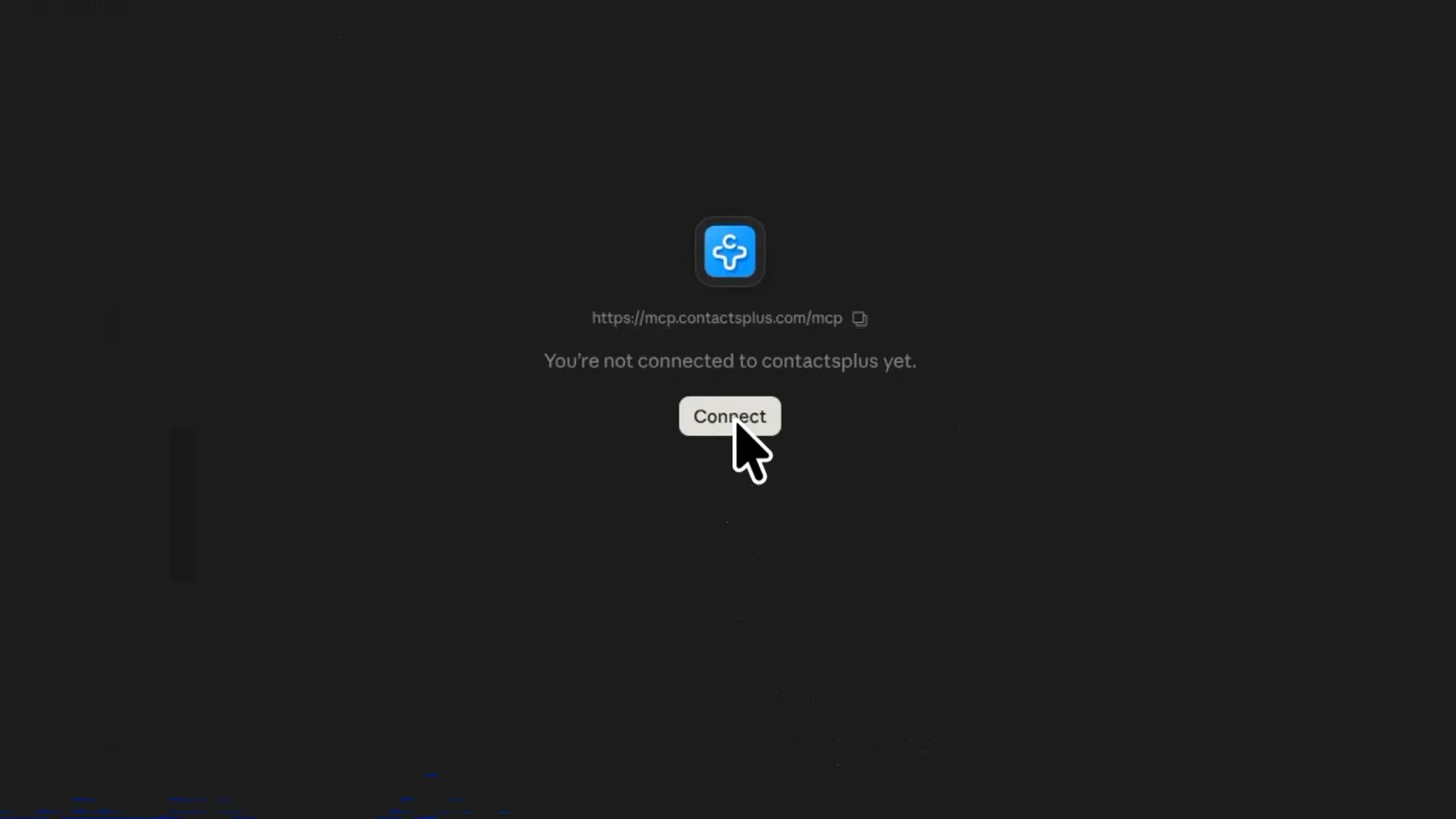
- Press Connect. ContactsPlus asks what access to allow.
ChatGPT
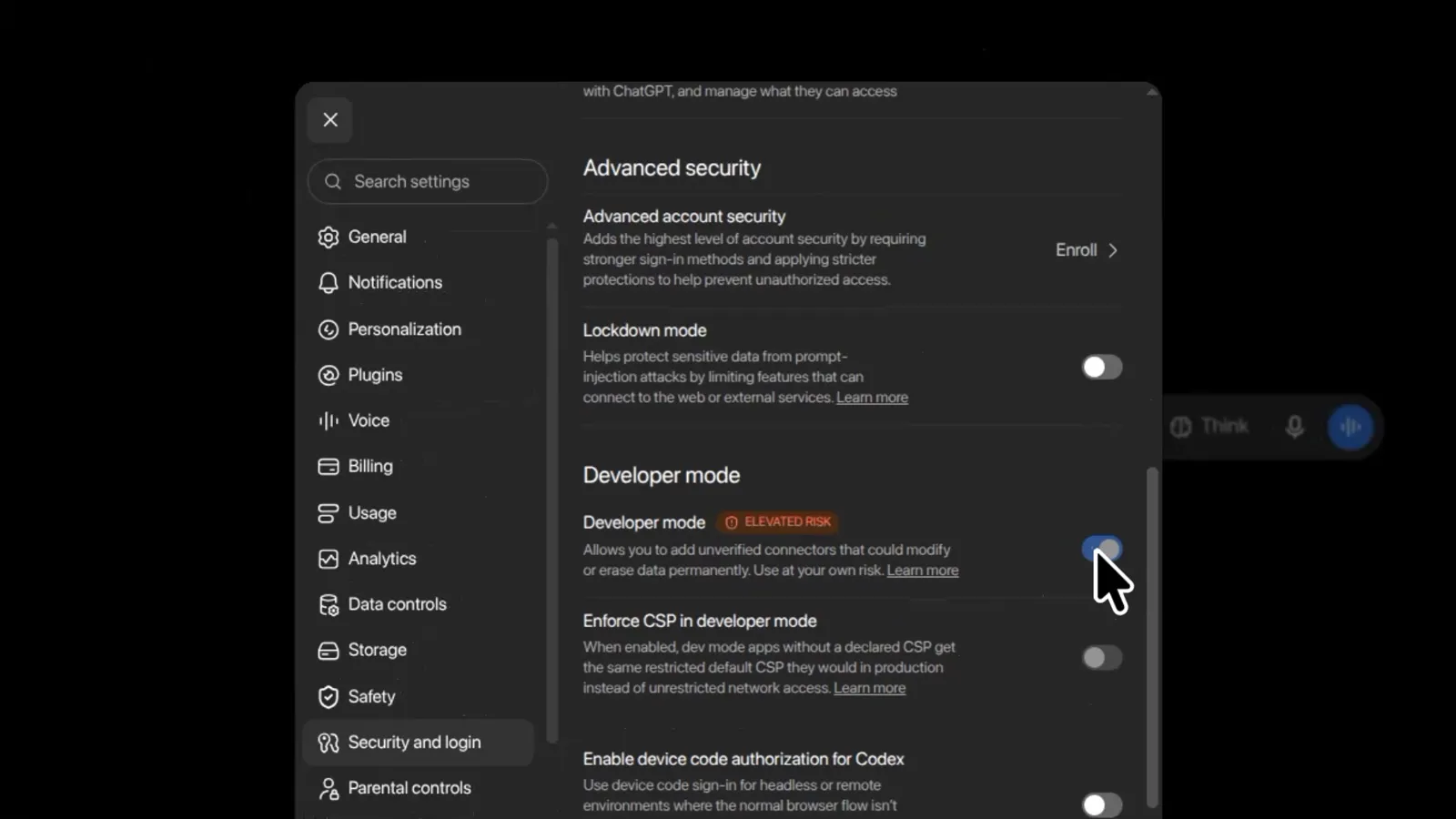
- Turn on Developer mode in Settings, under Advanced security.
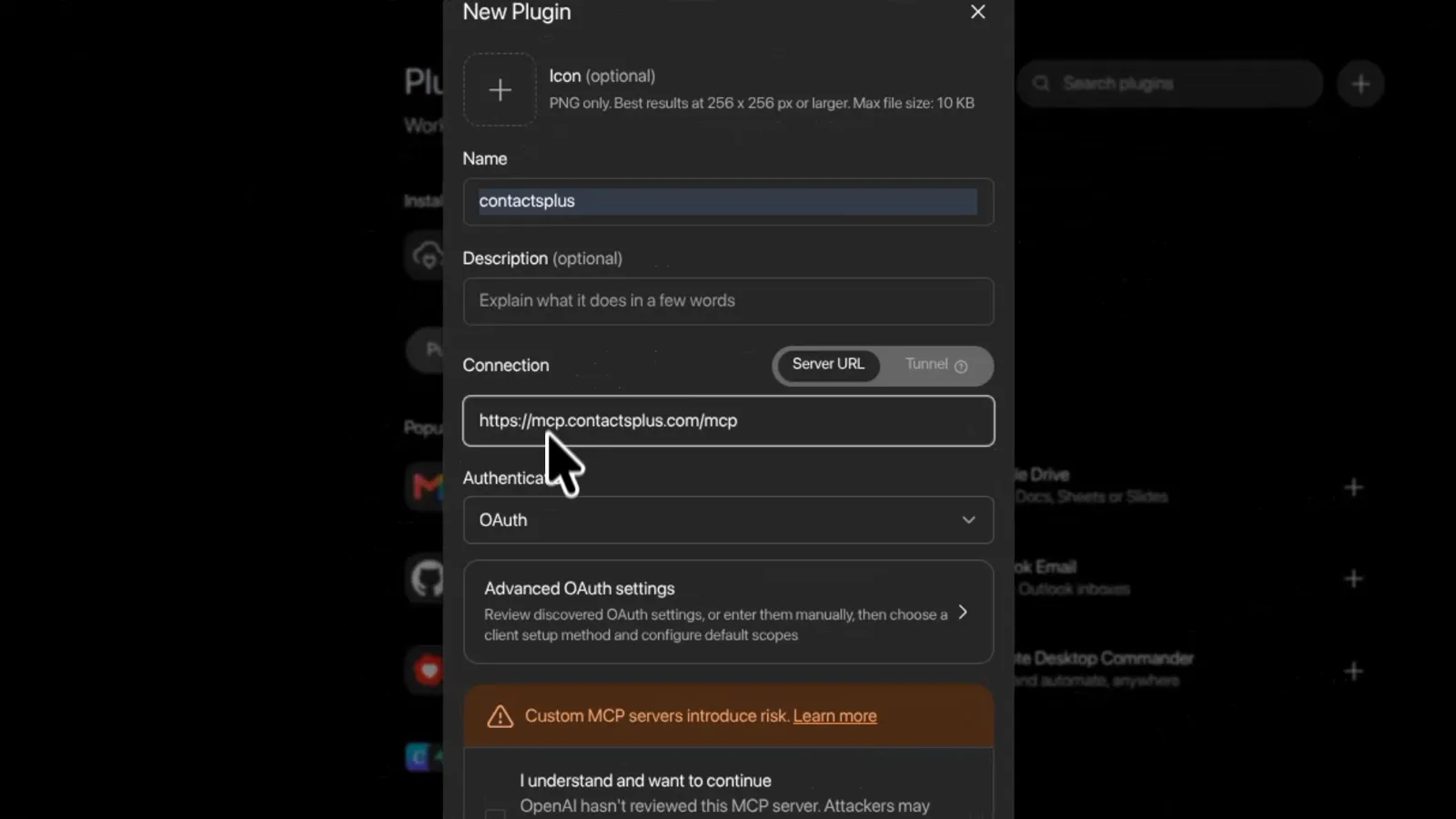
- Open Plugins and press the + — the button below opens this page.
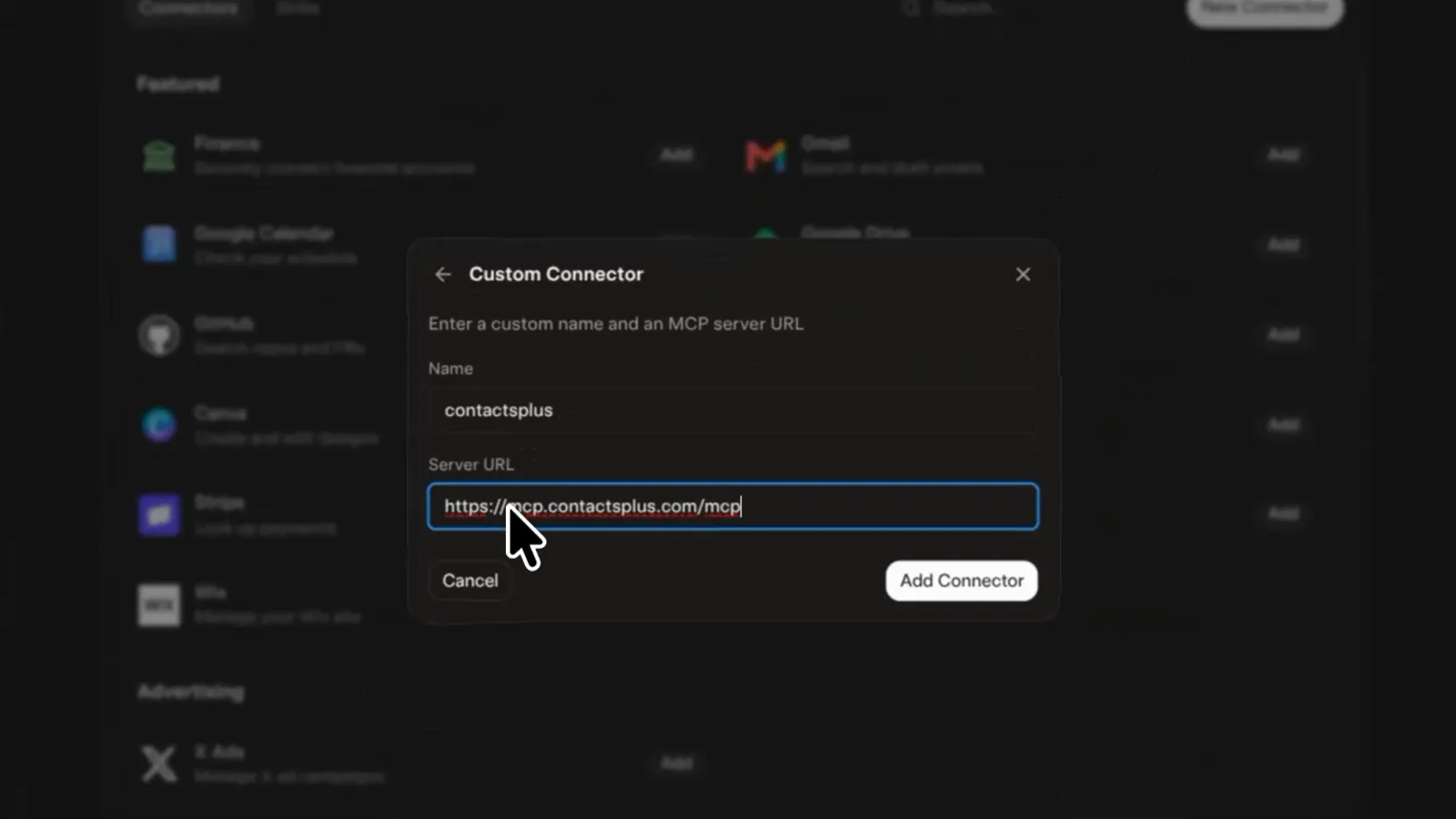
- Name it, paste the address above into Server URL, and press Create.
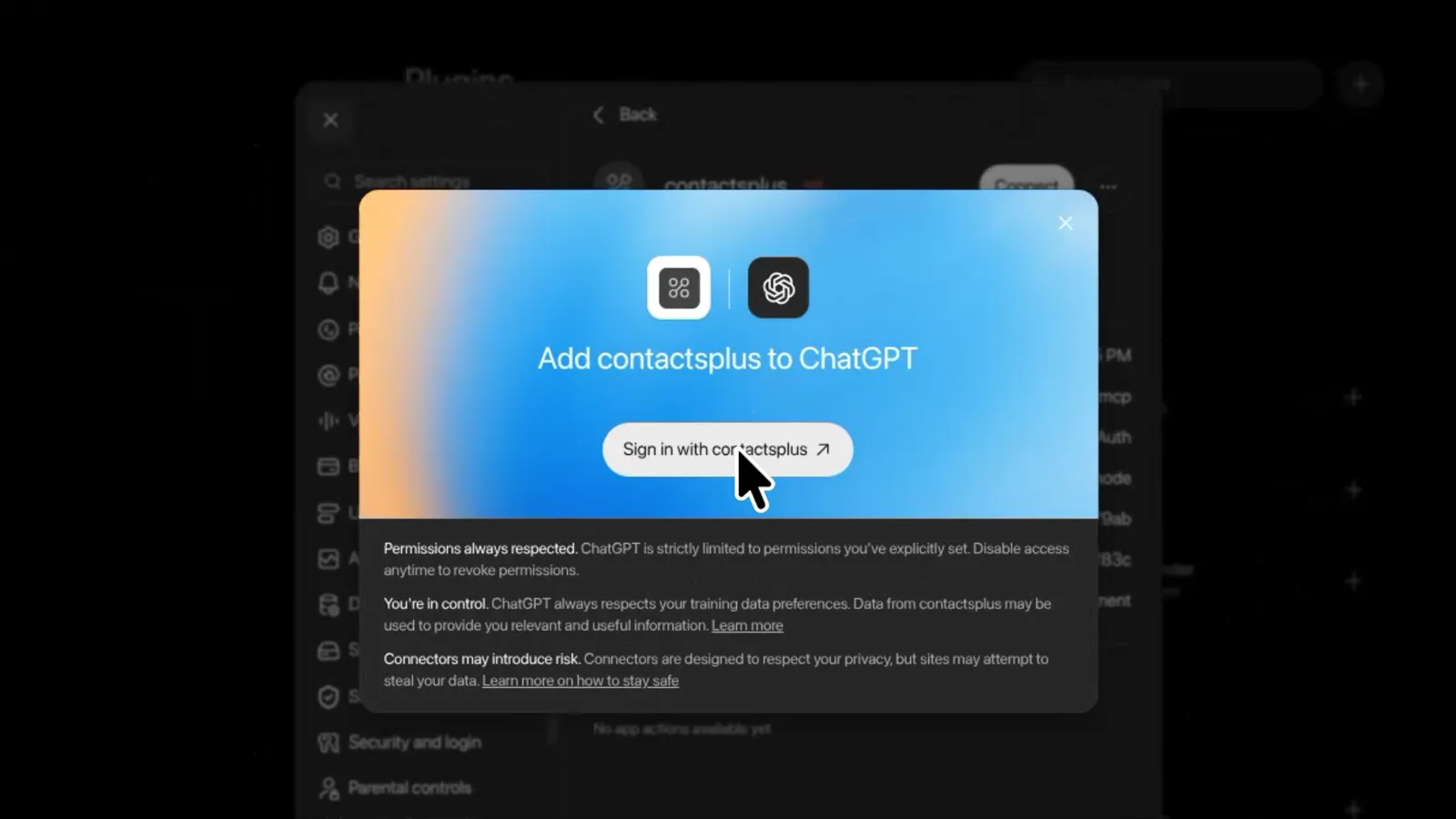
- Complete the sign-in. ContactsPlus asks what access to allow.
Grok
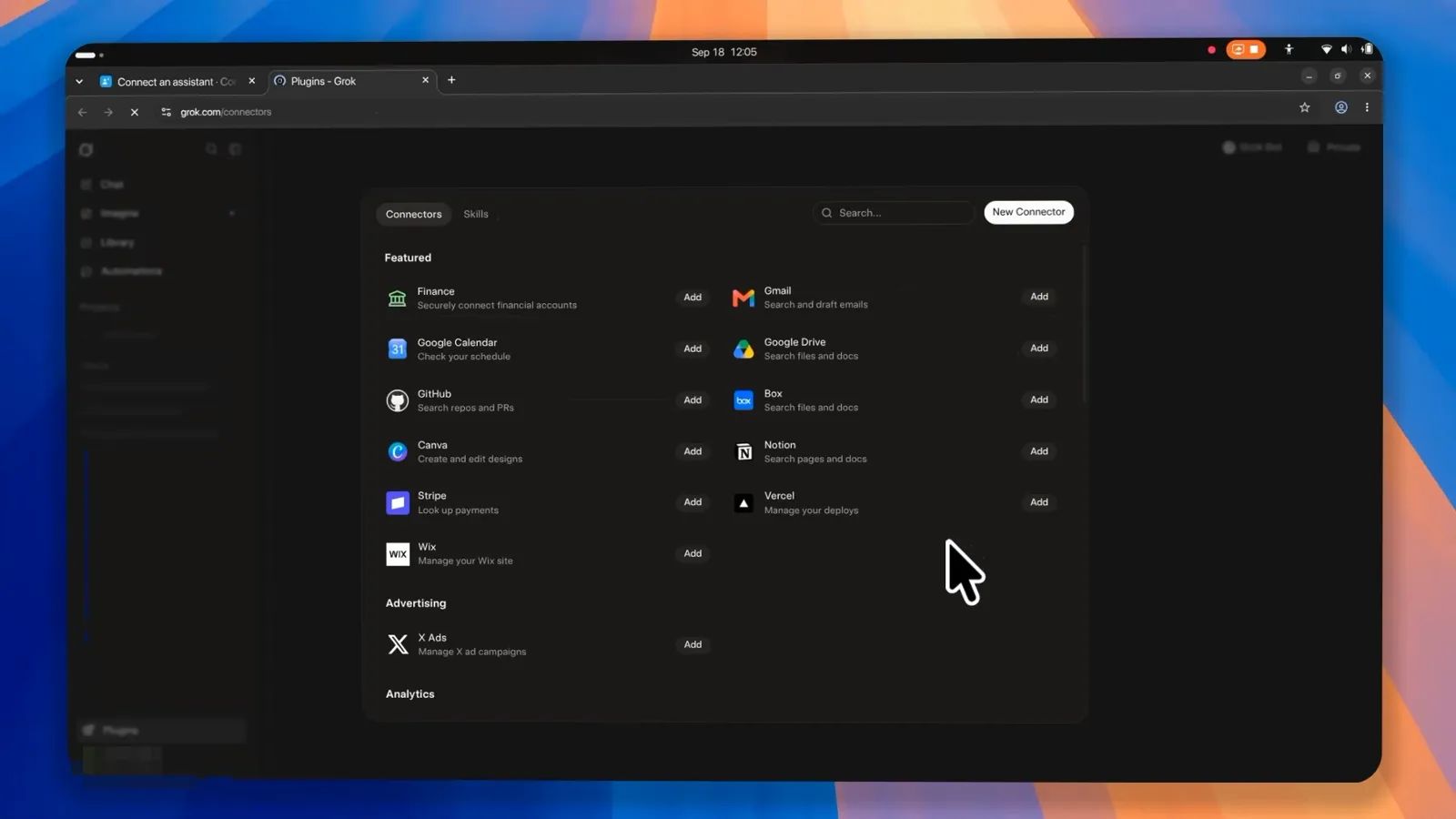
- Open Connectors — the button below opens this page.
- Press New Connector, then choose Custom.
- Paste the address above.
- Complete the sign-in. ContactsPlus asks what access to allow.
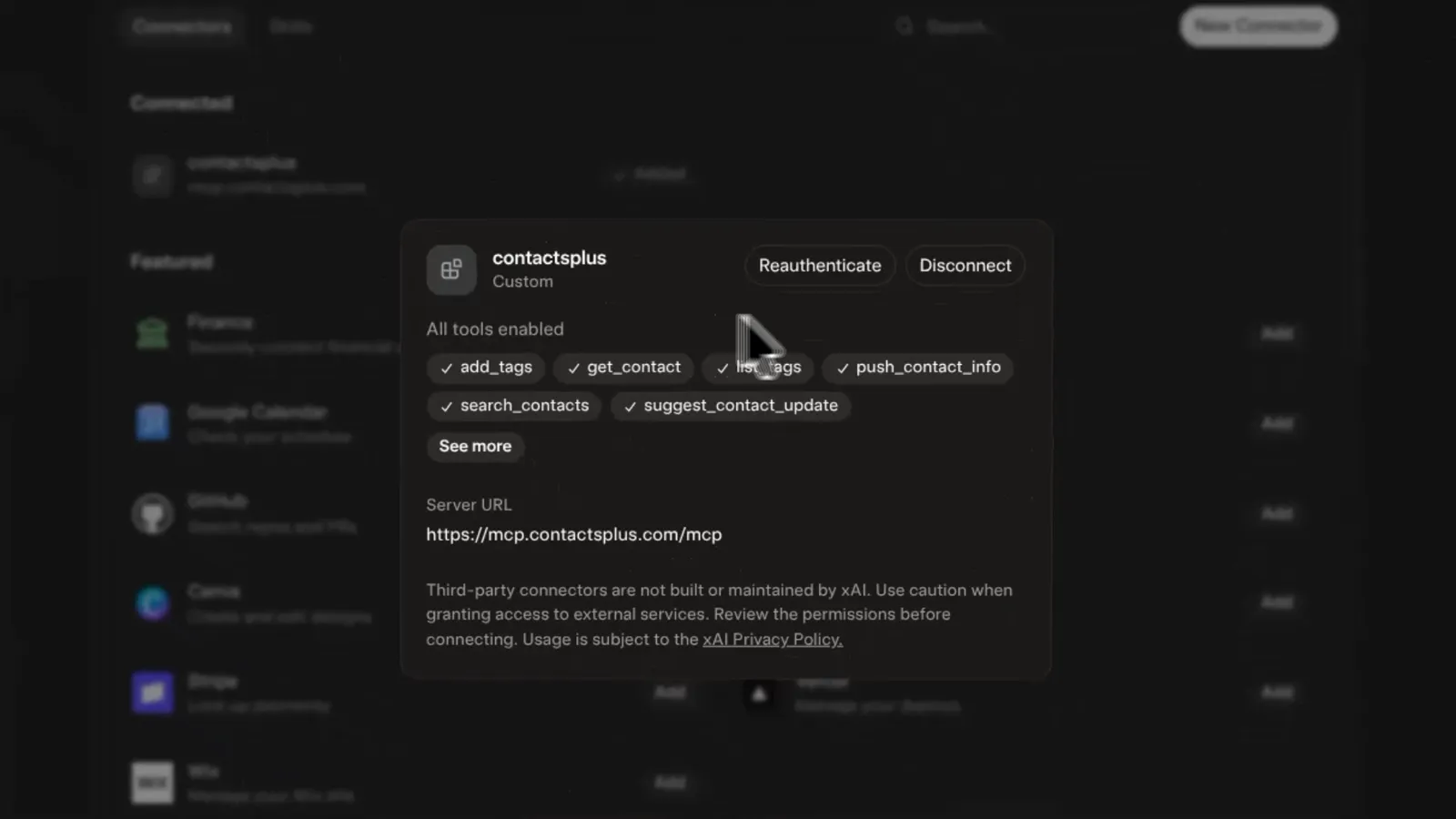
Company plans. On a Claude Team or Enterprise workspace an owner adds this once from Organization settings → Connectors, and then everyone can connect themselves. ChatGPT Business and Enterprise work the same way — an admin allows custom connectors first — and on Grok Business and Enterprise a team admin provisions the connector before members can use it.
Inside ContactsPlus
Where it lives in the app
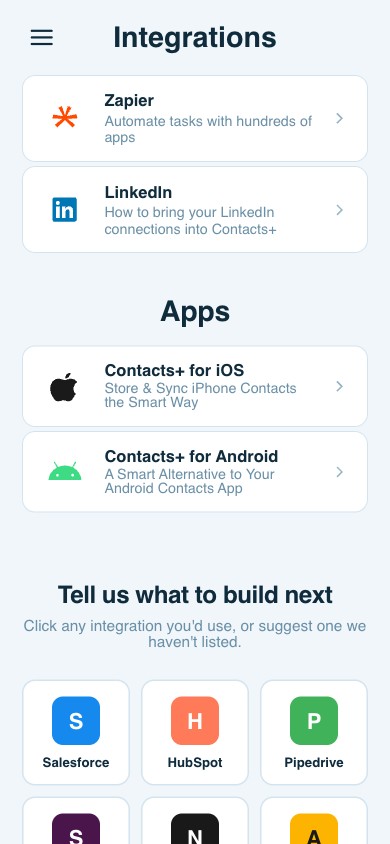
Open Integrations → AI assistants and press Get Started. Your assistant page keeps everything in one place.
Why it matters
Your assistant is only as good as your contacts
An AI assistant is quick at research and bad at remembering who you know. Ask it about a client and it starts from zero — or worse, from whichever half-finished copy of that person it happens to find.
ContactsPlus syncs Google, iCloud and Outlook into one address book and merges the duplicates, so there is one complete record per person. Connect your assistant to that, and it briefs you from the real record, then sends what it learns back to the same place — for you to approve.
See all ContactsPlus integrations, or automate with Zapier.
Questions
Frequently asked questions
Which AI assistants work with ContactsPlus?
Claude, ChatGPT and Grok. ContactsPlus runs an MCP server at https://mcp.contactsplus.com/mcp, and you add that address to your assistant as a custom connector. On ChatGPT you turn on Developer mode first.
Can ChatGPT use my Google Contacts?
ChatGPT has its own Google Contacts connector for your Google address book. ContactsPlus is for when your contacts live in more than one place: it brings Google, iCloud (iPhone) and Outlook together into one book with the duplicates merged, and lets ChatGPT suggest updates, each one waiting for your approval and synced back once you approve. It works the same way in Claude, which has no Google Contacts connector of its own, and in Grok.
Can Claude or Grok use my iPhone contacts?
Yes. Your iPhone keeps its contacts in iCloud, so sync iCloud into ContactsPlus and then connect Claude or Grok to ContactsPlus. The assistant works from that one address book, alongside any Google or Outlook contacts you have synced too. ChatGPT works the same way.
What is MCP?
MCP, the Model Context Protocol, is an open standard that lets an AI assistant use tools and data from another service. The ContactsPlus MCP server is what lets Claude, ChatGPT or Grok search your contacts and suggest changes to them. You never have to deal with the protocol yourself: you paste one address into your assistant and sign in.
Can my AI assistant change or delete my contacts?
It can never delete a contact or export your address book. Suggested field changes, new people and anything researched on the web wait in Suggestions until you approve them, value by value. Notes are only ever added to, never replaced. The one thing that applies straight away is tagging, up to 25 contacts at a time.
What is the difference between Read only and Full access?
You choose when you connect. Read only lets the assistant find people and read briefings, and it cannot change anything. Full access also lets it propose changes, notes and new people for your approval, and add tags.
Which plan do I need?
Assistant connections need an active ContactsPlus Premium plan. You can set the connection up before you upgrade, and it starts working as soon as your plan is active, without setting it up again.
Does it work on Claude Team, ChatGPT Business or Grok Business?
Yes. On a Claude Team or Enterprise workspace an owner adds the connector once from Organization settings, then everyone can connect themselves. ChatGPT Business and Enterprise work the same way once an admin allows custom connectors, and on Grok Business and Enterprise a team admin provisions the connector before members can use it.
Where do I see what my assistant is connected to?
In ContactsPlus, open Integrations, then AI assistants, and press Get Started. That opens your assistant page, which lists every connected assistant, holds the Suggestions waiting for your approval, and has a list of things to try.
Give your assistant your address book.
Connect Claude, ChatGPT or Grok to ContactsPlus — and approve everything it suggests.
Connect an assistant