
Emailing
Mail merge from Gmail,
without the spreadsheet
Gmail’s own mail merge only comes with some paid Google Workspace plans, and most add-ons start by exporting your contacts into a sheet that’s stale by the time you send. ContactsPlus works with any Gmail account. Pick people straight from your contacts, and each one gets a personal copy from your own Gmail or Outlook.
At a glance
Emailing in ContactsPlus sends personal emails to one contact or a whole list through your own mailbox. Merge fields fill in from each contact’s record. Emails wait in a paced queue rather than leaving all at once, and replies, bounces and unsubscribes are written back to the contact they came from.
- Works with Gmail, Google Workspace, Outlook.com, Microsoft 365 and Exchange Online
- Templates with merge fields, and a fallback for any field that’s empty
- Email Lists are saved searches of your contacts, so they stay current
- Schedule a send for later, and see exactly when each email will go
- When someone replies, any follow-ups waiting for them are held back
- Included in Premium and Teams; free accounts can send up to 20 emails in total in total
How it works
How a send works
Connect the mailbox you send from
Choose Google or Microsoft and approve the connection on their own sign-in page. ContactsPlus never sees your password, and you can connect more than one mailbox and pick which one each email uses.
Choose who it’s for
Choose individual contacts or a whole list. A list is a saved search of your contacts, such as everyone at one company, so it stays current.
Write the email
Start from a template or a blank page. Insert merge fields like {{first_name}} or {{company}} and ContactsPlus fills them in from each contact. Attach a file if you need to.
Check it
See exactly what each person will receive, footer and reply address included, and send yourself a test copy to check it in a real mail app. Tests don’t count against your limits.
Queue it
Send it now, or schedule it for a date and time. You’ll see when each email is due to go, and a list goes out at the pace you set, inside the sending limits Google and Microsoft allow.
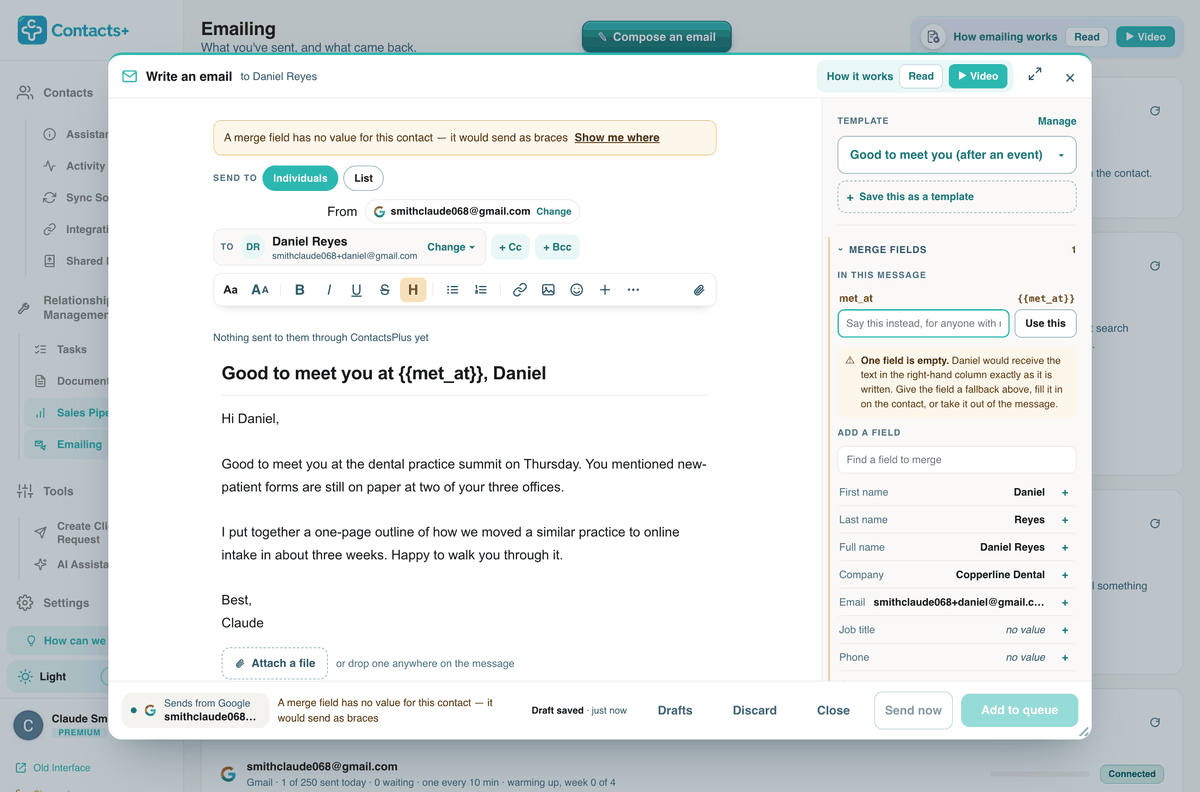
Empty merge fields are caught before sending
If a merge field has no value for someone, ContactsPlus stops and shows you where. You can write a fallback for anyone missing that field, fill it in on the contact, or take the field out.
- Merge fields come from the contact record: name, company, title, email, phone and more
- You see each person’s values before anything is sent
- Fallback text applies only where the field is empty
Templates and lists
Templates for the emails you keep rewriting
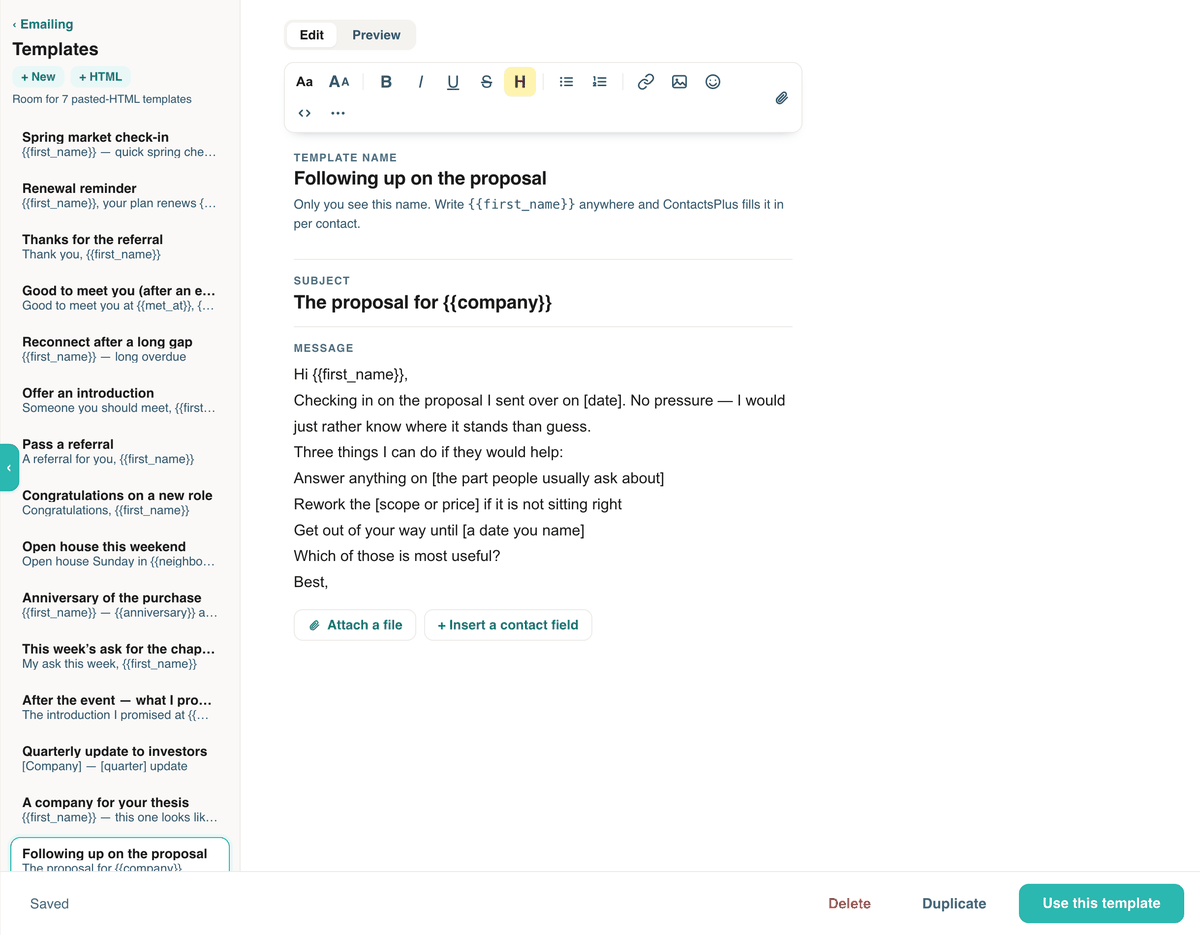
ContactsPlus comes with templates for following up on a proposal and thanking someone for a referral, among others. Edit them, write your own, or paste in an HTML template you already use.
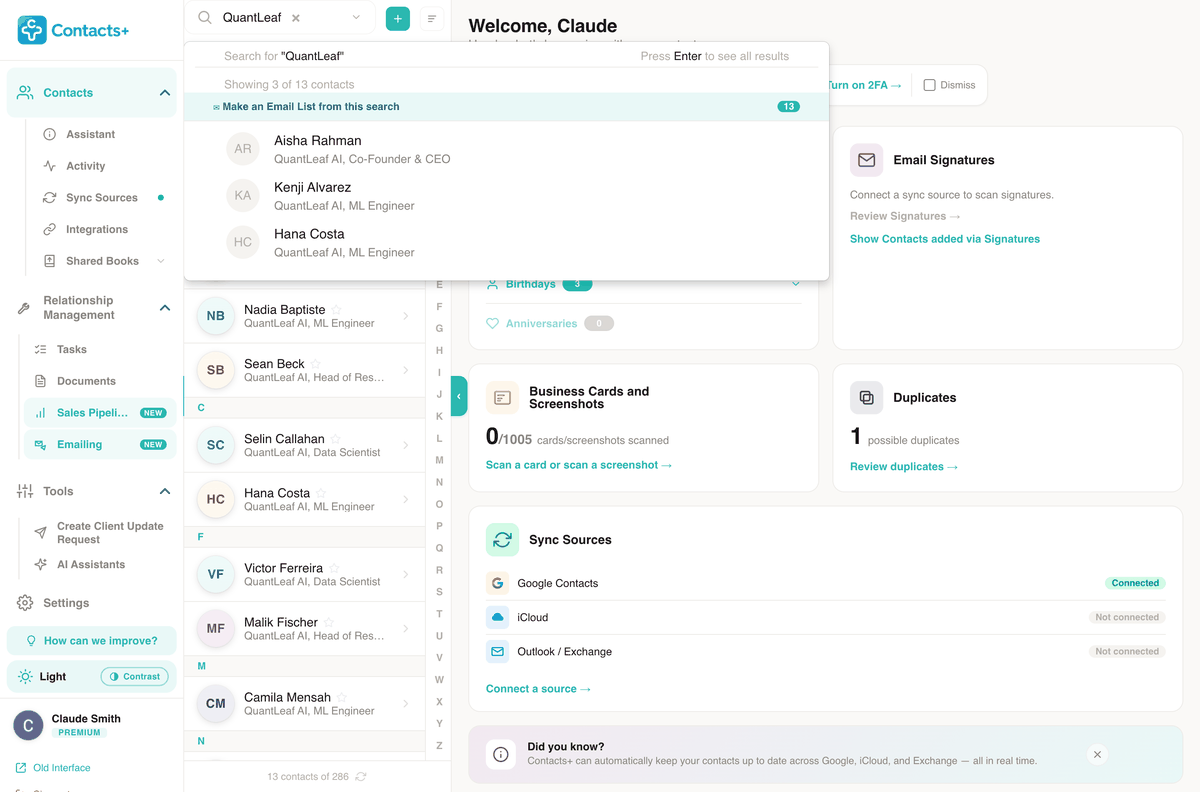
A list stays live: whoever matches the search today is who it would email today. When you send to it, that send keeps the exact people it found, with its own record and its own CSV, so you can always see who got what.
The queue
Sent at a pace that keeps you out of spam folders
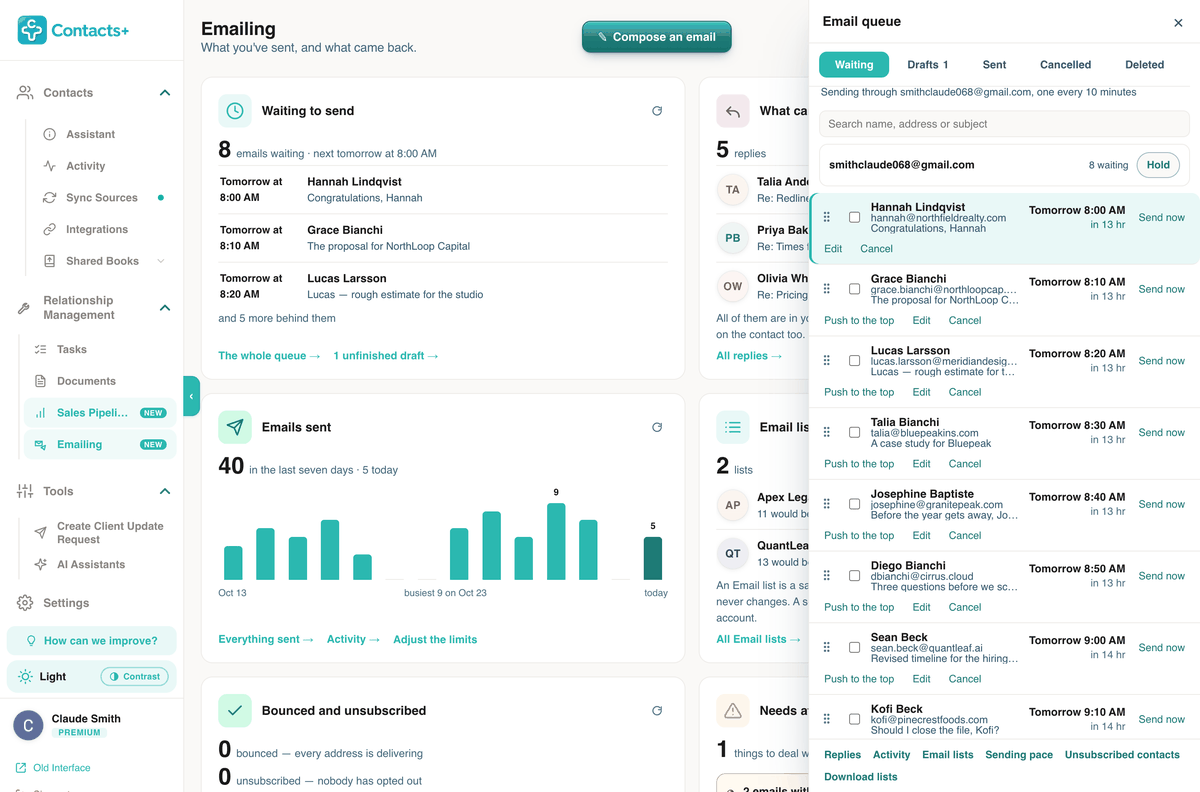
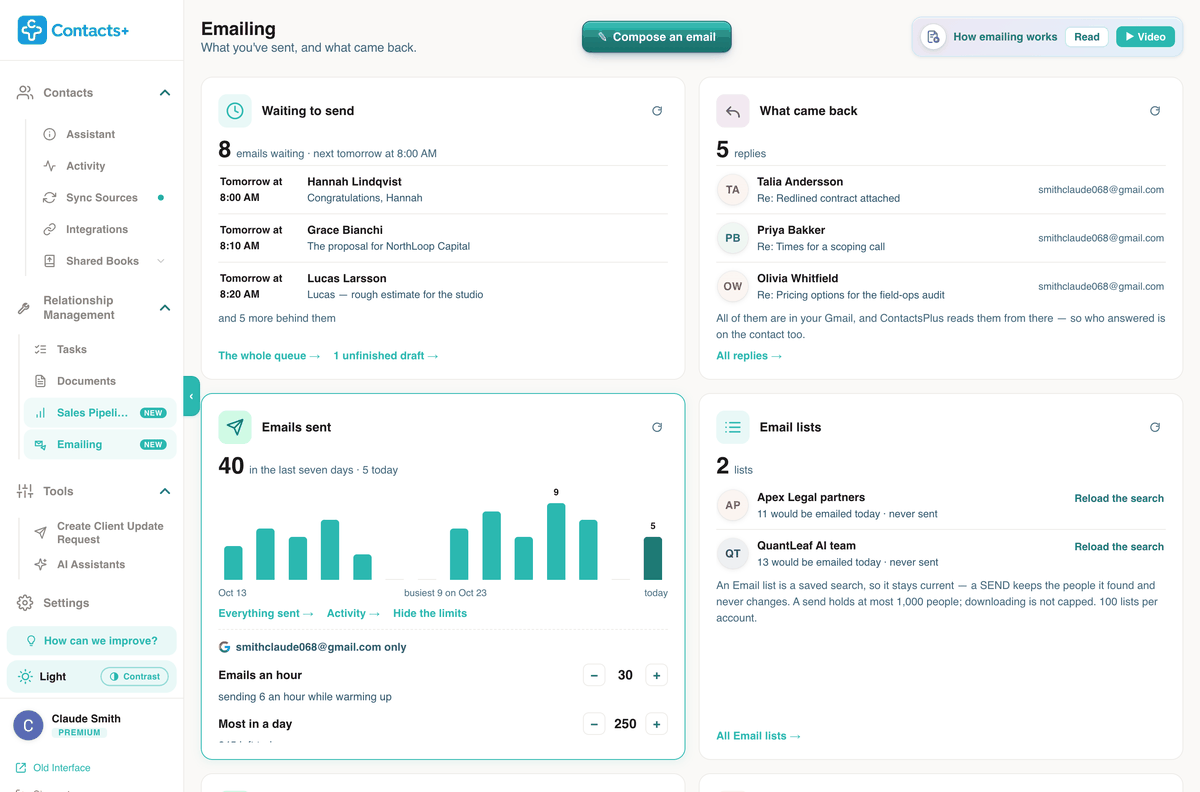
Two hundred emails leaving your Gmail in the same minute look like a blast, to your provider and to the people receiving them. ContactsPlus lines them up and sends them one at a time, at a pace you can see and change. Schedule a note to two hundred clients for Tuesday at 9am and it starts then, leaving in steady slots that stay inside what Gmail and Microsoft allow.
What came back
Every reply lands on the contact as well as in your inbox
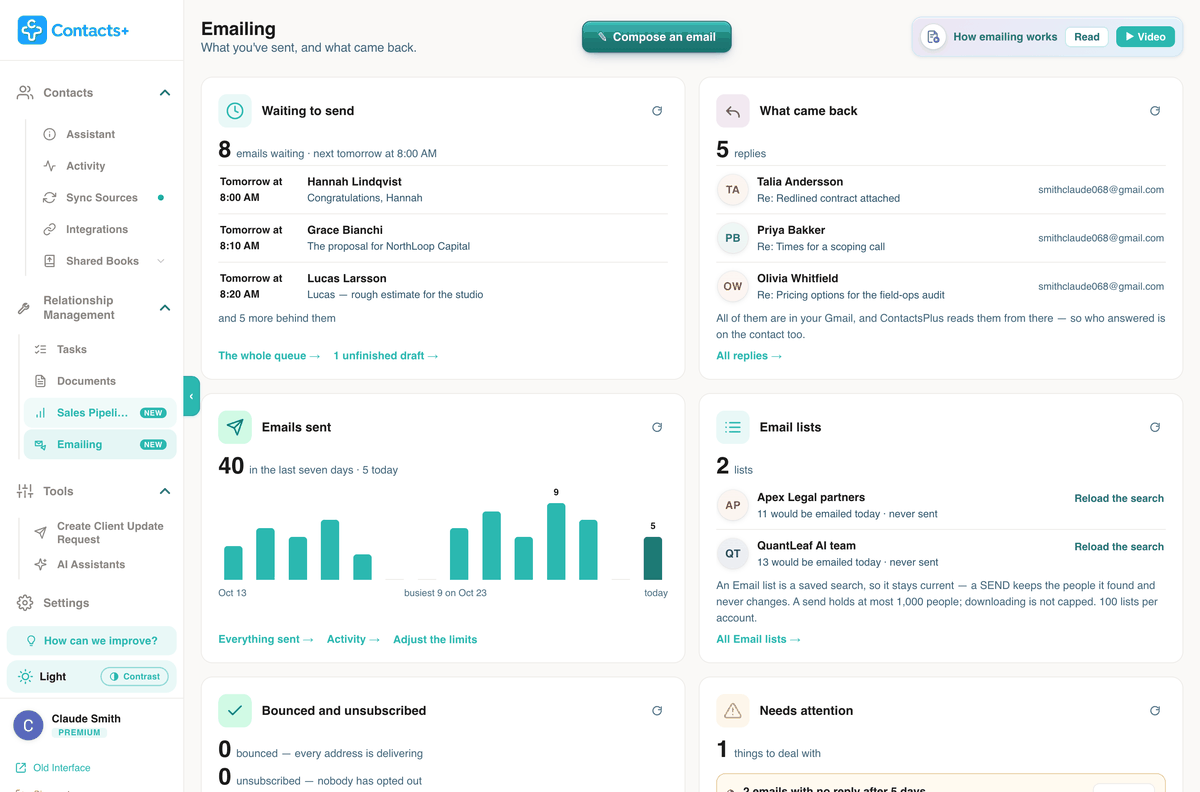
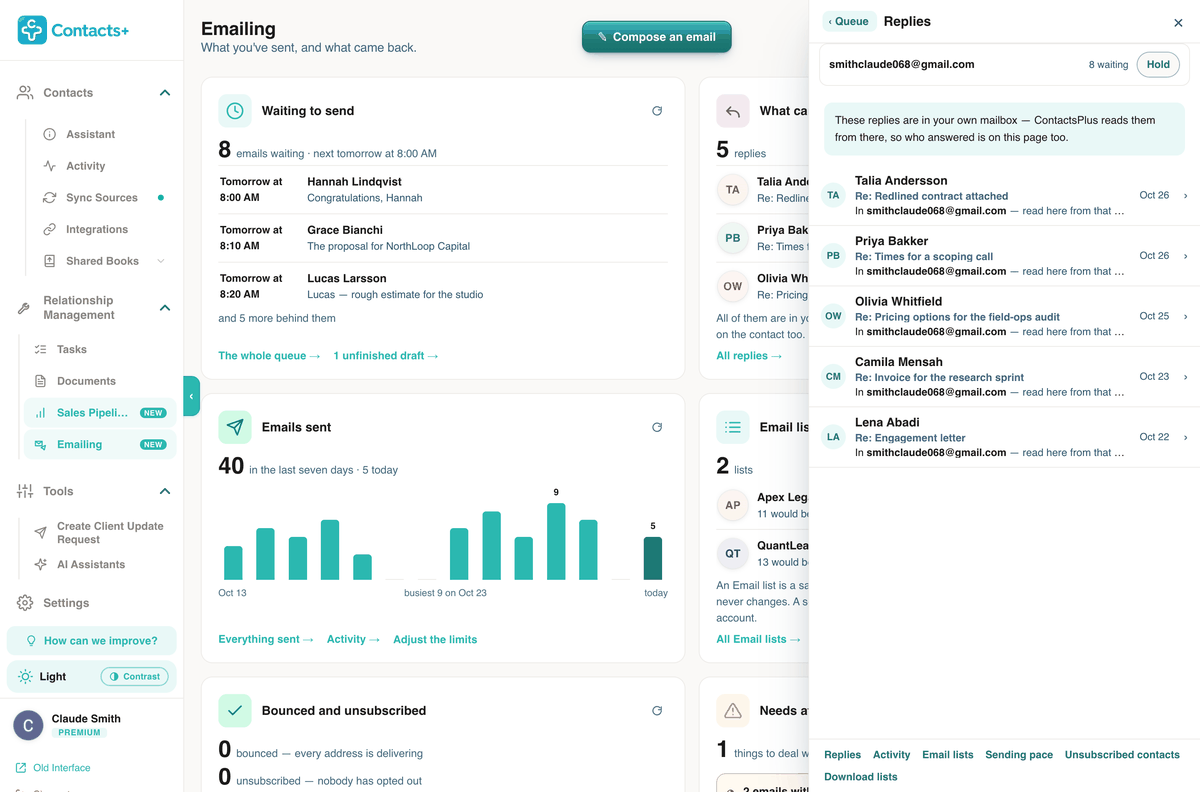
The Emailing page shows what is waiting, who replied, what you’ve sent this fortnight and what needs attention. When someone answers, ContactsPlus notes it on their record and holds back anything else you had queued to them, so nobody gets a follow-up to an email they already answered.
Who replied
Each reply is listed with the email it answered, and you can read it in ContactsPlus, fetched from your own mailbox.
Who hasn’t answered
When an email has gone five days without a reply, ContactsPlus flags it, so you know who to follow up with.
Bounces and unsubscribes
Addresses that bounce and people who unsubscribe are listed, and skipped on later sends.
What ContactsPlus can access in your mailbox
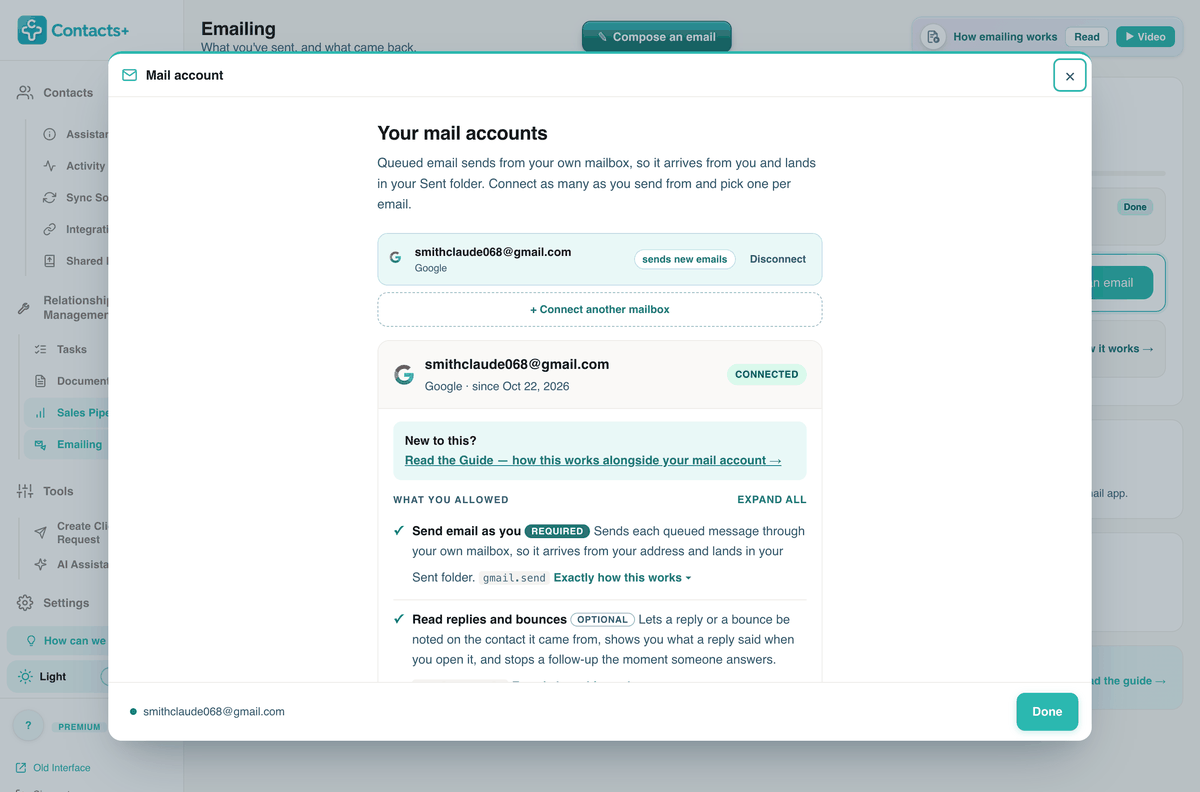
Connecting a mailbox asks Google or Microsoft for three things: to send as you, to read replies to the emails ContactsPlus sent, and to keep sending while you’re signed out. Reading replies is optional. Decline it and your emails still go, but replies aren’t detected.
The account page spells out what ContactsPlus can’t do with that access. It can’t send anything you didn’t queue. It can’t change your mailbox: no labels, filters, forwarding or deletions. And once you disconnect, the stored tokens are removed and anything still waiting is cancelled.
Compared
Gmail’s mail merge, an add-on, or ContactsPlus?
For a one-off announcement to a list you’ll never touch again, Gmail’s built-in merge or a free Sheets add-on is fine. It gets harder when the people on the list are clients you’ll email again next month, and when you need to see replies as well as send.
| ContactsPlus | Gmail’s built‑in merge | Sheets add‑on | |
|---|---|---|---|
| Which accounts | Any Gmail, Google Workspace or Outlook account | Some paid Workspace plans; not personal Gmail or Business Starter | Any Gmail account |
| Where the list comes from | A search of your contacts, current when you send | A Google Sheet or Google Contacts | An export you paste into a sheet |
| Merge fields in the subject | Yes | No | Depends on the add-on |
| Daily limit | Your mailbox’s limit, paced at the rate you set | 1,500 merged emails | Your Gmail limit |
| Replies | In your inbox and on the contact, with later emails to them held back | In your inbox | In your inbox |
| Next time | Open the same list | Pick the list again | Export the contacts again |
Gmail, Workspace and Microsoft
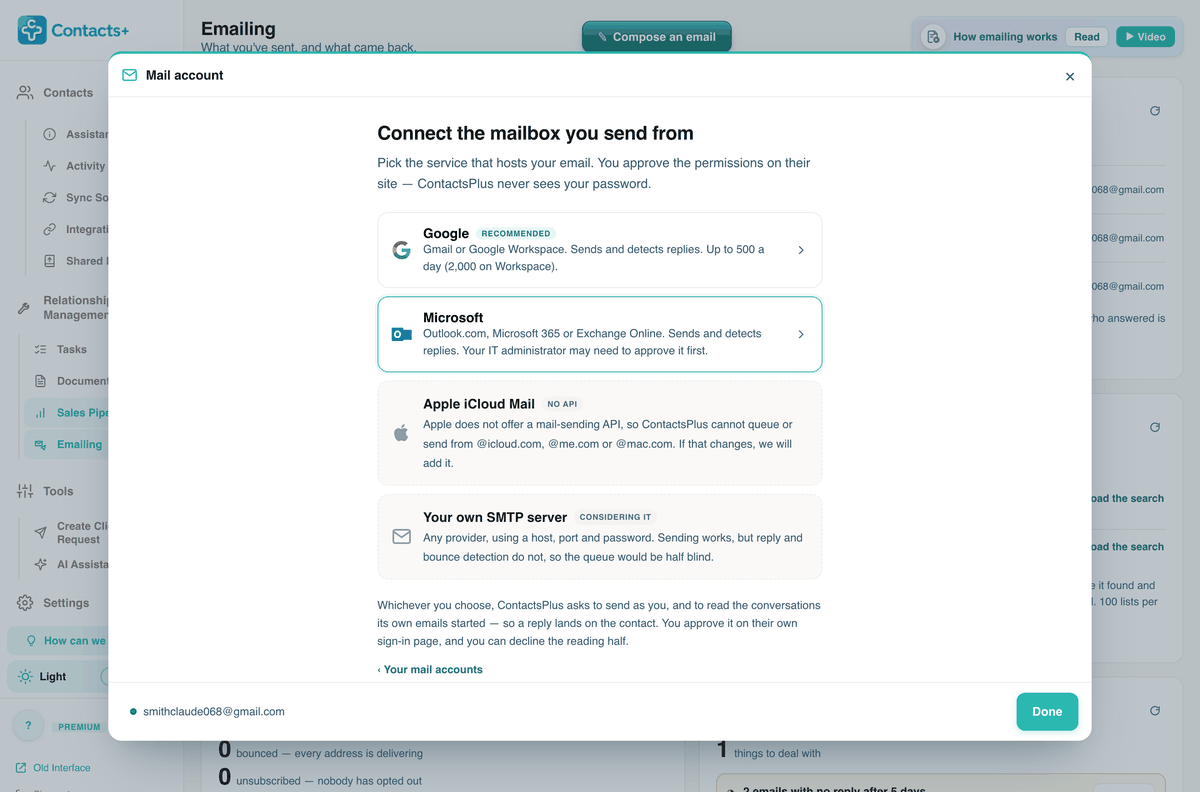
Google is the recommended connection: Gmail sends up to 500 emails a day and Google Workspace up to 2,000. Microsoft covers Outlook.com, Microsoft 365 and Exchange Online, though on a work account your IT administrator may need to approve ContactsPlus first.
Using Outlook? Mail merge in Outlook covers the Microsoft side, including the new Outlook for Windows.
iCloud Mail can’t be connected. Apple doesn’t offer a way for other apps to send from an @icloud.com, @me.com or @mac.com address.
Questions
Before you send the first one
How do I mail merge in Gmail without a spreadsheet?
Connect your Gmail account, open the composer, and use the Individuals and List switch to choose who it goes to. Write the email once and add merge fields such as {{first_name}} or {{company}} from the field panel, which shows the value each field will use for the person you’re looking at. Every recipient gets a separate copy from your Gmail, filed in your Sent folder, so nobody sees anyone else’s address. Because a list is a saved search of your contacts, a new client who matches it is included next time without anyone touching a spreadsheet.
Do the emails come from my own address?
Yes. Each message goes out through the Gmail account you connected, from your address, and a copy is saved in your Sent folder like anything you write by hand. You approve the connection on Google’s own consent screen, and ContactsPlus never sees your password; it keeps an encrypted token instead. If you connect more than one mailbox, the composer’s From line lets you pick which one sends each email. Disconnecting removes the stored token and cancels anything still waiting in the queue.
Which email providers work?
Google accounts come in two kinds: personal Gmail, which Google lets send up to 500 emails a day, and Google Workspace, which allows 2,000. On the Microsoft side, Outlook.com, Microsoft 365 and Exchange Online all work, though a work account may need your IT administrator’s approval first; mail merge in Outlook covers that in detail. iCloud Mail can’t be connected, because Apple offers no way for other apps to send from it, and connecting your own SMTP server is still under consideration.
How many emails can I send a day?
Two limits stack. Your provider sets the ceiling: 500 a day on personal Gmail and 2,000 on Google Workspace. Inside that, ContactsPlus paces the queue at 30 an hour and 250 a day by default, and you can raise or lower both under Sending pace. A newly connected mailbox warms up at 6 an hour for its first four weeks, a gentler start for an account that hasn’t sent in volume before. One send to an Email List can hold up to 1,000 people, and anything beyond the day’s allowance waits for the next day’s slots.
What happens if a merge field is empty?
Nothing goes out with braces in it. The composer flags the problem in a banner, Show me where jumps to the field, and the merge-field panel shows which contacts have no value for it. You can type a fallback such as ‘your team’ that’s used only where the field is empty, open the contact and fill the field in, or take the field out of the message. Until you do, Send now and Add to queue stay unavailable.
Can I see who replied?
Yes, if you allow it. Reading replies is an optional permission you can decline on Google’s consent screen. With it, ContactsPlus checks only the headers of new messages, such as who sent them and which message they answer, to spot replies to emails it sent; it doesn’t read subjects or message text while it checks. A reply is noted on the contact, anything else queued to that person is held back, and opening the reply shows its text, fetched from your mailbox. Without the permission, emails still send but replies aren’t detected.
Do my emails include an unsubscribe link?
You choose per email. With This is a personal email ticked, there’s no unsubscribe line and no ‘why you got this’ note, which suits a message to one client. Untick it for a send to a list and the footer carries an unsubscribe link, with a line for your postal address. People who unsubscribe and addresses that bounce are recorded, listed under Unsubscribed contacts and skipped on later sends, and you can download those lists whenever you need them.
Is mail merge in ContactsPlus free?
Emailing is a Premium feature. A free account can send up to 20 emails in total, enough to try a template, a test and a small list on real contacts. Premium and Teams include Emailing in full, along with Sales Pipeline, tasks and 10 GB of document storage. Test emails to your own inbox don’t count against the allowance, and your provider’s daily limit still applies on every plan. The pricing page compares the plans.
Can I schedule a mail merge?
Yes. The composer’s When it sends panel shows the next free slot, such as tomorrow at 8:00 AM, and the scheduler lets you pick another date and time. A list starts at the time you choose and leaves one slot at a time at your hourly and daily pace, so a long list can run into the next day. Every waiting email sits in the queue with its own send time, where you can push it to the top, edit it, cancel it or send it immediately, and Hold pauses the whole mailbox.
Doesn’t Gmail have mail merge built in now?
Some accounts do. Google added a mail merge to several paid Workspace plans, including Workspace Individual and Business Standard, but not to personal @gmail.com accounts or Business Starter, and on some Enterprise and Education plans it’s limited to internal recipients unless an administrator changes it. It takes its list from a Google Sheet or Google Contacts, can’t put merge fields in the subject line, and caps merged email at 1,500 a day. ContactsPlus doesn’t depend on your plan: it works with any Gmail account and with Outlook.
Email your contacts
from your own inbox
Connect Gmail or Outlook, and your first email can go out today.
Sign up free