
Emailing for Outlook
Mail merge in Outlook,
without Word or Excel
The classic Outlook mail merge runs through Word, takes its list from an Excel file, and doesn’t work reliably in the new Outlook for Windows. ContactsPlus sends from your Outlook.com or Microsoft 365 mailbox instead. Choose contacts from your address book and each gets a personal copy, scheduled and paced.
At a glance
Emailing in ContactsPlus sends personal emails to one contact or a whole list through your own Outlook or Microsoft 365 mailbox, with no Word document and no Excel file. Merge fields fill in from each contact’s record, emails can be scheduled and leave through a paced queue, and every reply is noted on the contact it came from.
- Works with Outlook.com, Microsoft 365 and Exchange Online, as well as Gmail
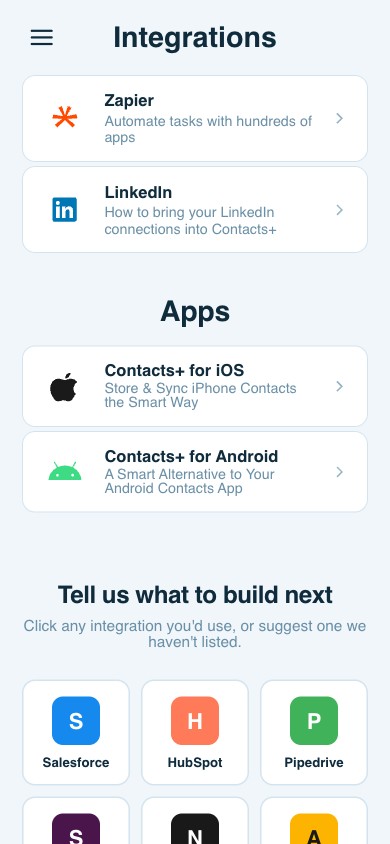
- Runs in the browser, so it doesn’t matter whether you use classic or new Outlook
- Merge fields in the subject and body, with a fallback for any empty field
- Attach a file to every copy
- Included in Premium and Teams; free accounts can send up to 20 emails in total in total
How it works
Sending from Outlook, step by step
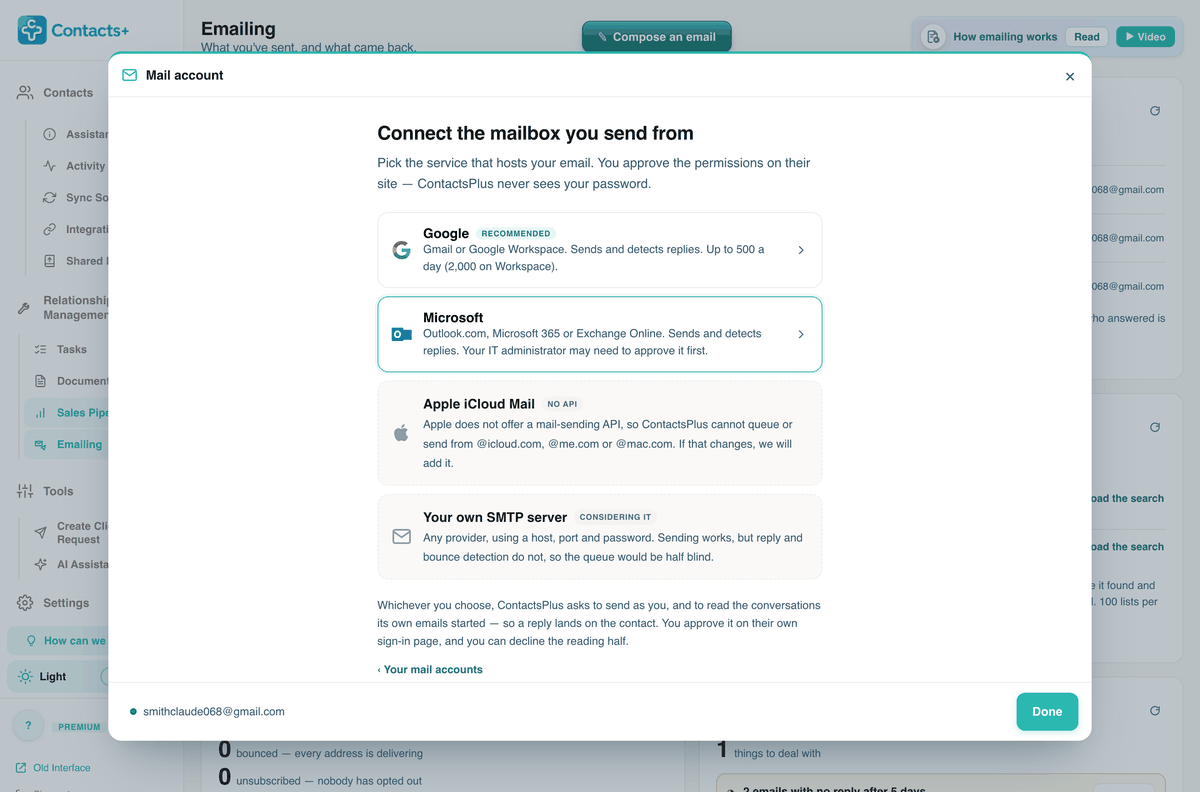
Connect your Microsoft mailbox
Choose Microsoft and approve the connection on Microsoft’s own sign-in page. ContactsPlus never sees your password. On a work or school account, your IT administrator may need to approve ContactsPlus before you can connect.
Choose who it’s for
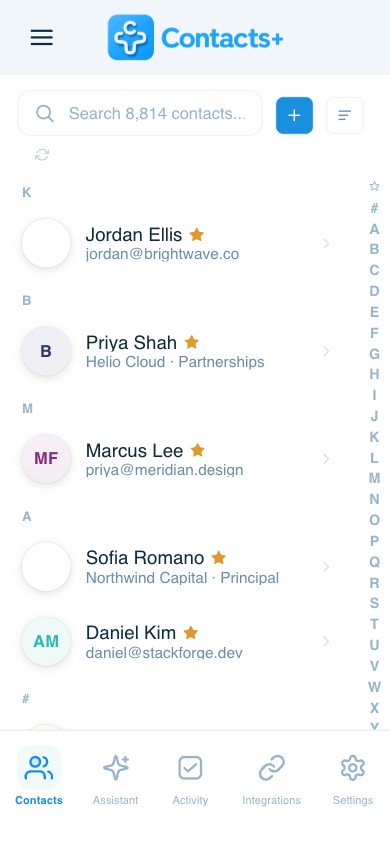
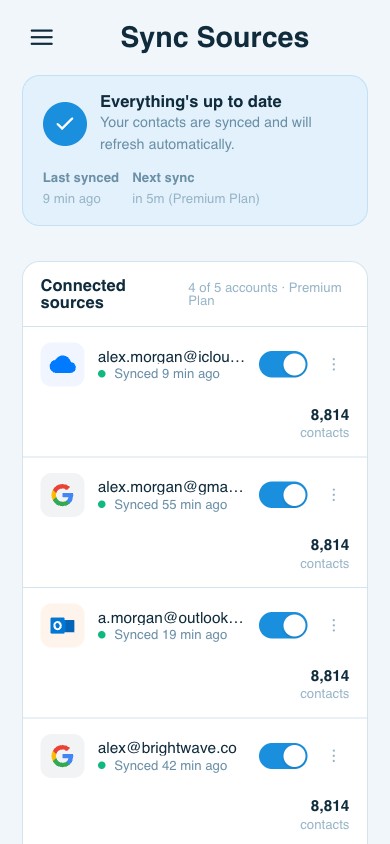
Send to individual contacts or to an Email List, which is a saved search of your contacts, such as everyone at one company. Your Outlook contacts come in through contact sync, so there’s no spreadsheet to export.
Write the email
Begin with a template or an empty message. Insert merge fields like {{first_name}} or {{company}} in the subject or the message, and attach a file if you need to.
Check it
Check each person’s copy before it goes, and mail a test to your own Outlook inbox. Tests don’t use up your sending limits.
Schedule it or queue it
Choose a date and time for it to start, or let it go out as soon as there’s room. A list leaves at the pace you set, inside Microsoft’s sending limits, and an urgent email can go straight away.
Compared
Word and Excel mail merge, or ContactsPlus?
Word’s merge is free and works for a one-off letter. Sending to clients is where it struggles. It hands every message to Outlook at once and can’t attach a file.
| ContactsPlus | Word + Excel merge | |
|---|---|---|
| New Outlook for Windows | Works in the browser, either way | Only partly supported; classic Outlook needed |
| Where the list comes from | A search of your contacts, current when you send | An Excel file or your Outlook contacts |
| Attachments | Attach a file to every copy | Not in Word’s email merge |
| Sending | Scheduled, then paced at the rate you set | All at once, into your Outbox |
| Replies | In your inbox and on the contact, with later emails to them held back | In your inbox |
| Next time | Open the same list | Rebuild the merge |
Empty merge fields are caught before sending
ContactsPlus stops the send and shows you which contact is missing the value, so nobody gets a stray set of braces. Add a fallback for those contacts, fill the field in on the record, or remove the field.
- Merge fields come from the contact record: name, company, title, email, phone and more
- Each contact’s values are shown to you before you send
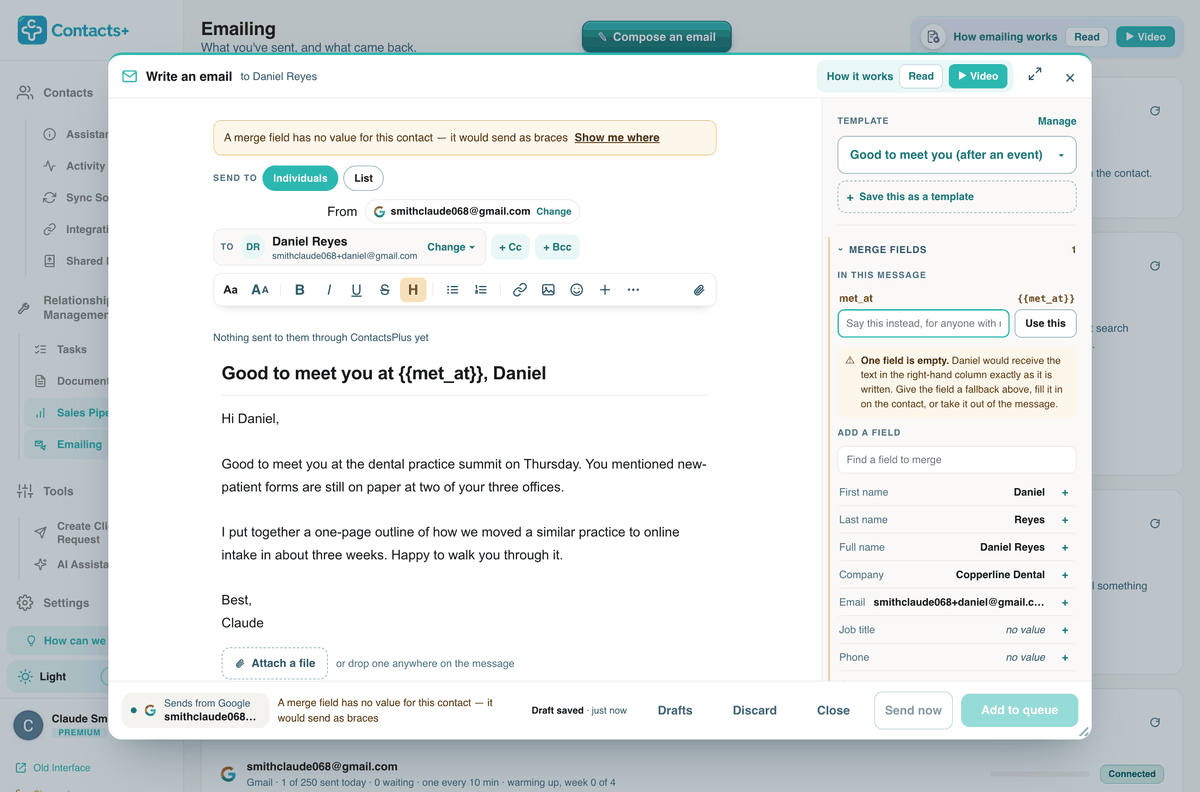
Shown with a Gmail mailbox. With Outlook connected, the From line shows your Outlook address.
Scheduling and pacing
Inside Microsoft’s sending limits
Microsoft caps a Microsoft 365 work mailbox at 10,000 recipients a day and 30 messages a minute. Outlook.com allows up to 5,000 a day for Microsoft 365 subscribers, less for other accounts and for new ones. ContactsPlus sends 30 emails an hour and 250 a day by default, both adjustable, and a newly connected mailbox warms up at 6 an hour.
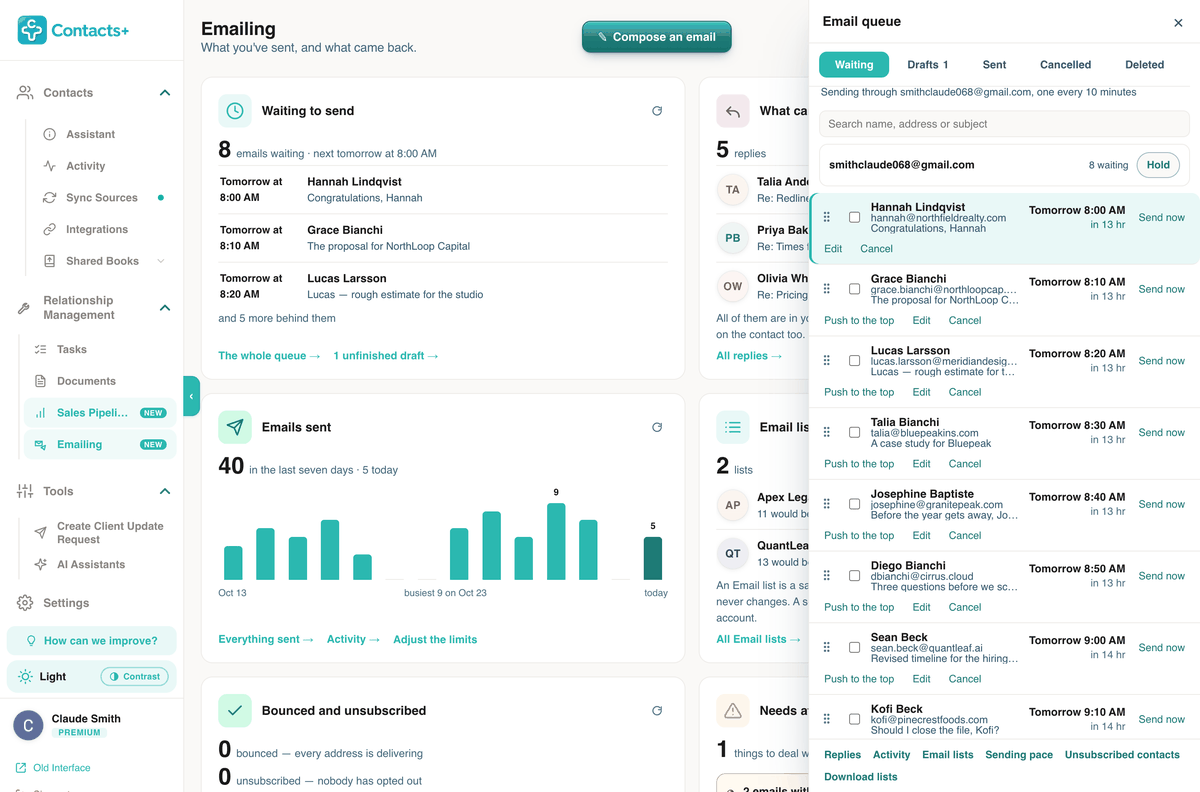
Shown with a Gmail mailbox; the queue works the same way for Outlook.
Schedule a send
Pick the date and time a list should start. It begins then and goes out at your hourly and daily pace, so a Tuesday-morning send to a long list doesn’t land all at once.
Every email has a time
You can see when every email is due to leave, and change the order, edit, cancel or pause any of them before it does.
Replies stop the rest
When someone answers, the reply is noted on their record and anything else queued to them is held back.
The history lives on the contact
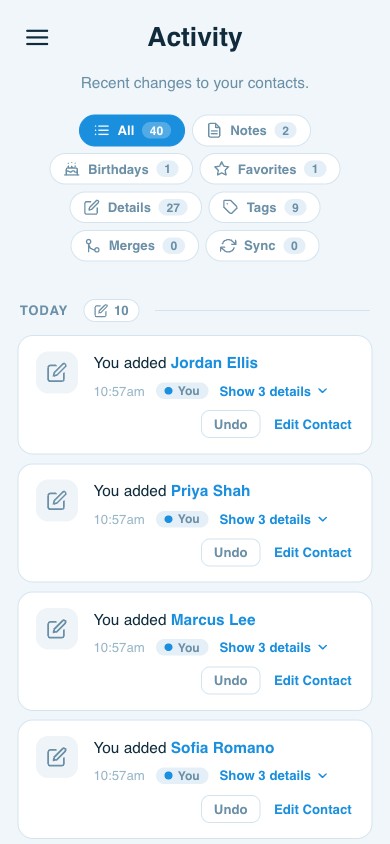
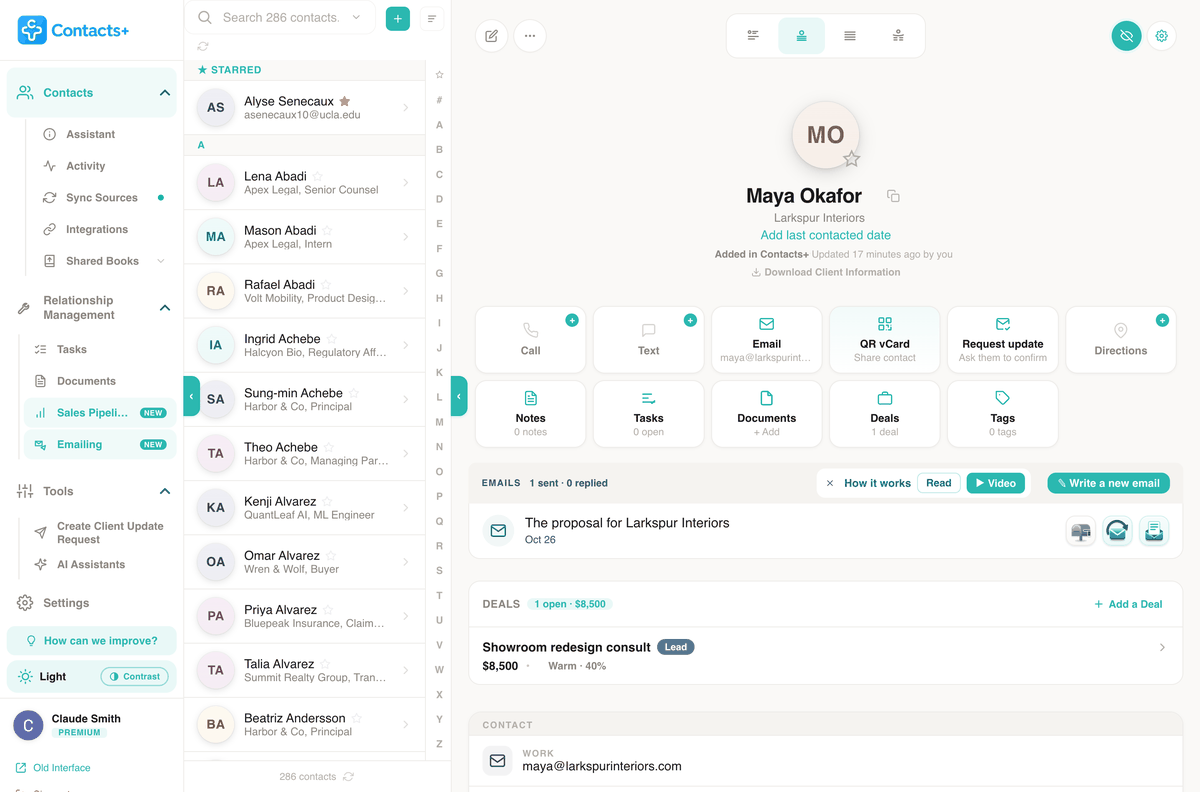
Every email you send from ContactsPlus shows on the contact’s page, with a count of how many were answered, next to their deals in the sales pipeline. Before a call you can see what you sent and whether they wrote back, without searching Outlook.
Bounces and unsubscribes are recorded too, and skipped on later sends.
Questions
Before you send from Outlook
How do I mail merge in Outlook without Word?
Connect your Microsoft mailbox, open the composer, and pick who it’s for: individual contacts, or an Email List built from a contact search. Write the message once and drop in merge fields like {{first_name}} or {{company}}. The panel beside the editor shows what each field will say for the person you’re previewing. Each recipient gets a separate email from your Outlook address, saved to Sent Items, so no one sees the rest of the list. The list lives in ContactsPlus as a saved search, so there’s no Word document to rebuild and no Excel file to refresh before the next send.
Does it work with the new Outlook for Windows?
Yes. Word’s email merge hands its messages to the Outlook app on your computer, and the new Outlook for Windows only partly supports that, which is why merged messages can sit in the Outbox and never send. ContactsPlus doesn’t use the Outlook app. Once an email is queued, it sends from your Microsoft mailbox on schedule. Which Outlook you have open doesn’t matter, and neither does whether your computer is on. The sent messages then appear the same way in classic Outlook, new Outlook and Outlook on the web.
Which Microsoft accounts can I connect?
Microsoft 365 business and school mailboxes, Exchange Online, and personal Outlook.com addresses. You sign in and approve the connection on Microsoft’s own page. Some organisations block third-party apps until an administrator consents, so on a work account you may need to ask IT before it connects. You can add several mailboxes, Gmail and Google Workspace included, and choose the sender for each email from the composer’s From line. iCloud Mail is the one exception. Apple offers no way for other apps to send from it.
How many emails can I send a day from Outlook?
The limit depends on the account: 10,000 recipients a day and 30 messages a minute on a Microsoft 365 work mailbox, up to 5,000 a day on Outlook.com for Microsoft 365 subscribers, and less on other and newer accounts. Go over and Microsoft blocks the mailbox. It stays blocked until the past 24 hours drop back under the limit. ContactsPlus sends 30 emails an hour and 250 a day by default. Both are adjustable, and a new mailbox warms up at 6 an hour. One send to an Email List holds up to 1,000 people.
Can I schedule a mail merge in Outlook?
Yes. The composer’s When it sends field shows the next free slot, and the scheduler sets a later date and time. A list starts then and goes out at your hourly and daily pace, so a long one can take more than a day. While it runs, the queue lists every waiting email with its own time: move one to the front, open it to edit, cancel it or send it straight away, or press Hold to pause everything from that mailbox.
Can I attach a file to a mail merge?
Yes. Use Attach a file or drop one anywhere on the message, and the same attachment goes with every copy, which Word’s email merge can’t do; that gap is why many Outlook users end up buying an add-in. Merge fields work in the subject line too, so ‘The proposal for {{company}}’ arrives as ‘The proposal for Larkspur Interiors’. Preview shows each finished message, attachment included, before anything is queued.
Is mail merge in ContactsPlus free?
Emailing is part of Premium and Teams. A free account can send up to 20 emails in total, so you can connect Outlook and run a real test before paying. Sending a test to yourself doesn’t use that allowance. Microsoft’s own daily limits still apply to your mailbox on every plan. The pricing page compares the plans.
Email your contacts
from your Outlook address
Connect your Microsoft mailbox and try it with up to 20 emails on a free account.
Sign up free