
Android to iPhone
Transfer contacts from
Android to iPhone
Switching platforms sounds like the hard version of this problem, but contacts are usually the easy part — because Google contacts don’t need converting to work on an iPhone. What actually causes trouble is everything that was never in the Google account in the first place.
At a glance
Add your Google account to the iPhone and turn Contacts on. No export file, no cable, no transfer app — the contacts simply appear.
- Move device-only and SIM contacts into Google first
- Let the Android phone finish syncing before you switch
- Add the Google account on the iPhone and enable Contacts
- Choose deliberately where new contacts get saved
Step by step
Moving the list across
Get everything into the Google account
On the Android phone, open the contacts app and check which account each contact belongs to. Anything sitting on the device itself or on a SIM needs moving into the Google account, because that is the part that travels.
Let it finish syncing
Leave it on Wi-Fi until syncing completes. Starting the switch while contacts are still uploading is one of the most common reasons a list arrives partially.
Add the account on the iPhone
On the iPhone, add the same Google account and turn Contacts on for it. Your contacts appear in the standard Contacts app — there is no import step and no file to move.
Decide where new contacts get saved
This is the step people skip and regret. Set the default account deliberately, or you will start adding some people to Google and others to iCloud, and be back to a split list within weeks.
Merge anything doubled up
If an iCloud account is also in play, some people will now exist twice. See removing duplicate contacts.
What gets left behind
The contacts that don’t make the trip
Switching platform exposes anything that was stored outside your Google account. These are the usual casualties.
Device-only contacts
Saved to the handset rather than an account, so there is nothing in the cloud to add to the iPhone. These have to be moved into Google before you switch, or exported while you still can.
SIM contacts
They technically survive, but stripped to a name and a number. Emails, photos and second numbers are dropped by the storage format itself.
Contacts in a second Google account
Plenty of Android phones have a work account as well as a personal one. Only the account you add to the iPhone comes across.
App-specific contacts
People who only ever existed inside a messaging app were never in your address book to begin with, so no contact transfer will produce them.
Anything mid-sync
Contacts added shortly before the switch may not have uploaded yet. A quick check that syncing has finished avoids a confusing gap.
The tidy version of your list
Everything arrives, including years of dead numbers and duplicates. A switch is a good moment to clean up rather than carry the mess forward.
After the switch
You now have contacts in two ecosystems
This is the part nobody warns you about. Keeping the Google account on your iPhone works, but from now on some contacts save to Google and some to iCloud, and neither side has the full picture. Unifying them is what stops the split becoming permanent.
Google and iCloud in one list
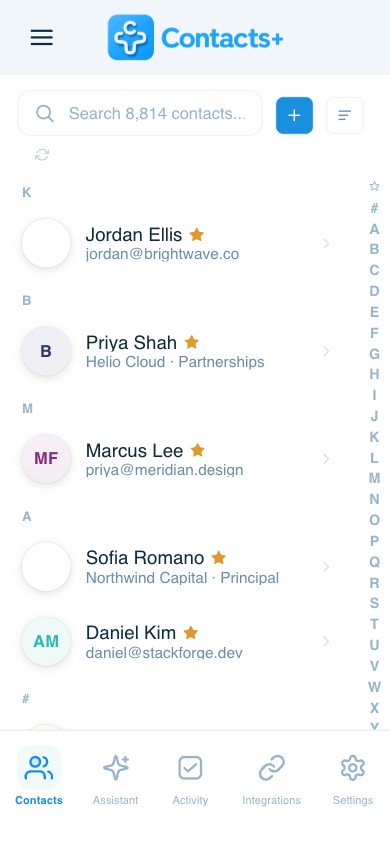
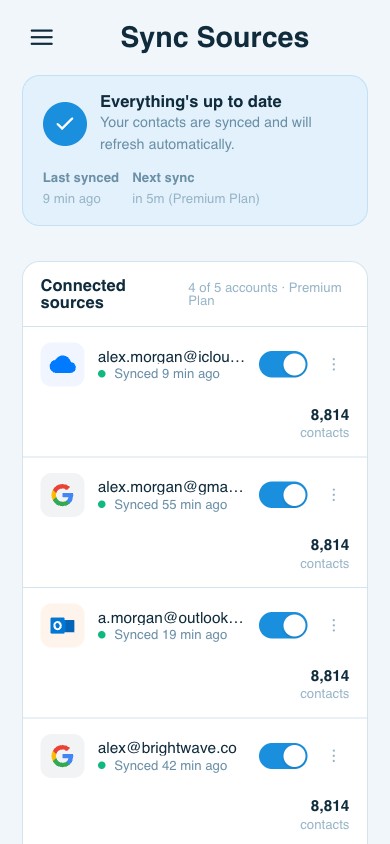
ContactsPlus keeps both accounts unified, so it stops mattering which one a contact was saved to. See how contact sync works.
One record per person
Merge the duplicates a platform switch creates, reviewing each field so you keep the better value rather than guessing.
Fill in what the move dropped
Enrichment adds publicly available details to thin records, which is useful when a chunk of your list arrived from a SIM. See contact enrichment.
The other direction
Going the other way: iPhone to Android
The same problem mirrored. Instead of adding a Google account to an iPhone, you are getting contacts out of iCloud and into Google — and iCloud is the less willing of the two.
Get the contacts out of iCloud
The reliable route is a computer rather than the phone: sign in to iCloud, open Contacts, select everyone and export them as a single vCard file.
Import the file into Google
Open Google Contacts on the same computer and import the vCard. Everything in it lands in the Google account your new Android phone will sign into.
Check what the file dropped
vCard carries the standard fields well. Custom labels, linked cards and relationship fields are the ones that tend not to survive the round trip, so spot-check a few records you care about.
Sign in on the Android phone
Add the Google account, turn contacts syncing on, and the imported list appears. From here the contacts live in an account rather than a handset, which is what stops this happening again.
FAQ
Frequently asked questions
Do I have to use a transfer app or a cable?
Not for contacts. If your contacts are in a Google account, adding that account to the iPhone brings them across. Transfer apps and cables mainly matter for photos, messages and app data, or for contacts that were only ever saved to the Android handset.
Will I lose photos, notes or extra fields?
Contacts synced through a Google account generally keep their structured fields. Detail is most often lost when contacts are exported to a file or were stored on a SIM, since SIM storage keeps little more than a name and a number.
Should I keep using my Google account on the iPhone?
You can, and many people do. The problem is that contacts then live in two ecosystems at once, and new ones get saved to whichever account happens to be the default that day. Unifying the accounts is what stops that drift.
Why do some contacts show only a phone number?
That is the signature of a SIM-based contact. SIM storage typically holds a name and one number, dropping emails, addresses and photos, so the record arrives stripped down rather than incomplete by accident.
Can I move back later without redoing this?
If your contacts are unified rather than tied to one ecosystem, yes. That is the point of keeping Google, iCloud and Outlook in one list instead of migrating between them each time you change platform.
More on moving contacts
Switch platform without splitting your contacts.
Keep Google and iCloud unified, so it stops mattering which phone you picked.
Start free