
Import contacts
Import contacts
from a CSV or Excel file
Every account imports a spreadsheet a little differently, and one of them — iCloud — won’t take a CSV at all. Here are the real steps for an iPhone, Google or Outlook, what to fix in the file first, and why importing an old export is the most common way to double up your contacts.
At a glance
Excel files need converting to CSV first; CSV is what Google and Outlook actually import. iCloud is the exception — it only accepts vCard, so a CSV headed for an iPhone goes through Google Contacts on the way.
- Excel → Save As or Export as CSV, keeping the header row
- Google and Android both import the same CSV at contacts.google.com
- Outlook imports a CSV directly from People > Manage contacts
- Re-importing an old export is the most common way people create duplicates
Step by step
How to import contacts to an iPhone
The case people ask about most, and the one Apple makes hardest: there is no CSV import anywhere in iCloud or the Contacts app.
Get the file into CSV format
If you’re starting from Excel, use Save As or Export and choose CSV, picking UTF-8 encoding if it’s offered. Keep the header row — it’s what maps each column to a field on the way in.
Import the CSV into Google Contacts
iCloud doesn’t accept CSV files at all, only vCard, so the fastest route starts in Google. On a computer, go to contacts.google.com, choose Import, select the file, and import. Lists over 3,000 contacts need splitting into more than one CSV first, and anything that doesn’t map to a normal field lands in the contact’s notes rather than getting dropped.
Bring those contacts onto the iPhone
Add the Google account under Settings > Apps > Contacts > Contacts Accounts, and every contact just imported appears in the Contacts app without a second step.
Or go by vCard instead
If you’d rather not keep a Google account connected, export the contacts you just imported back out of Google as a vCard, then open icloud.com/contacts on a computer, use the options menu and choose Import Contact to bring the vCard into iCloud directly.
Check the count
Open Contacts on the phone and compare the number against the rows in the original file. Anything short is usually a formatting issue in the original CSV worth fixing before importing again.
Before you import
Getting the file right first
Most import problems are the spreadsheet, not the app you’re importing into. Four things to check before you upload it anywhere.
Excel needs converting first
None of Google, Outlook or iCloud import an .xlsx file directly. Save As or Export as CSV in Excel, and pick UTF-8 encoding if it’s offered — Microsoft recommends it because it works for every language.
Keep the header row
Every importer on this page reads the first row as field names and maps the columns from it. Delete it and “First Name” becomes a stray contact instead of a column heading.
Split large lists
Google asks you to split an import over 3,000 contacts into more than one CSV. Worth checking the row count before you start rather than partway through an upload.
Odd columns aren’t lost
Google puts anything that doesn’t map to a standard field — a “referred by” column, say — into the contact’s notes rather than dropping it, so a messy column is inconvenient, not fatal.
By account
Import contacts to Google, Outlook or Android
Each account has its own import screen. None of them are complicated once you know where to look.
Google Contacts, and Android
On a computer, go to contacts.google.com, choose Import, select your CSV or vCard file, and import. An Android phone’s Contacts app reads directly from the same Google account, so this is also how a CSV gets onto Android — there’s no separate step. Going the other way? See exporting Google contacts.
Outlook, or Outlook.com
In new Outlook or Outlook.com, open People, choose Manage contacts, then Import contacts, and browse to the CSV. UTF-8 encoding gives the best results, especially with accented or non-Latin names.
iCloud, directly (vCard only)
Open icloud.com/contacts on a computer, use the options menu and choose Import Contact — but only for a vCard file. iCloud has no CSV import at all, which is why the iPhone route above goes through Google first.
Worth knowing before you import
Why importing an old export creates duplicates
Bringing a file back into an account rarely goes as cleanly as taking it out. This is where most import-day duplicates come from.
Same person, twice
Import a CSV that already overlaps your address book — an old export, a spreadsheet built from a stack of conference badge scans, a list that’s already partly synced from Google — and most importers create a second copy of anyone already there rather than recognizing them.
Imports barely check first
Most import screens add every row as a new contact. Classic desktop Outlook asks what to do with duplicates at import, but it only compares against that one Outlook account, not your Google or iCloud lists.
It compounds over time
Import the same spreadsheet twice, six months apart, and the second pass doesn’t update the first — it adds another copy on top of it. See removing duplicate contacts.
One import, everywhere
Import once, into one unified address book
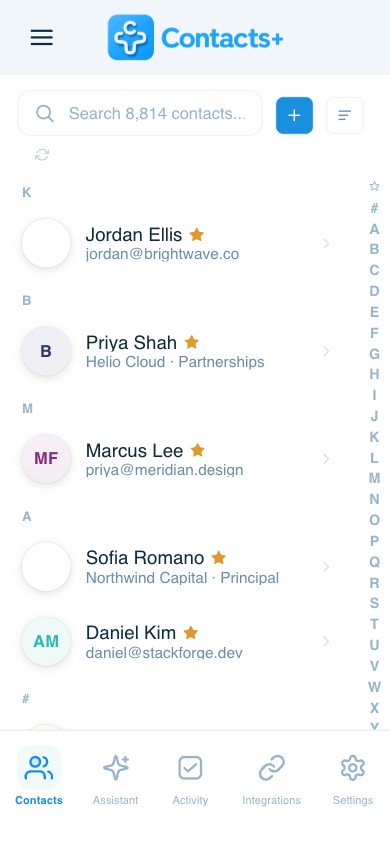
Skip the Google-then-vCard detour. Import into ContactsPlus and the file reaches every connected account on its own.
Import once, everywhere
Upload a CSV, Excel or vCard file and it merges straight into the same unified, de-duplicated address book — no separate import for each connected account.
Reaches the iPhone on its own
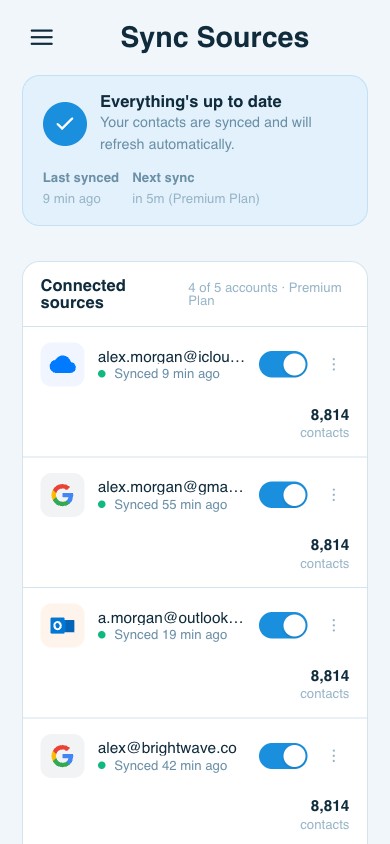
Sync is two-way across Google, iCloud and Outlook, so contacts imported into ContactsPlus reach every connected account automatically — the shortcut for the manual Google-then-vCard route above. See how contact sync works.
Clean as it goes
On Premium, duplicate detection and merging run across every connected account, so a CSV that already overlaps your address book doesn’t quietly double it. Premium connects up to five accounts and 25,000 contacts.
Import and export as CSV, Excel or vCard is on every plan — see pricing
FAQ
Frequently asked questions
Can I import a CSV file straight into my iPhone?
No. iCloud only accepts vCard files, not CSV. The reliable route is to import the CSV into Google Contacts first, then either add that Google account to the iPhone’s Contacts accounts or export a vCard from Google and import it into iCloud.
How do I import an Excel spreadsheet of contacts?
Save or export the spreadsheet as a CSV first — Excel’s Save As or Export as CSV, ideally with UTF-8 encoding — then import that CSV wherever you need it: Google Contacts, Outlook or ContactsPlus, which also accepts an Excel file directly.
How do I import contacts into Google Contacts from a CSV or Excel file?
On a computer, go to contacts.google.com, choose Import, select the CSV (export Excel as CSV first), and import. Lists over 3,000 contacts need splitting into more than one file, and Google offers a CSV template if you want to start from a clean header row.
How do I import contacts into Outlook from a CSV?
In new Outlook or Outlook.com, open People, choose Manage contacts, then Import contacts, and browse to the CSV. UTF-8 encoding gives the best results, especially with accented or non-Latin names.
Does importing a CSV into Android work the same way as Google?
Yes. An Android phone’s Contacts app reads directly from your Google account, so importing a CSV at contacts.google.com is also how contacts get onto an Android phone — there’s no separate Android import step.
Why do imported contacts sometimes show up as duplicates?
Because import tools don’t check whether the person is already there. Re-importing an old export, or a CSV that overlaps your existing list, is one of the most common ways address books end up with duplicates.
More on moving and cleaning contact data
One file in. One clean address book out.
Import a CSV, Excel or vCard file and keep Google, iCloud and Outlook unified from there on.
Start free