
Google Contacts
Export Google contacts
to CSV or vCard
Google has the most straightforward contacts export of the three big providers: three formats, one screen, no wizard. The catch is the same as everywhere else — it can only ever hand you one Google account.
At a glance
Google Contacts exports as Google CSV, Outlook CSV or vCard, from contacts.google.com on a computer. Your Gmail contacts and your Google contacts are the same list under two names.
- Export everything, a selection, or a single label
- Google CSV to go back into Google; Outlook CSV to go into Outlook
- vCard keeps photos and richer fields that either CSV drops
- One Google account per export, and nothing from iCloud or Outlook
Step by step
How to export Google contacts
Do this on a computer. The mobile app can manage contacts but the export is a desktop job.
Open Google Contacts on a computer
Go to contacts.google.com and check the account shown in the corner is the one holding the contacts you want. People with a personal Gmail and a Workspace account routinely export the wrong one and conclude half their contacts have vanished.
Choose what you want to export
You can take everything, tick individual contacts, or pick a single label. Exporting one label is the neat way to hand over a project or event list without handing over your entire address book.
Open the export option and pick a format
Google offers three: Google CSV for importing back into Google, Outlook CSV for importing into Outlook, and vCard for Apple devices and anything else that expects a real contact file.
Download the file
It downloads straight away, with no confirmation step to wait for. A CSV is meant to be opened in a spreadsheet; a vCard is meant to be imported into a contacts app rather than read.
Open the CSV in Excel or Google Sheets
Import the file rather than double-clicking it, and set the encoding to UTF-8 so accented and non-Latin names survive the trip. In Google Sheets, import the CSV into a new sheet and it lands as one row per person.
Choosing between the three
Which format, and what each one costs you
The formats aren’t equivalent. Picking on habit is how photos and second phone numbers disappear without anyone noticing for a year.
Google CSV
The round-trip format. Use it when the file is going back into a Google account, or when you want a spreadsheet with Google’s own field names on the columns.
Outlook CSV
The same data with column headings Outlook recognises. It saves a lot of manual field mapping if the destination really is Outlook, and means nothing anywhere else.
vCard
The contact format itself. It keeps photos, several numbers and the richer fields a spreadsheet can’t represent, which makes it the better choice for a genuine backup.
What both CSVs drop
Photos first. Then anything repeating gets flattened into fixed columns, which is why a CSV from one provider so often imports untidily into another.
Gmail contacts and Google contacts
They are the same list. Contacts you created from Gmail live in Google Contacts, and exporting from there covers them.
Clean it up first
Google’s own merge tool is worth running before you export, so the file holds one record per person. See removing duplicate Google contacts.
Where the file stops helping
An export is a backup, not a way to move house
Most people exporting from Google are trying to get those contacts somewhere else. That is the job an exported file is worst at.
Connect Google rather than copying it
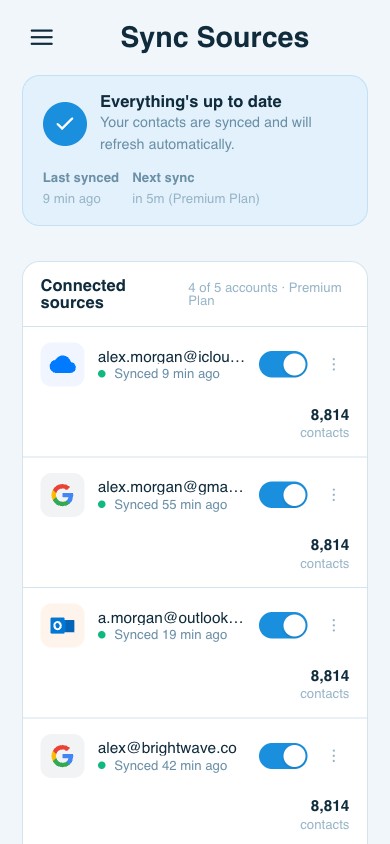
ContactsPlus connects Google alongside iCloud and Outlook and keeps them unified, so the same people stay current everywhere without a file in the middle. See how contact sync works and syncing Google contacts.
Merge across accounts, not just Google
Google’s merge tool only sees one Google account. ContactsPlus finds the same person across Google, iCloud and Outlook together and merges field by field, so you export one record each.
Then export the whole thing
CSV or vCard, at any time, on any plan, covering every connected account in one file. Premium connects up to five accounts and 25,000 contacts. See pricing.
FAQ
Frequently asked questions
Which export format should I choose in Google Contacts?
Google CSV if the file is going back into Google, Outlook CSV if it is going into Outlook, and vCard if it is going to an Apple device or you want the fullest copy. vCard keeps photos and richer fields that both CSV options drop.
How do I export Google contacts to Excel?
Export as Google CSV, then import the file into Excel rather than double-clicking it, setting the encoding to UTF-8. Google Sheets handles the same file by importing it into a new sheet. Either way you get one row per contact and one column per field.
Can I export just one label instead of everything?
Yes. Select a label before you export and only those contacts are included, which is the tidy way to hand over a project list or an event list without handing over your entire address book.
Does the export include contacts from my other Google accounts?
No. The export covers the single Google account you are signed in to. A second personal account, a Workspace account and any contacts kept in iCloud or Outlook all sit outside it and need exporting separately.
Why did my exported Google contacts import as duplicates?
Because the import had no way of knowing those people were already there. Bringing a CSV back into an account that already holds the same contacts produces two of each, and a nickname or a missing photo is enough to stop the account recognising them as one person. Merging after the fact is easier than untangling it later.
Take the copy. Keep the list.
Unify Google, iCloud and Outlook contacts, and export the whole lot whenever you want.
Start free