
Share contacts on iPhone
How to share contacts
on iPhone
Sending one person’s card takes about five seconds, and the steps are below. Sending fifty is harder, and keeping a list in step with a colleague is something the iPhone can’t do at all — because every card you send becomes their copy, not your record.
At a glance
Open the contact, tap Share Contact, then send it by AirDrop, Messages or Mail. That sends a copy of the card — which is exactly right for one introduction, and not enough for a team.
- AirDrop is the quickest route between two iPhones in the same room
- Your iPhone may ask which details to include before it sends
- Several at once: select them in iCloud on a computer and export one vCard
- A shared card is a copy — your later edits never reach it
- ContactsPlus gives a team one shared list that updates for everyone
The built-in route
How to share a contact card on iPhone
This is the right tool for handing one person’s details to someone else. Do it this way — it is quick, private, and needs nothing installed.
Open Contacts and tap the person
Open the Contacts app, or the Contacts tab in the Phone app, and tap the person you want to send.
Tap Share Contact
Scroll down the card and tap Share Contact. Your iPhone may first ask which details to include, so you can leave out a home address or a private number.
Choose how to send it
Pick AirDrop for another iPhone in the room, or Messages or Mail to send it anywhere. Either way you are sending a vCard file, not giving access to anything.
They save it to their own contacts
The other person opens the card and saves it. From that moment they hold their own separate copy, and nothing you change later reaches it.
To send several at once, use iCloud on a computer
The Contacts app shares one card at a time. Sign in to iCloud on a computer, open Contacts, select the people you want, and export them as a single vCard file you can send in one go.
Where it runs out
A shared card is a copy, not a shared contact
Nothing above is a workaround. It is simply built for introductions, and it starts to hurt the moment more than one person needs the same list.
Your edits never arrive
Fix a number after you have sent the card and their copy stays wrong. There is no update, no notification, and no way to know how many stale copies are out there.
One card at a time
The Contacts app has no multi-select, so sharing a real list means either a computer and a vCard export, or a lot of tapping.
iCloud doesn’t share contacts
Apple happily shares photos, notes, reminders and calendars with a group. Contacts aren’t on that list, which is why there is no team answer hiding in Settings.
AirDrop needs the room
The fastest route only works when both phones are together. Remote colleagues are back to sending files, which is where the copies start multiplying.
The context doesn’t travel
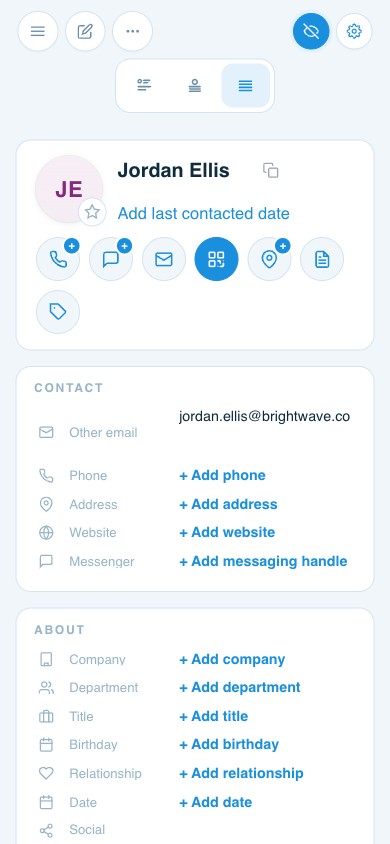
A vCard carries the number, not what was agreed, who owns the relationship, or when anyone last spoke to them.
Every import makes duplicates
Saved cards land on top of people already in the address book. Worth merging duplicate iCloud contacts before it compounds.
How it works instead
One shared list, on everyone’s phone
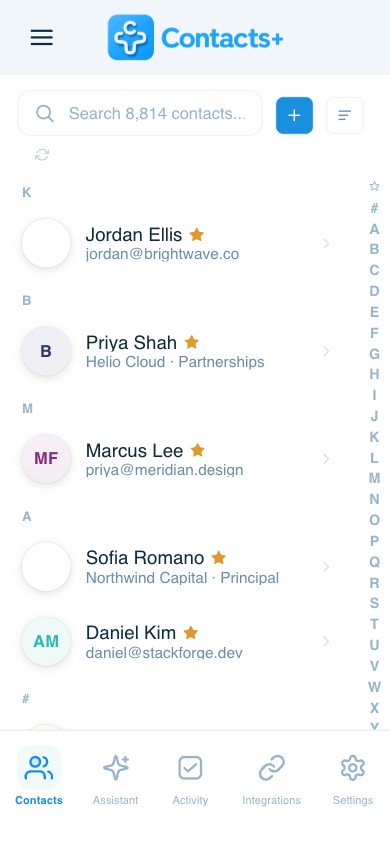
ContactsPlus connects the iCloud account your iPhone already syncs, so the shared list is the same people — without anyone sending a card.
A shared address book
One set of contacts for the whole team. An add or an edit by anyone updates everyone’s view in real time, so a corrected number is corrected everywhere at once.
Roles you control
Owner, Admin and Member roles decide who can manage the team, who can edit shared contacts, and who can only view them.
Shared notes and an owner
Notes the whole team can see, and an assignable contact owner, so the context lives on the record rather than in one person’s messages.
Not only Apple
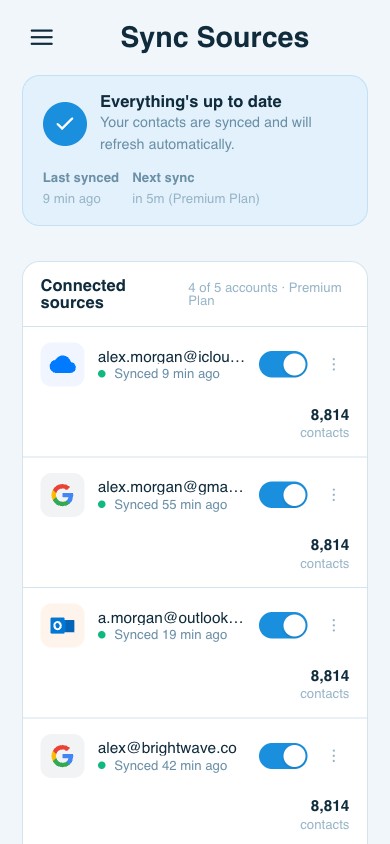
iCloud, Google and Outlook accounts connect together, so an iPhone team with a couple of Windows colleagues still works from one list. See how contact sync works.
Cards in, without the mess
Scan business cards from the phone and add them straight to the shared list, then let duplicate detection catch anything already there. See business-card scanning.
Yours to take with you
Enrichment fills in details nobody typed, and CSV and vCard export are always available, so the list never becomes something you can’t get back out. See the mobile apps.
Other platforms
Sharing from somewhere other than an iPhone?
Most teams are a mix of phones and providers, and the mechanics differ for each one.
Shared contacts for Gmail
What Google actually lets you share, where a Workspace directory stops being enough, and how to give a team one list instead.
Share a contact list in Outlook
Sharing a contacts folder in Outlook and Microsoft 365, and what recipients can and can’t do with it.
All the ways to share contacts
The overview: what sharing should mean, why the usual approaches fail, and how a shared address book is different.
Which plan
Shared contacts come with Teams
The shared address book, roles and shared notes are part of ContactsPlus Teams, which adds unlimited contacts and syncs up to 10 accounts, against 5 on Premium. See the full pricing for current plan details.
FAQ
Frequently asked questions
How do I share a contact from iPhone to iPhone?
Open the contact, tap Share Contact, and choose AirDrop if the other iPhone is nearby. AirDrop is the fastest route between two iPhones in the same room. Messages or Mail does the same job over any distance.
How do I share multiple contacts from an iPhone at once?
There is no multi-select in the iPhone Contacts app, so the practical route is a computer: sign in to iCloud, open Contacts, select the people you want and export them as a single vCard file. For a list a team keeps using, a shared address book is the better answer than a bigger file.
Is sharing a contact the same as holding two iPhones together?
No. Bringing two iPhones close together swaps your own contact card, and a contact poster only changes how you appear when you call. Both are about your own details — Share Contact is how you send someone else’s card.
I shared a contact and then updated the number. Why did their copy not change?
Because you sent a file, not a link to your record. A shared contact card is a copy from the moment it is saved, so every later correction has to be sent again. That is the limit a shared address book removes.
Can a team share one iPhone contact list?
Not through iCloud. Apple lets families and groups share photos, notes, reminders and calendars, but contacts aren’t on that list, so any team sharing is done by sending cards. ContactsPlus gives the same team one shared address book instead, where anyone’s add or edit updates everyone’s view in real time.
Does everyone need an iPhone for this to work?
No. ContactsPlus connects iCloud, Google and Outlook accounts together, so the person on an iPhone and the person on Microsoft are on the same list. Teams syncs up to 10 accounts and Premium 5.
Which plan includes shared contacts?
The shared address book, roles and shared notes are part of ContactsPlus Teams, which also gives unlimited contacts. See the pricing page for current plan details.
Share the list, not another copy.
One shared address book for the whole team, on every phone they already use.
Start free