
Outlook
Export Outlook contacts
to a CSV file
Outlook exports contacts perfectly well. The hard part is that Microsoft ships three different Outlooks, each of which hides the command somewhere else. Here is the route in each, and what the file will and won’t contain.
At a glance
Outlook exports contacts as a CSV file, one contacts folder at a time. Where the command lives depends on whether you are in classic Outlook, new Outlook or Outlook on the web.
- Classic desktop Outlook: File, then Open and Export, then Import and Export
- New Outlook and the web version: with the settings for the People area
- The file is CSV, so photos and some repeating fields don’t survive
- It covers that mailbox only, never your Google or iCloud contacts
Step by step
How to export contacts from Outlook
The wording moves between versions and between updates, so this describes the action rather than promising an exact menu label that Microsoft may have renamed since.
Work out which Outlook you are in
Classic desktop Outlook for Windows, the newer Outlook app, Outlook on the web and Outlook for Mac all export contacts, and all of them put the command in a different place. Establishing which one is on screen removes most of the hunting.
Open the contacts area
Switch to People — the part of Outlook that lists contacts rather than mail. Every export route starts either here or in the file menu alongside it.
Run the export command
In classic desktop Outlook the route is File → Open & Export → Import/Export → Export to a file. In new Outlook and Outlook on the web the export sits with the settings for the People area and downloads a file straight away, without a wizard.
Choose comma separated values and the contacts folder
Pick the comma separated values option, then select the contacts folder you actually want. If you have more than one mailbox connected, the folder list will show more than one Contacts entry, and choosing the wrong one is the usual reason an export comes back nearly empty.
Open the file and check the count
Open the CSV in Excel or Google Sheets and compare the row count with what you expected. Then repeat the whole thing for any other mailbox, because one export covers one account.
What the file leaves behind
Things people are surprised by afterwards
A CSV is a grid, and a contact isn’t. Some of what Outlook holds has nowhere to go in a spreadsheet.
Photos don’t come with it
Contact pictures aren’t text, so a CSV can’t carry them. If the photos matter, the export isn’t the copy you want.
Repeating fields get flattened
Three phone numbers and two addresses have to be squeezed into fixed columns, named the way Outlook names them — which is rarely the way the next app expects.
It is one mailbox, not your contacts
A work Microsoft account, a personal one and a shared mailbox each need a separate export, and none of them can see the people who live in Google or iCloud.
Duplicates come along for the ride
New Outlook hides duplicate contacts from view rather than merging them, so a list that looks clean on screen can export longer than you expect. See duplicate contacts in Outlook.
Encoding can mangle names
Accented and non-Latin names arrive scrambled if the CSV is opened by double-clicking. Import it and set the encoding to UTF-8 instead.
It is out of date on arrival
The file is a snapshot of that mailbox at that moment. Every change made afterwards happens in Outlook and not in your copy.
If the export is really a move
Exporting to escape Outlook usually backfires
Most people exporting from Outlook aren’t backing up. They are trying to get those contacts somewhere else — and a CSV round trip is the worst available way to do it.
Connect Outlook instead of copying it
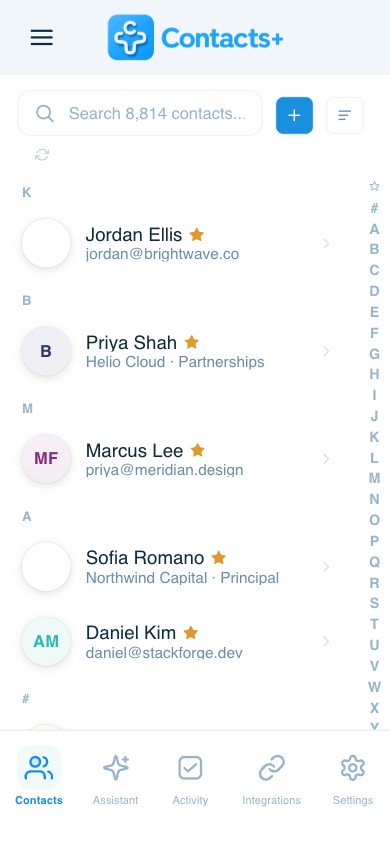
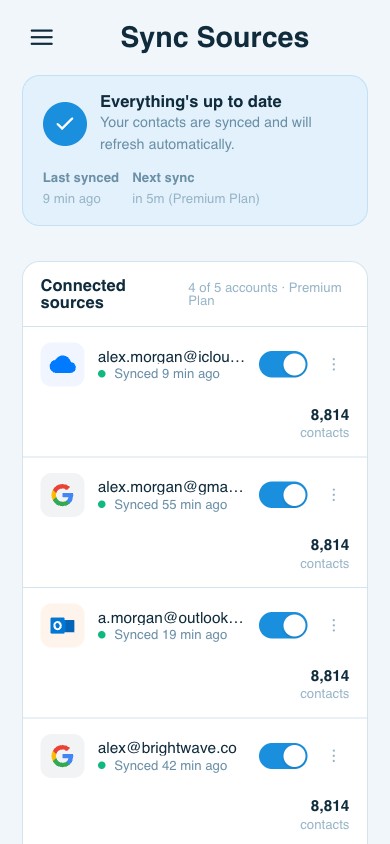
ContactsPlus connects Microsoft and Outlook accounts alongside Google and iCloud and keeps them unified, so the same people stay current in all of them without a file passing between. See how contact sync works and syncing Outlook contacts.
Merge before you copy anything
Duplicate detection and merging run across every connected account at once, field by field, so what leaves is one record per person rather than the three Outlook was quietly hiding.
Then export whenever you like
CSV or vCard, on any plan, covering the whole unified list rather than one mailbox. Premium connects up to five accounts and 25,000 contacts. See pricing.
FAQ
Frequently asked questions
Where is the export option in Outlook?
It depends which Outlook you are in. Classic desktop Outlook keeps it under File, then Open and Export, then Import and Export, then Export to a file. New Outlook and Outlook on the web put it with the settings for the People area, where it downloads a CSV directly. Outlook for Mac has its own export command in the file menu.
Can Outlook export contacts as a vCard?
Bulk export from Outlook is built around CSV. You can save an individual contact as a vCard, and forward a contact as a vCard attachment, but there is no equivalent of the one-click whole-address-book vCard that Apple produces. If you need a vCard of everything, export the unified list from ContactsPlus instead.
Does the export include every Outlook account?
No. An export covers the contacts folder you select, in the mailbox you select. A second Microsoft account, a shared mailbox or a separate work profile each need their own export, and none of them will contain the contacts sitting in your Google or iCloud accounts.
Why does my exported CSV look wrong in Excel?
Usually character encoding. Accented names and non-Latin scripts can arrive garbled if the file is opened by double-clicking rather than imported with the encoding set to UTF-8. Importing the file through the data import route in Excel or Google Sheets, and choosing UTF-8, fixes it.
How do I get Outlook and Google contacts into one file?
No provider can do it, because each one only sees its own account. Exporting both and stitching the files together gives you every duplicate twice. ContactsPlus connects Google, iCloud and Outlook together, merges the duplicates across all of them, and exports the single unified list as CSV or vCard.
Export it. Just stop depending on it.
Keep Outlook, Google and iCloud contacts unified, and take a copy whenever you want one.
Start free